

Access
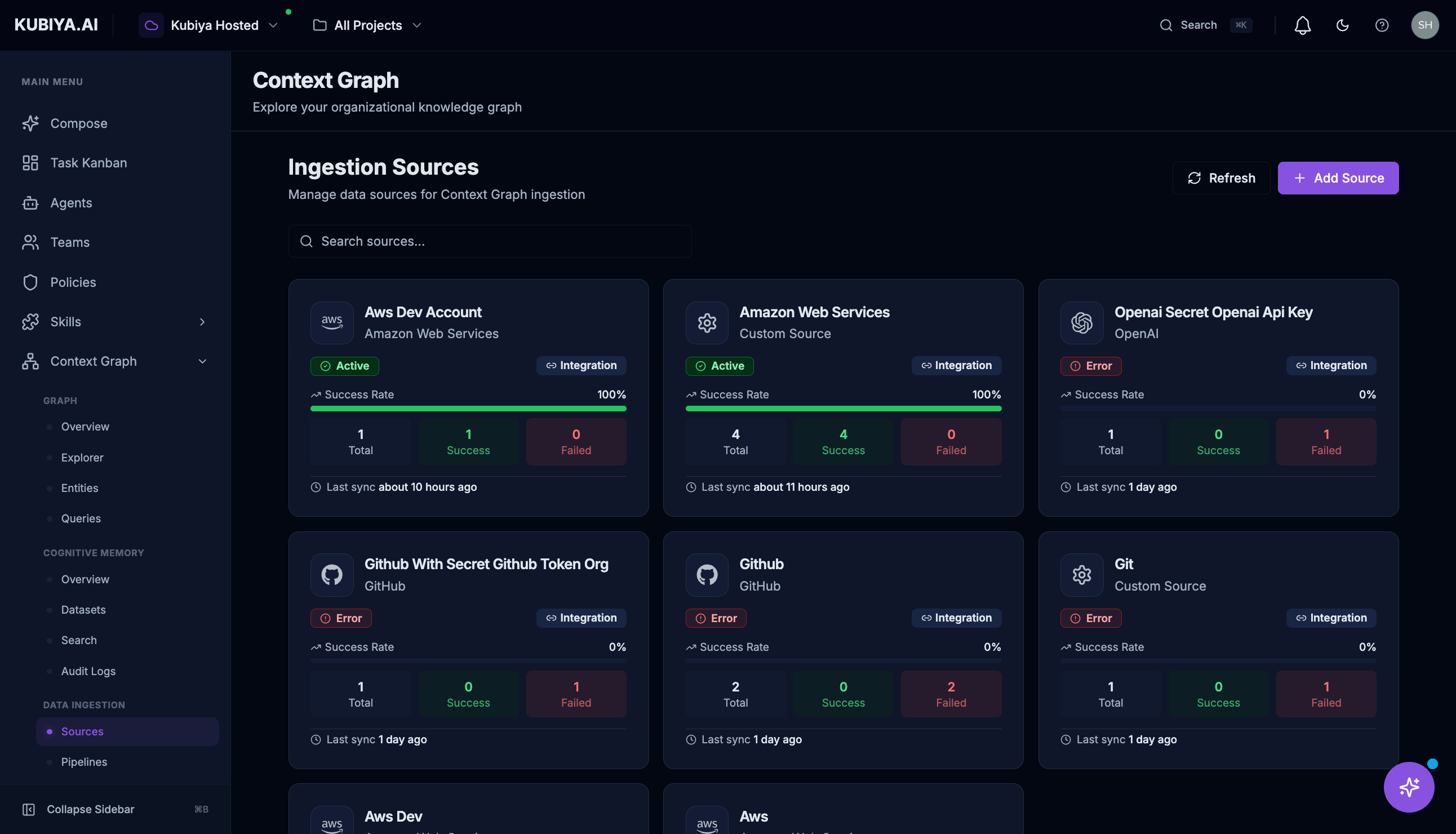
Click Context Graph in the sidebar, then under DATA INGESTION:- Sources - Manage connected data sources
- Pipelines - View ingestion pipelines
- Activity - Monitor ingestion activity
Ingestion Sources
The Sources page shows all connected data sources that feed entities into your Context Graph.Source Cards
Each source displays:Status Indicators
- Active (green) - Source is syncing successfully
- Error (red) - Recent sync failures
- Inactive (gray) - Source is disabled or not configured
Adding a Source
Click + Add Source to connect a new data source: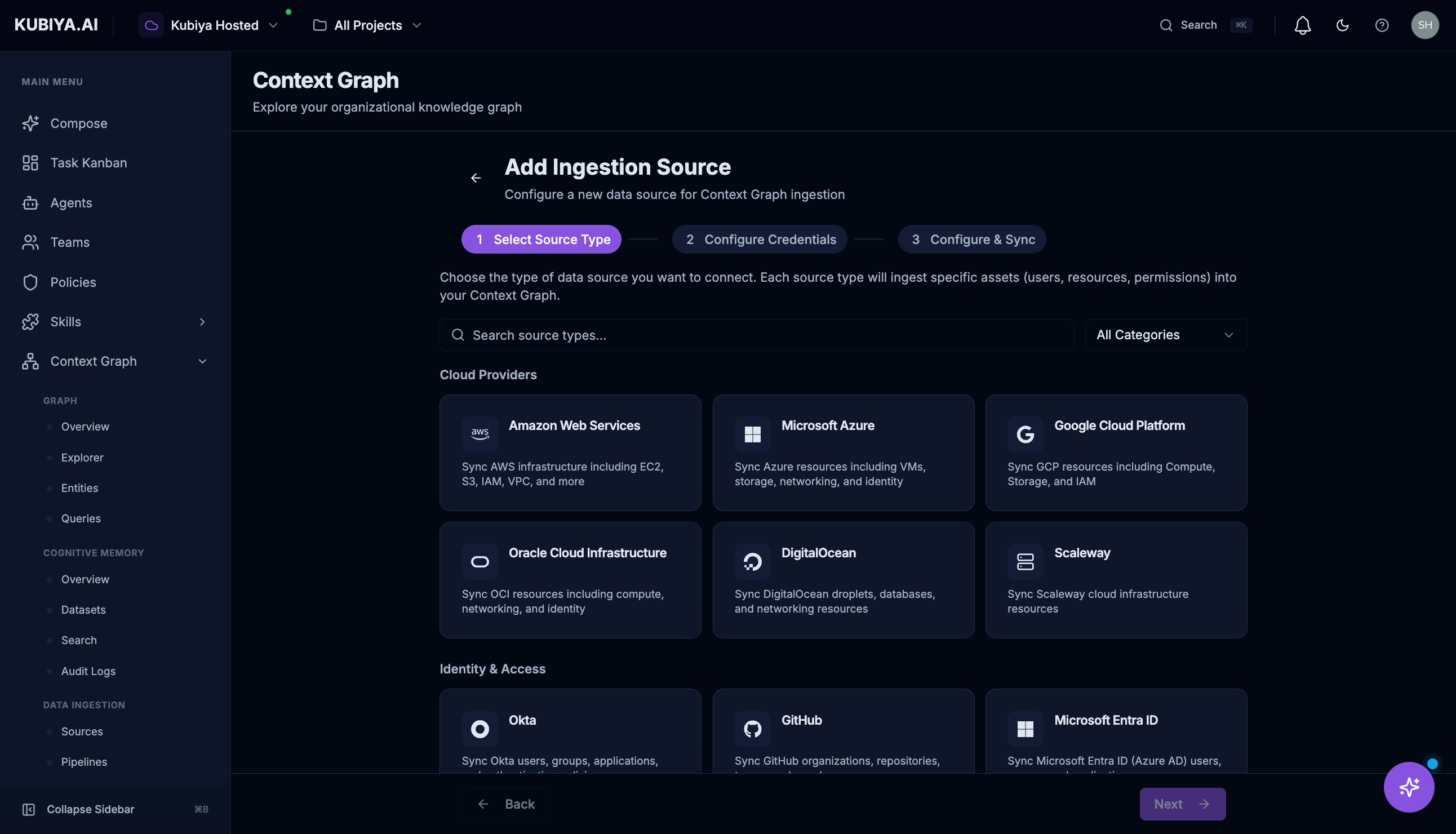
-
Select Provider
- AWS
- GitHub
- GitLab
- Azure
- GCP
- Kubernetes
- Custom sources
- Configure Connection
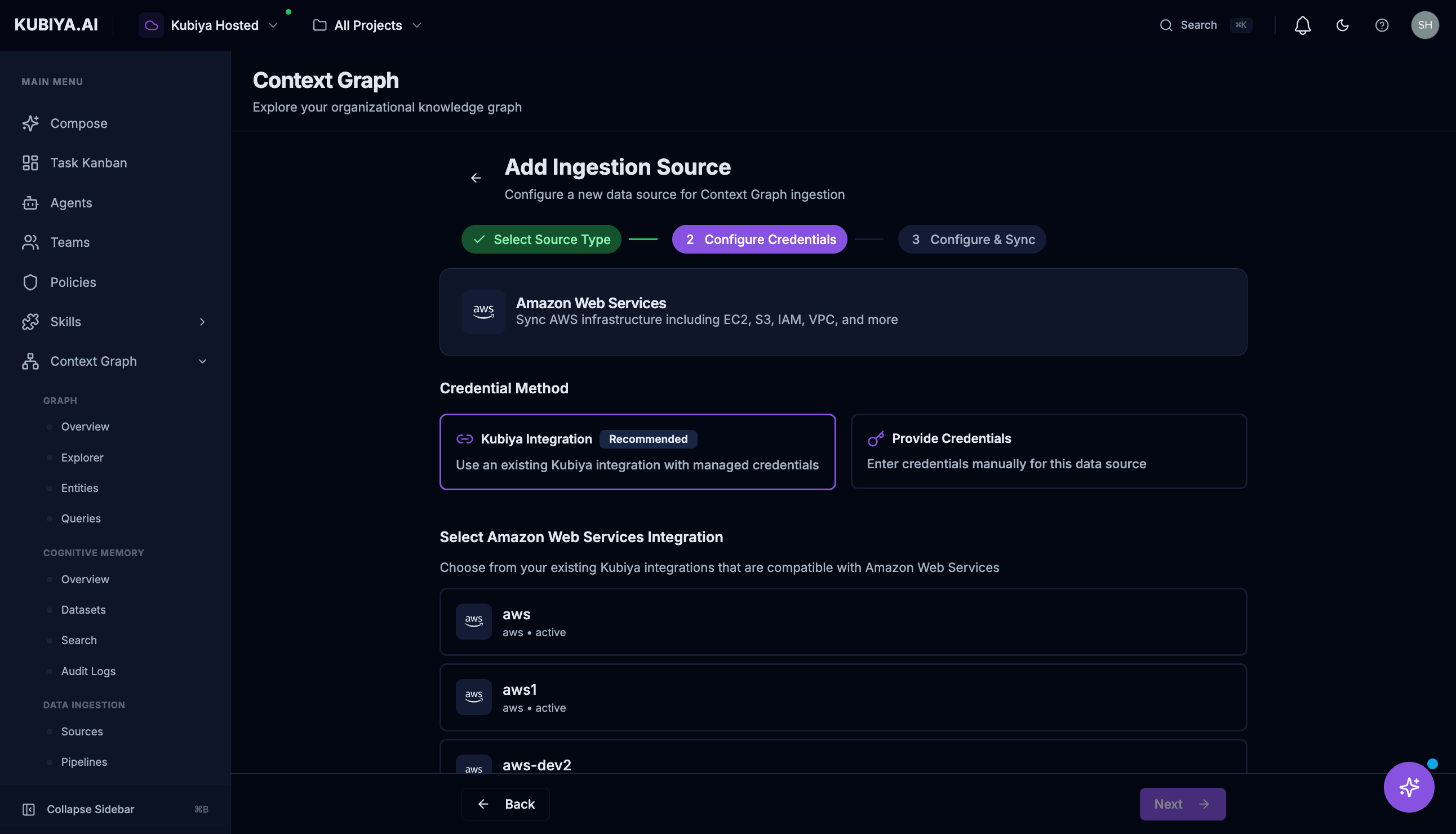
- Enter credentials or connection details
- For AWS: Role ARN, Region, Account ID
- For GitHub: Organization, access token
- For custom: API endpoint, authentication
-
Set Sync Schedule
- Continuous
- Hourly
- Daily
- Custom cron expression
- Review and Connect
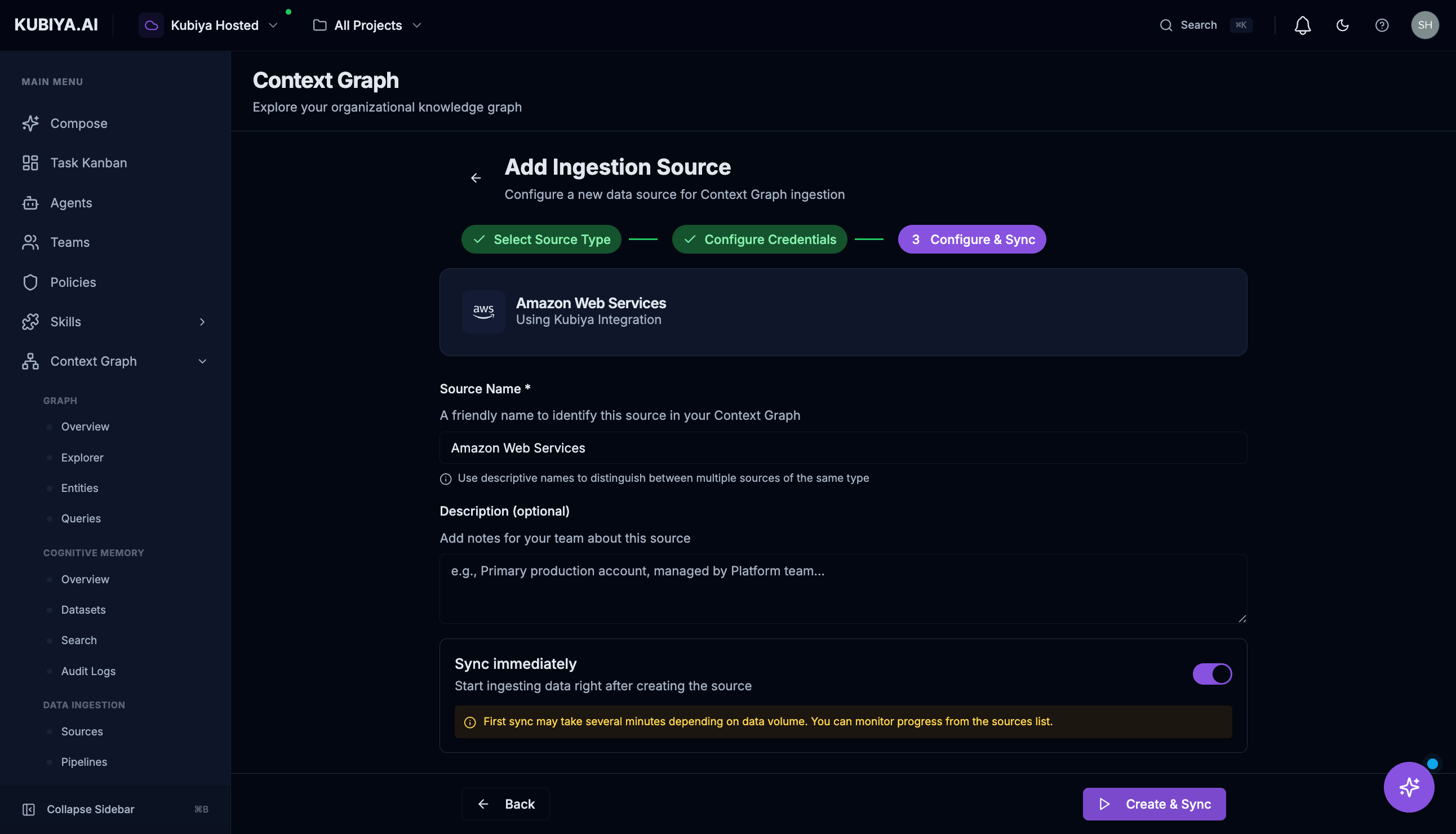
- Verify configuration
- Test connection
- Start initial sync
Managing Sources
Click View Details on any source to:- View detailed sync history
- Edit configuration
- Trigger manual sync
- Disable or delete the source
AWS Integration Example
Prerequisite: You must first set up an AWS connector with an IAM trust relationship before adding AWS as an ingestion source. Follow the Connect AWS guide to create the IAM role and connector.
- Click + Add Source
- Select Amazon Web Services
- Enter:
- Account ID: Your AWS account number
- Region: Primary region (e.g., us-east-1)
- Role ARN: IAM role for Kubiya to assume (created in the AWS connector setup)
- Click Connect
Required IAM Permissions
For comprehensive AWS indexing:GitHub Integration Example
To connect a GitHub organization:- Click + Add Source
- Select GitHub
- Authenticate with GitHub OAuth or enter a token
- Select organizations and repositories to index
- Click Connect
- Repositories
- Users and teams
- Pull requests
- Issues
- Code structure
Pipelines
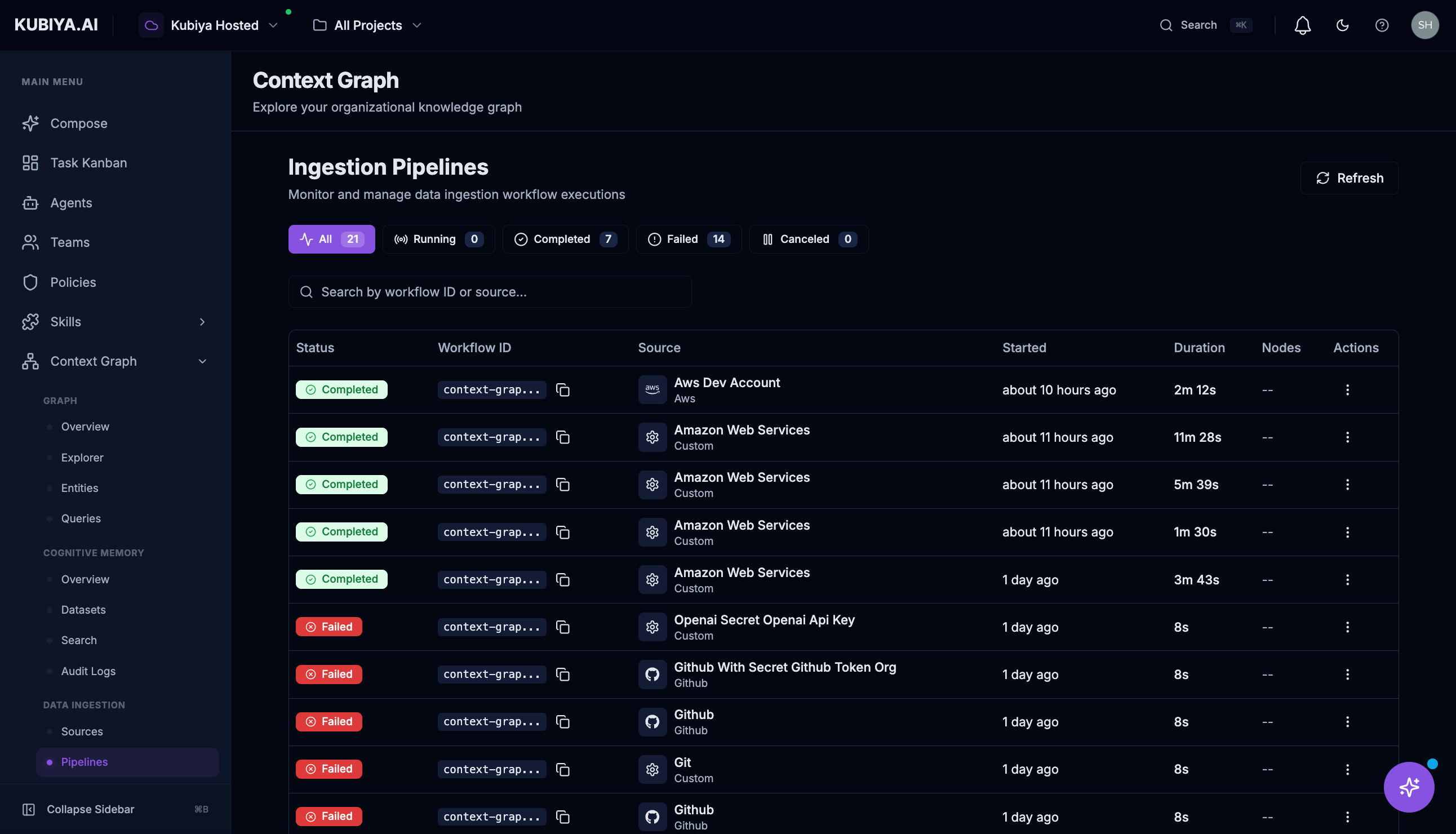
- Active pipelines - Currently running
- Scheduled pipelines - Next run times
- Failed pipelines - Errors requiring attention
Activity Log
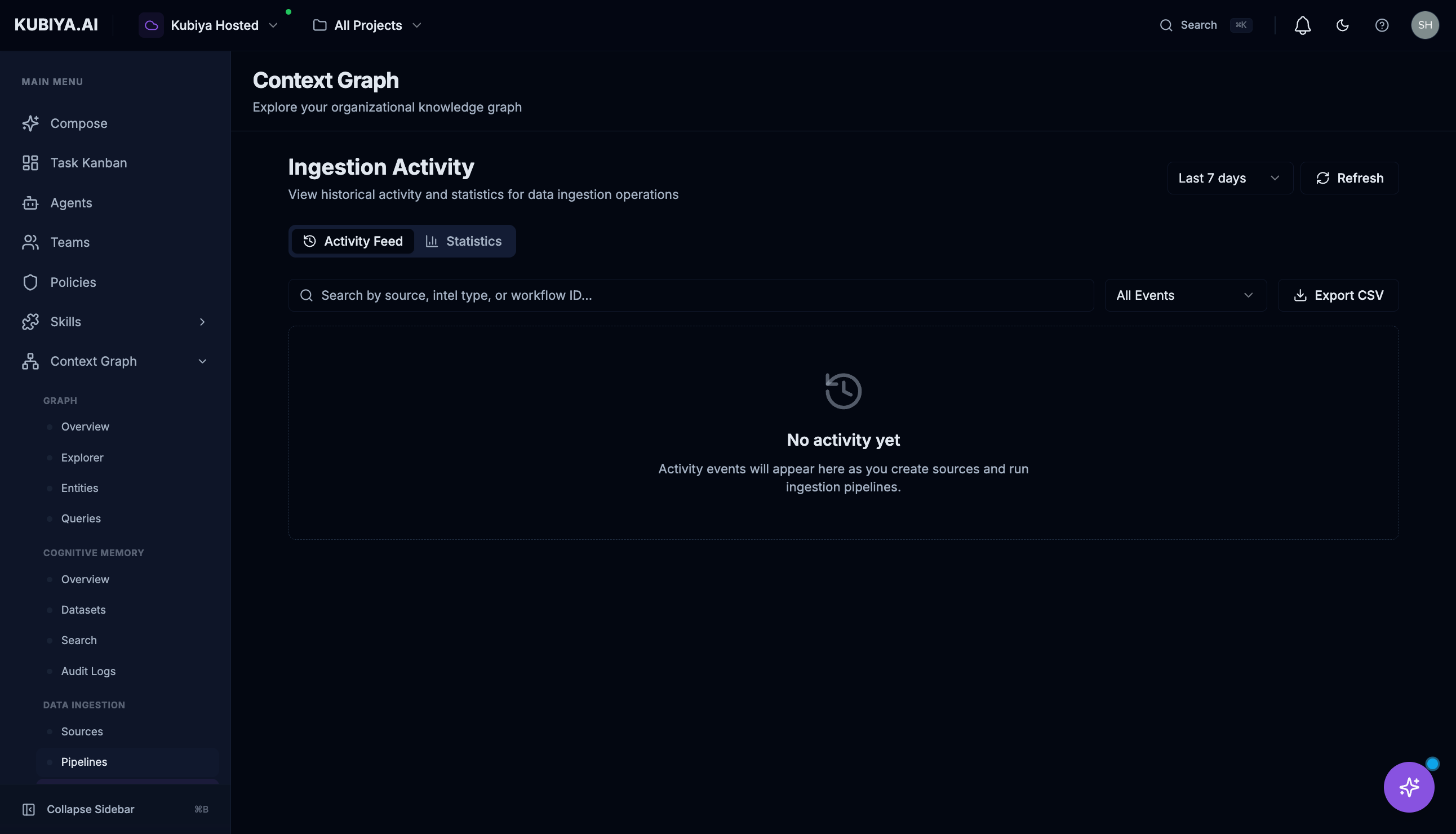
- Sync events
- Entity creation/updates
- Errors and warnings
- Manual triggers
- Date range
- Source
- Event type
- Status
Troubleshooting
Source Shows Error Status
- Click View Details on the source
- Check the error message in sync history
- Common issues:
- Expired credentials
- Changed permissions
- Network connectivity
- Rate limiting
Low Success Rate
If success rate is below 100%:- Review failed entity syncs
- Check for permission issues on specific resources
- Verify the source configuration is current
Stale Data
If entities aren’t updating:- Check the sync schedule
- Trigger a manual sync
- Verify the source is Active
Best Practices
- Start with one source - Verify ingestion works before adding more
- Use read-only credentials - Kubiya only needs read access
- Monitor activity regularly - Catch sync issues early
- Set appropriate schedules - Balance freshness with API limits
Related Pages
- Context Graph Overview - Graph metrics
- Integrations - Detailed integration guides
- Graph Explorer - Visualize ingested data