

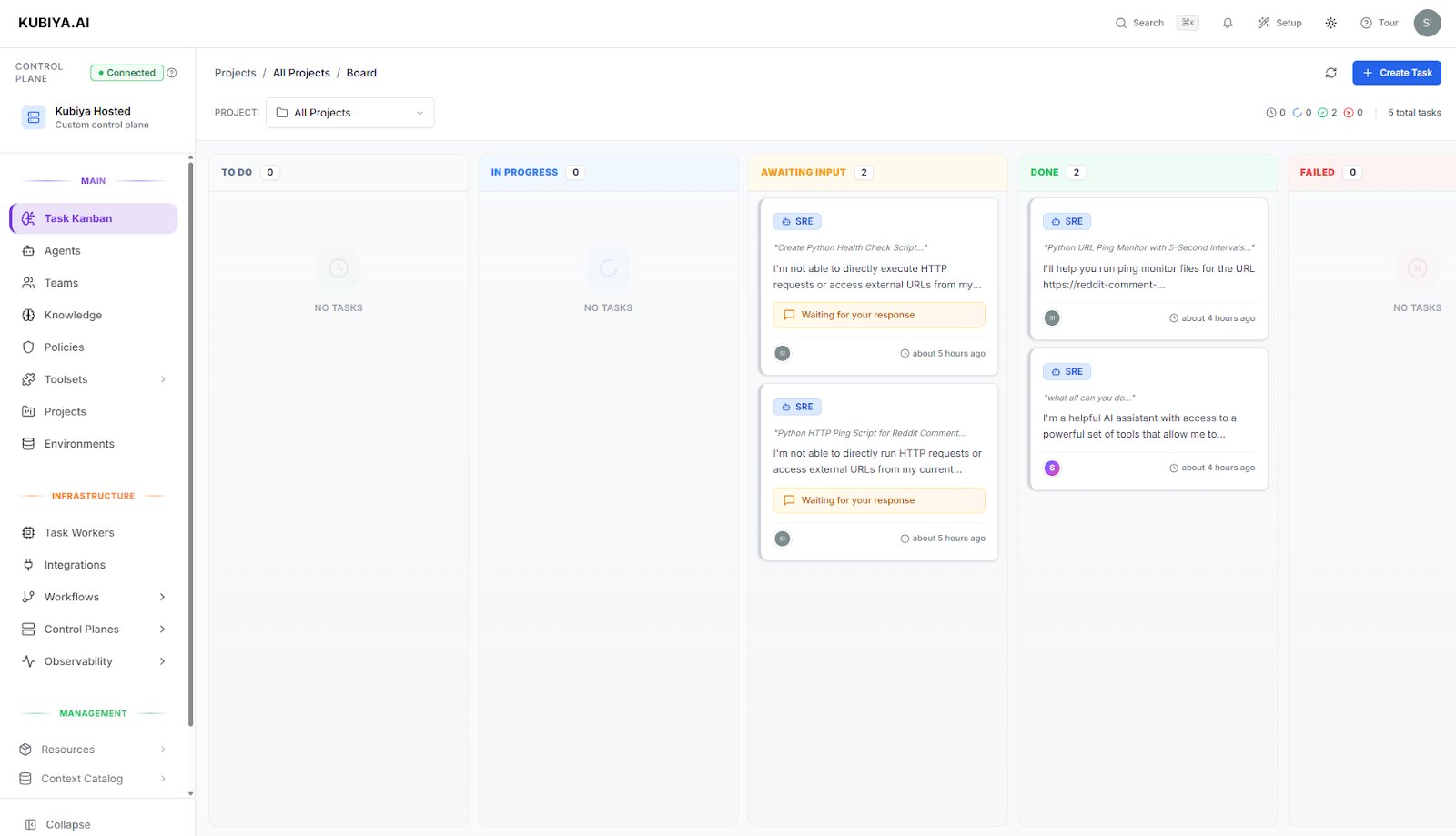
Access
Click Task Kanban in the sidebar to navigate to/projects/kanban.
Board Layout
Quick Stats
The top bar shows aggregate counts:- Active - Currently executing tasks
- Waiting - Tasks in queue waiting for workers
- Total - Total tasks visible with current filters
Columns
Tasks flow through these status columns:
Each column shows its task count in the header.
Filtering Tasks
Search
Use the search bar to filter by:- Task title
- Agent or team name
- Execution ID
Filter Controls
Task Cards
Each task card displays:Header
- Agent or team avatar and name
- Task title
- Trigger type badge (Manual, Scheduled, Webhook, etc.)
- Timestamp
Body
- Brief description or first message
- Attached repositories (if any)
- Current status indicator
Actions
Click a task card to:- Open the full conversation in a dialog
- View execution details
- See tool call history
- Access logs and outputs
Real-Time Updates
The Kanban board updates in real-time:- Live indicator shows WebSocket connection status
- Tasks move between columns automatically
- New tasks appear without refresh
If you see the Live indicator turn red, your connection was interrupted. The board will reconnect automatically, or you can click Refresh to reload.
Task Actions
Creating Tasks
Click + Create Task to:- Select an agent or team
- Enter your request
- Choose execution options
- Start the task
Bulk Actions
Use checkboxes to select multiple tasks:- Delete Selected - Remove selected tasks
- Select all visible tasks with the header checkbox
Task Details
Click any task card to open the detail dialog:- Conversation - Full message history
- Tool Calls - All tool invocations with results
- Status History - Timeline of status changes
- Metadata - Execution ID, timestamps, model used
Working with Tasks
Monitoring Active Tasks
Watch the In Progress column for:- Real-time message streaming
- Tool execution status
- Progress indicators
Debugging Failed Tasks
In the Failed column:- Click the task card
- Review the error message
- Check tool call results for the failure point
- View the full conversation context
Resuming Tasks
Tasks in Awaiting Response need your input:- Click the task card
- Provide the requested information
- The task will resume automatically
Filtering by Trigger Type
Live Status
The top-right shows connection status:- Live (green) - Real-time updates active
- Reconnecting (yellow) - Attempting to reconnect
- Offline (red) - Connection lost
Keyboard Shortcuts
Related Pages
- Compose Workspace - Start conversations that create tasks
- Background Jobs - Schedule recurring tasks
- Agents - Configure agents that execute tasks