

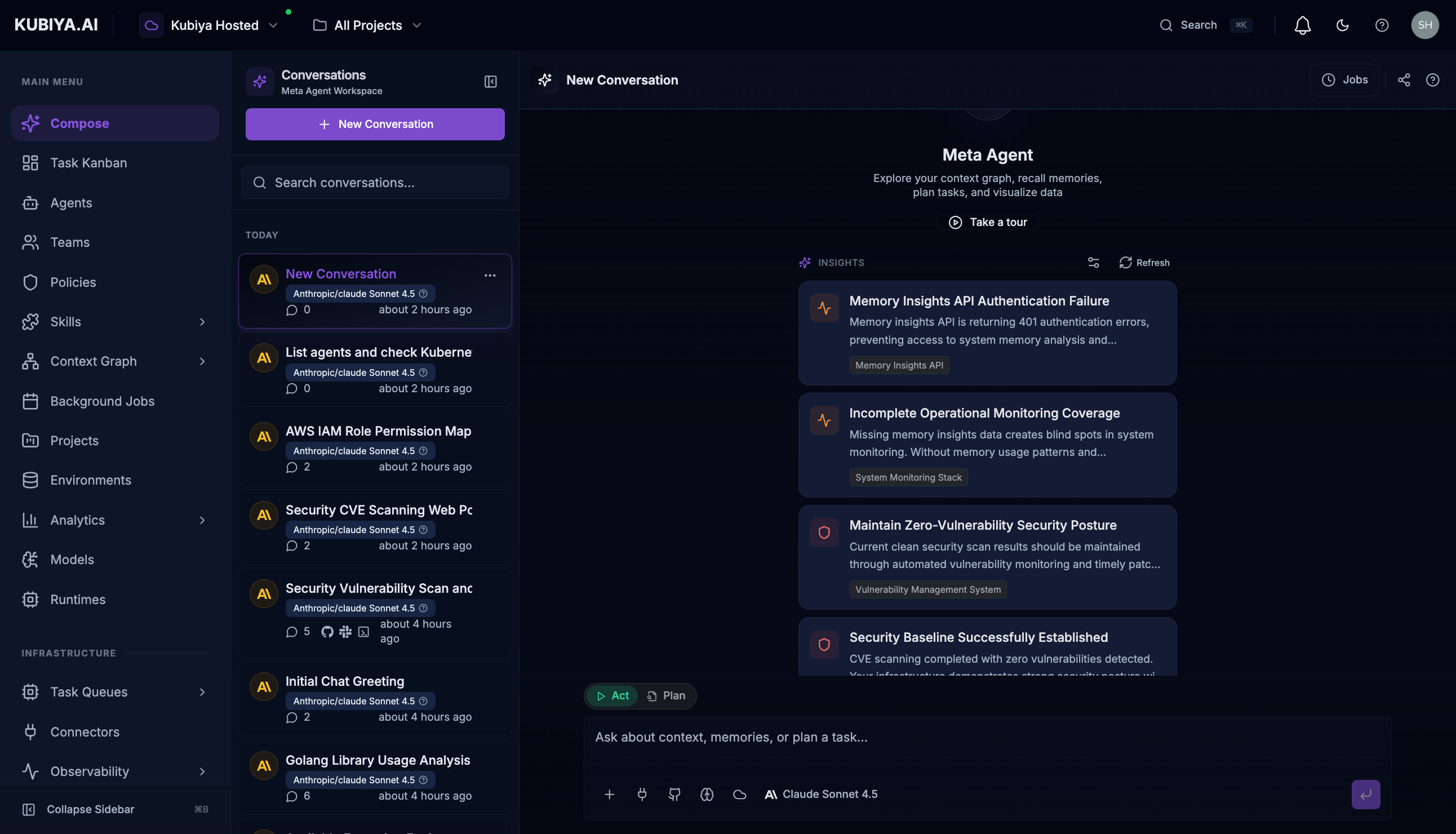
Access
Navigate to compose.kubiya.ai and sign in with your organization credentials.Interface Layout
Header Bar
Header Bar
The top navigation bar contains:
Content Area
Content Area
The main content area displays the current page with layouts optimized for each purpose:
- List views with search and filters
- Detail pages with configuration panels
- Visual interfaces like the graph explorer
- Chat interfaces for Meta Agent interactions
Key Pages
Compose Workspace
Full-screen Meta Agent conversations for complex tasks
Task Kanban
Track all task executions across agents and teams
Context Graph
Explore your infrastructure knowledge graph
Settings
Configure preferences, API keys, and integrations
Quick Navigation
Command Palette
Press Cmd+K (Mac) or Ctrl+K (Windows/Linux) to:
- Search for any page by name
- Jump to recent pages
- Access settings quickly
- Navigate to specific resources
Meta Agent Quick Access
Press Cmd+J (Mac) or Ctrl+J (Windows/Linux) to open the Meta Agent panel from any page.
Next Steps
Compose Workspace
Learn the full-screen Meta Agent interface
Meta Agent Panel
Quick AI assistance from any page
Keyboard Shortcuts
Master navigation shortcuts