

Opening the Panel
There are two ways to open the Meta Agent Panel:Keyboard Shortcut (Recommended)
Press Cmd+J (Mac) or Ctrl+J (Windows/Linux) from any page.Floating Action Button (FAB)
Click the purple pulsing button in the bottom-right corner of the screen. The FAB is always visible on every page.Panel vs Workspace
Panel Layout
Header
The panel header contains:- Meta Agent label with AI indicator
- Model selector showing current model (e.g., Claude Sonnet 4.5)
- Token counter showing conversation usage
- New conversation button
- History button to access previous conversations
- Expand button to open in full workspace
- Close button (or press Escape)
Message Area
The central area displays:- Your messages
- Agent responses with tool calls
- Expandable reasoning sections
- Visual/JSON data toggles
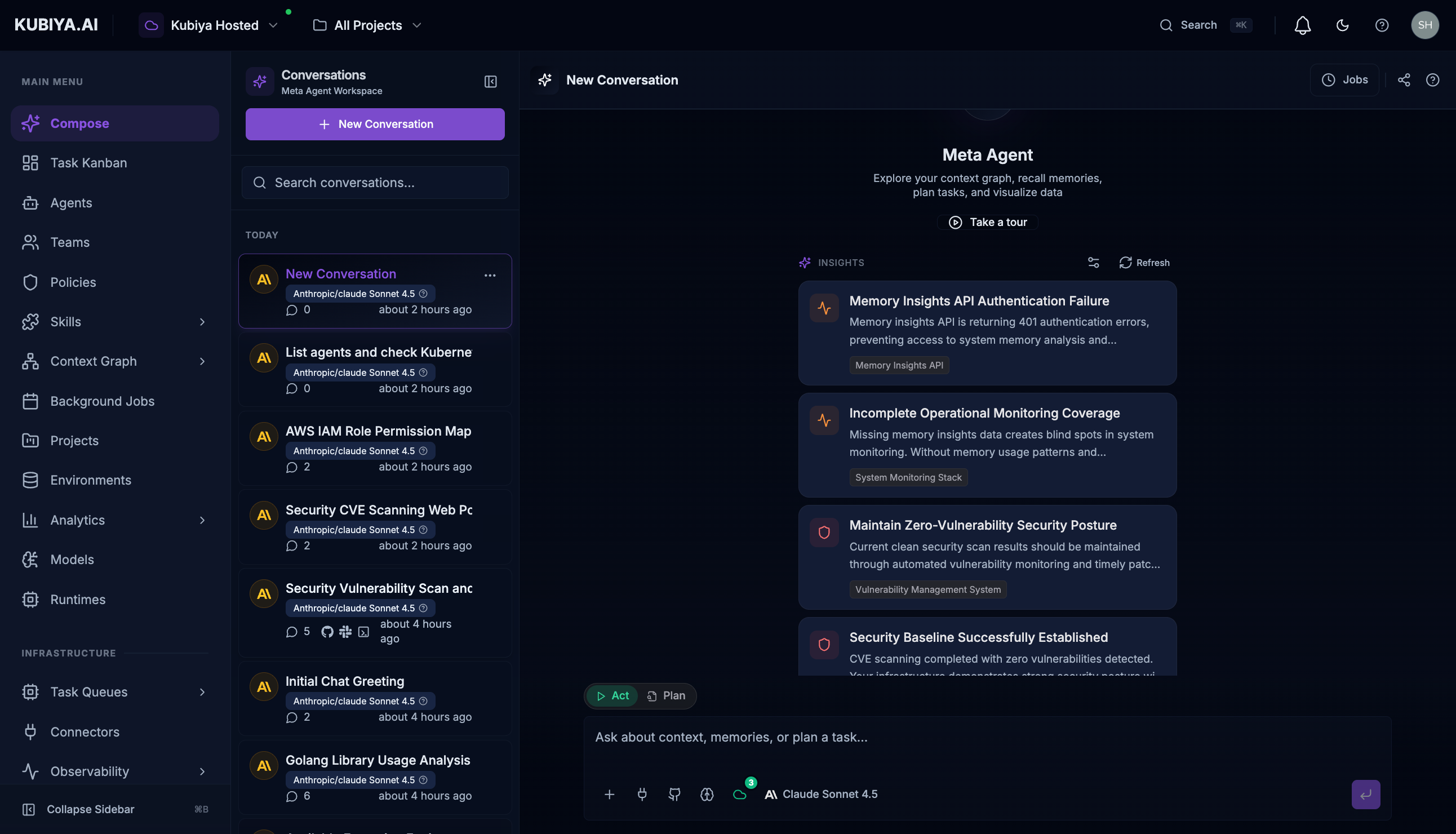
Input Bar
Same controls as the Compose Workspace:First-Time Setup
On your first use, you may see an onboarding screen to personalize your experience:Category Selection
Choose categories relevant to your role:- Security - CVEs, vulnerabilities, compliance
- Infrastructure - Kubernetes, databases, services
- Cost Optimization - Cloud spend, unused resources
- CI/CD - Pipelines, deployments, releases
- Memory & Insights - Historical patterns, knowledge
- Tasks & Jobs - Execution planning, automation
Common Uses
Quick Infrastructure Queries
Resource Lookups
Status Checks
Quick Actions
Keyboard Shortcuts
Panel Controls
Expanding to Workspace
Click the expand icon in the header to open the current conversation in the full Compose Workspace. This preserves your conversation context.Accessing History
Click the history icon to see recent conversations started from the panel. You can resume any previous conversation.Switching Models
Click the model selector to choose a different AI model:- Claude Sonnet 4.5 - Balanced (default)
- Claude Opus 4.5 - Maximum capability
- Claude Sonnet 4 - Fast, efficient
- Other available models
Best Practices
- Keep queries focused - The panel works best for single-purpose requests
- Expand for complexity - Move to the workspace for multi-step operations
- Use keyboard shortcuts - Cmd+J is faster than clicking
- Check the model - Ensure you’re using the right model for your task
- Review before executing - Use Plan mode for sensitive operations
Related Pages
- Compose Workspace - Full-screen conversation interface
- Meta Agent - Learn about Meta Agent capabilities
- Keyboard Shortcuts - All navigation shortcuts