

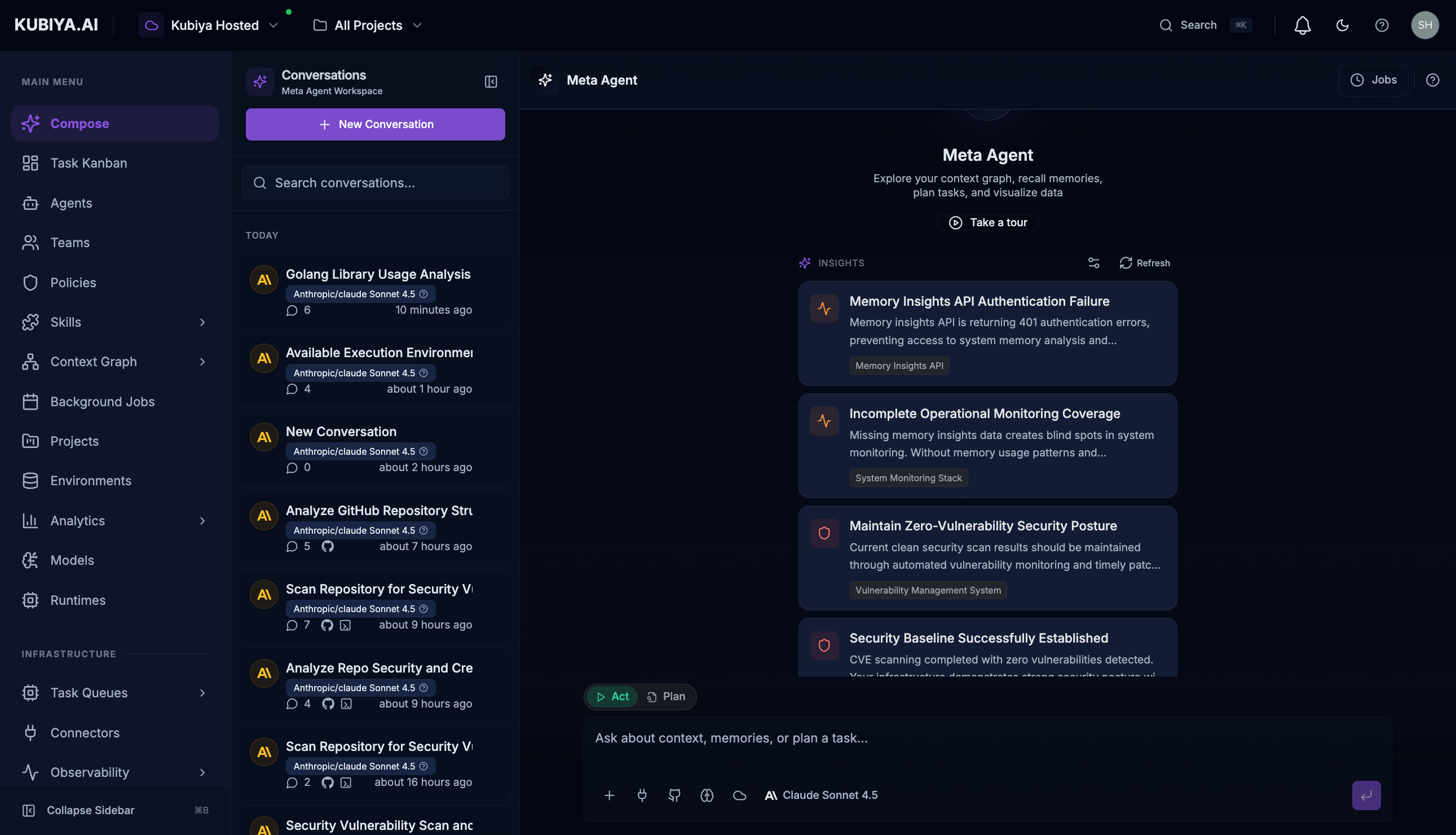
- Left sidebar: Conversation history with search and new conversation button
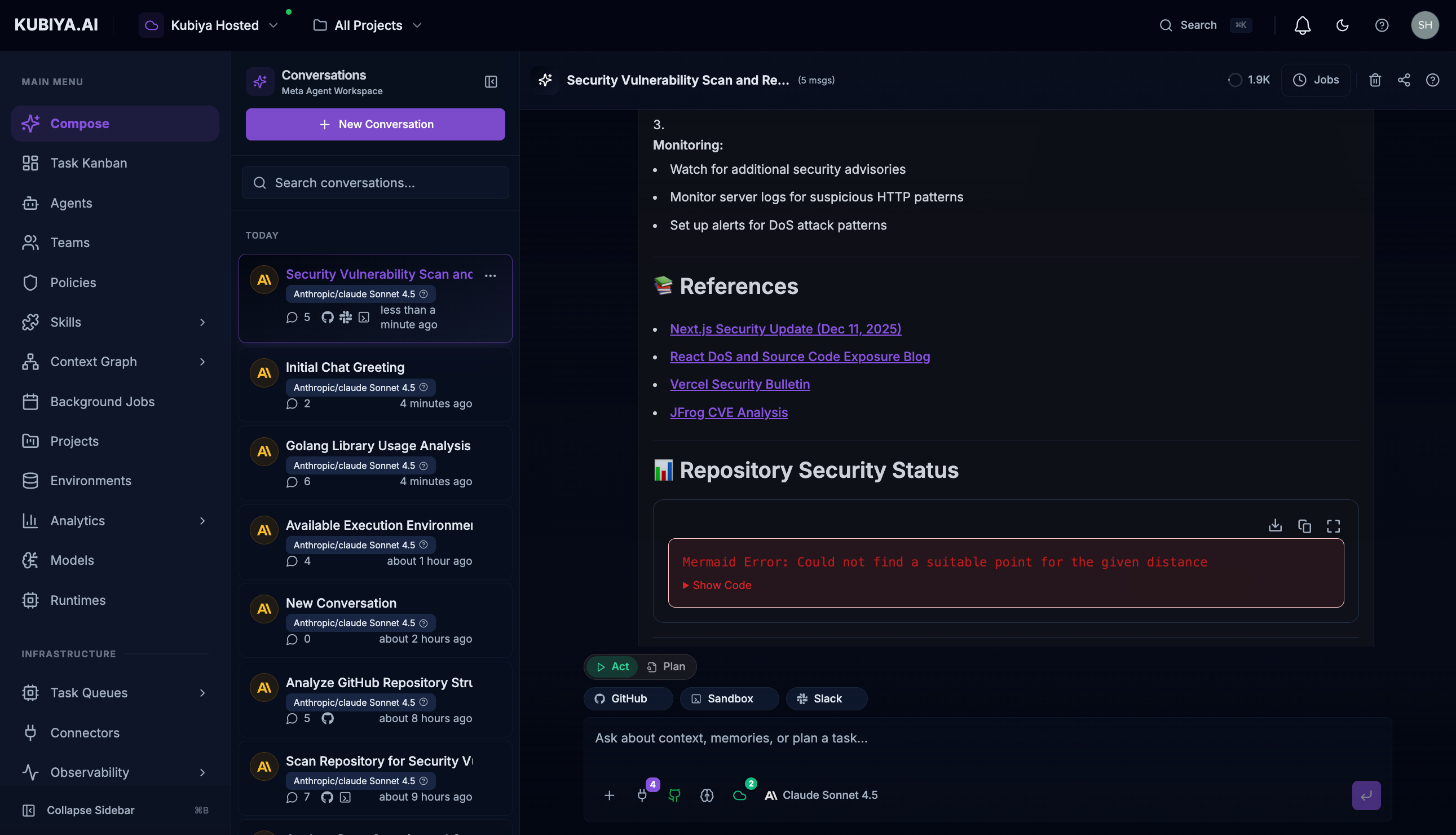
- Center panel: Active conversation with messages and responses
- Input bar: Controls for attachments, model selection, and execution mode
Access
Click Compose in the sidebar to navigate to the workspace at/chat.
Workspace Layout
Conversation Sidebar
The left panel manages your conversation history:- New Conversation - Start a fresh conversation
- Search - Find conversations by content
- Conversation List - Browse previous conversations grouped by time:
- Today
- Yesterday
- Last 7 days
- Older
- Title (auto-generated from first message or renamed)
- Model used (e.g., Claude Sonnet 4.5)
- Message count
- Timestamp
- GitHub/repository attachments (if any)
- Rename the conversation
- Delete the conversation
Main Chat Area
The center panel displays the current conversation: Header:- Conversation title
- Jobs indicator (shows active background tasks)
- Share button
- Settings menu
- User messages appear on the right
- Agent responses appear on the left with:
- Reasoning sections (expandable)
- Tool calls with results
- Visual/JSON toggle for structured data
- Copy button for responses
Input Bar
The bottom input area provides powerful controls:Input Modes
Act Mode (Default):- Execute tasks immediately
- Real actions are performed
- Results are returned in real-time
- Generate execution plans without taking action
- Review steps before committing
- Ideal for complex or sensitive operations
Conversation Management
Starting a Conversation
- Click + New Conversation in the sidebar
- Type your request in the input bar
- Press Enter or click the send button
Continuing Conversations
- Click any conversation in the sidebar to resume
- All context from previous messages is preserved
- The Meta Agent remembers what you discussed
Attaching Context
Files: Click the + button to upload:- Images for visual analysis
- Documents for reference
- Data files for processing
- Search connected GitHub repositories
- Select up to 10 repositories
- Provide code context for the agent
- View available task queues
- See worker availability
- Route tasks to specific infrastructure
Working with Responses
Tool Calls
When the Meta Agent uses platform tools, you’ll see: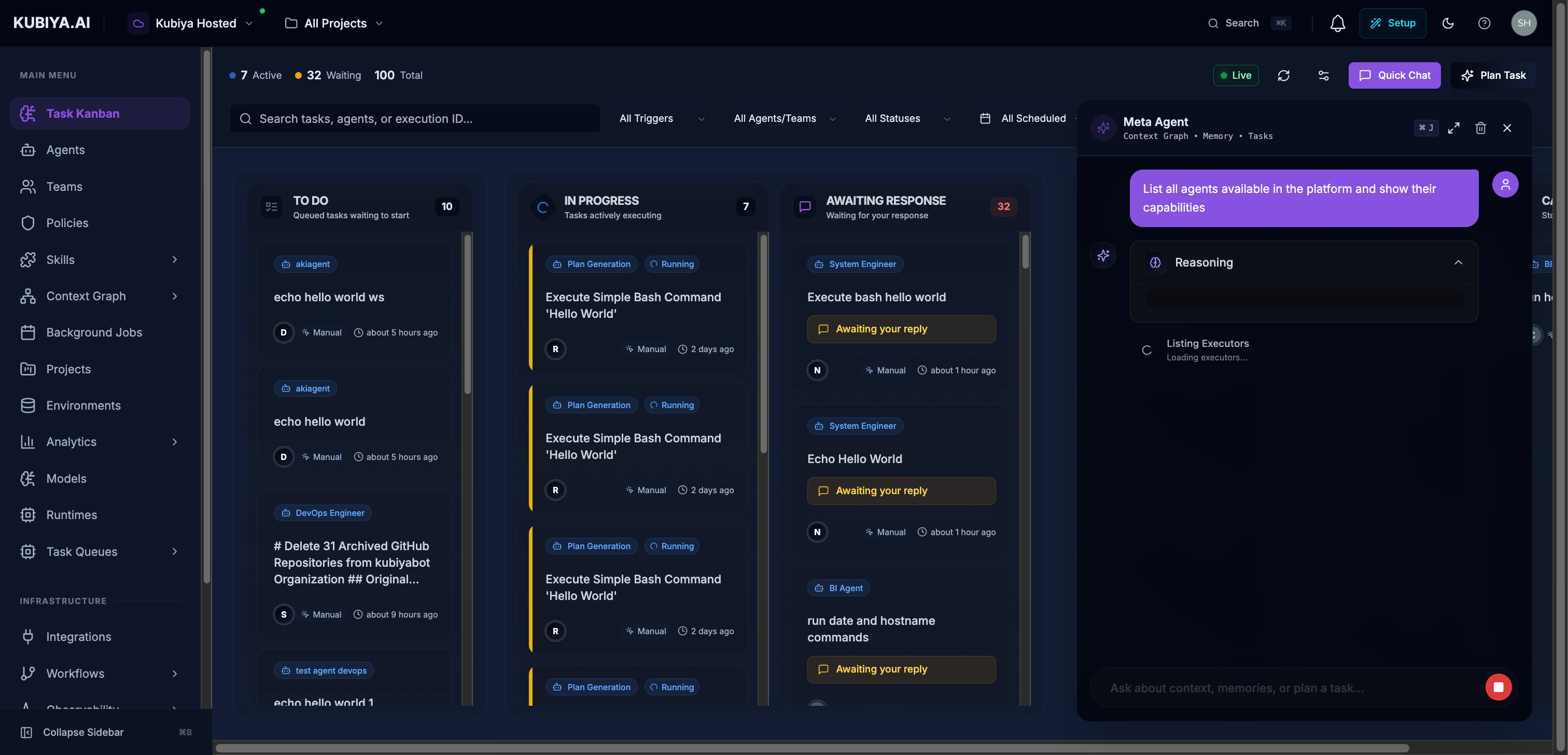
- Tool name and status
- Execution time
- Expandable results section
- Visual or JSON view toggle
Structured Output
For data responses, toggle between:- Visual - Formatted tables and cards
- JSON - Raw data for copying
Reasoning
Expand the “Reasoning” section to see how the agent:- Interpreted your request
- Selected tools to use
- Arrived at conclusions
Header Controls
Keyboard Shortcuts
Best Practices
- Use descriptive first messages - The first message becomes the conversation title
- Attach relevant repositories - Code context improves suggestions
- Review tool calls - Understand what actions are being performed
- Use Plan mode for sensitive operations - Review before executing
- Organize with projects - Filter conversations by project scope
Related Pages
- Meta Agent - Learn about Meta Agent capabilities
- Meta Agent Panel - Quick access from any page
- Task Kanban - Track executions created from conversations