

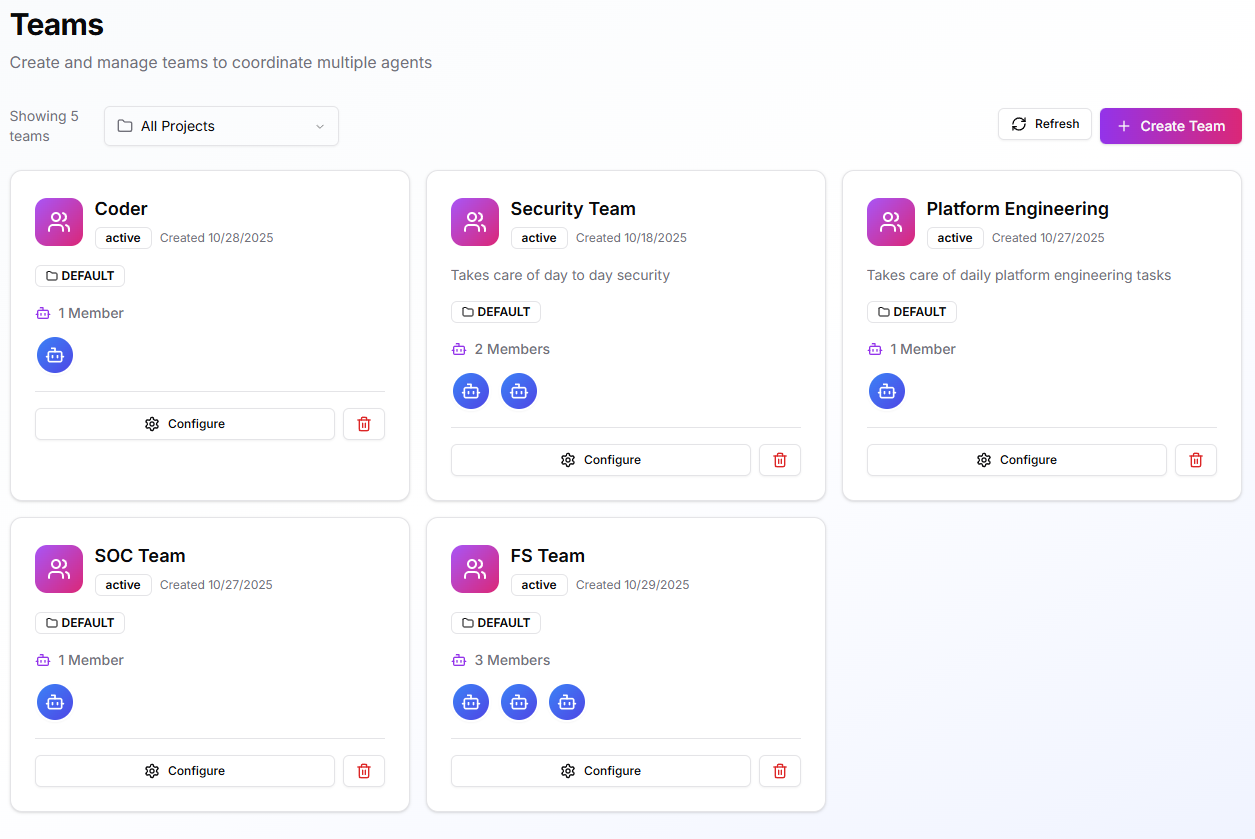
When to Use
Create a team when:- Several specialized agents must collaborate on related tasks
- You need shared credentials, tools, and policies applied consistently
- Clear separation is required by department, sensitivity, or project
- Multi-agent coordination is needed beyond Meta Agent capabilities
Prerequisites
- At least one Environment (Ready).
- One or more Agents created.
- Any required secrets or integration credentials are available (ideally attached at the environment level).
Team Cognitive Memory
Teams inherit the same cognitive memory capabilities as individual agents. All team members share knowledge through environment-based datasets.Shared Team Knowledge
When agents are part of a team in the same environment, they automatically share memories through the environment’s dataset:Team Memory Benefits
- Collective Intelligence - Team learns from every agent’s experiences
- Knowledge Continuity - New team members access historical context
- Cross-Function Learning - Database agent learns from Kubernetes agent’s solutions
- Consistent Responses - Team provides unified answers based on shared knowledge
- Audit Trail - Track which team member stored each memory
Team Memory Use Cases
Incident Response Team: Platform Engineering Team:- K8s Agent: Stores cluster configuration changes and scaling decisions
- Database Agent: Records query optimizations and connection tuning
- Monitoring Agent: Saves alert patterns and resolution steps
- All agents: Access complete platform operational history
Environment Isolation for Teams
Teams respect environment-based dataset isolation: Same team, different environments = separate knowledge bases.Learn more about cognitive memory in Cognitive Memory Overview.
Create a Team
Open: Teams > Create Team and complete the tabs below. You can save and edit later.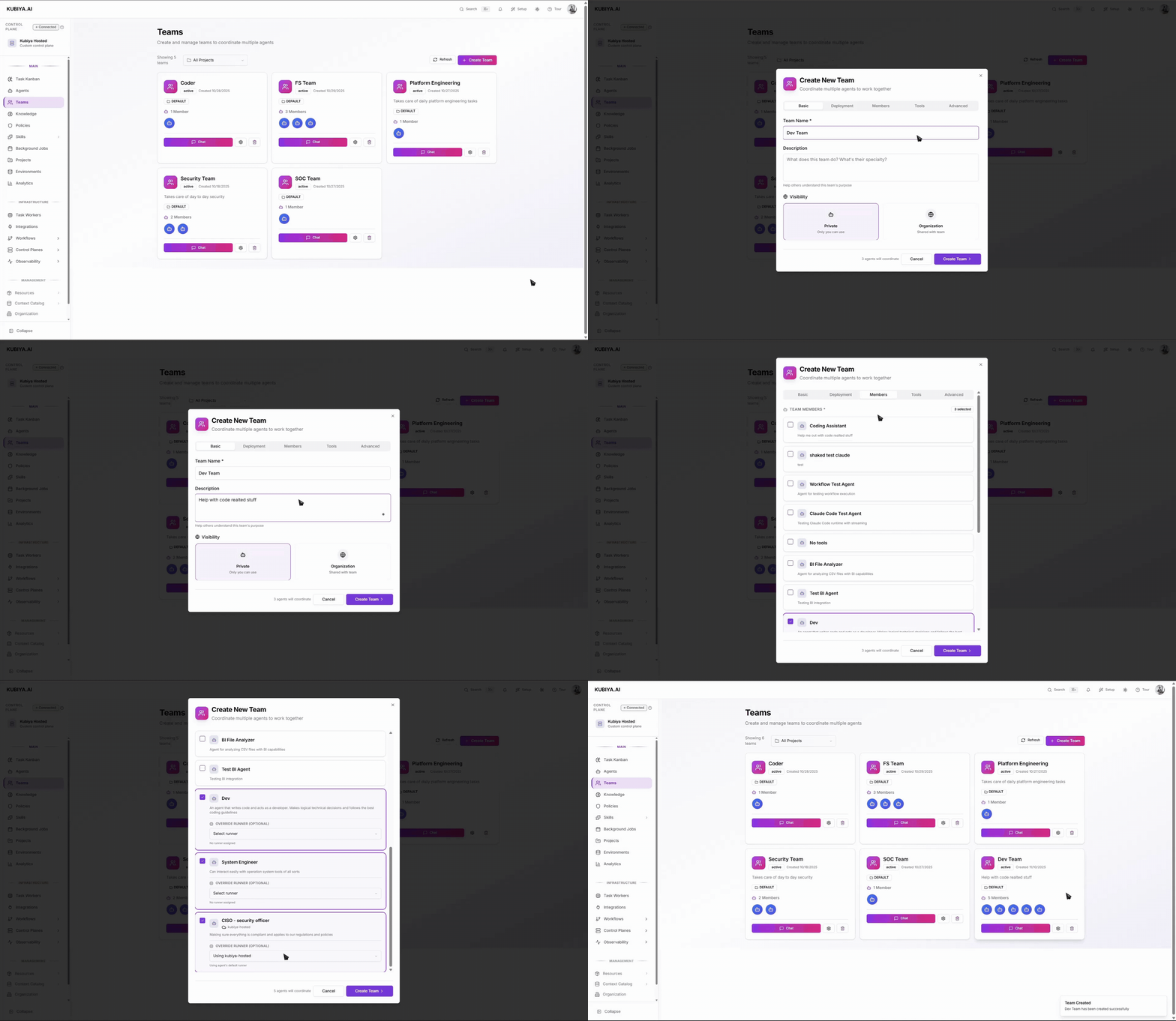
1) Basic
- Team Name and Description: keep purpose-driven and clear.
- Visibility:
- Private – only you can use.
- Organization – shared with your org.
2) Deployment
Defines where the team can run and what it inherits.- Runtime: Choose the execution engine for your team’s agents. Learn about runtime options and compare features.
- Environments: add one or more environments. Teams inherit env-level configuration and can run wherever there’s capacity.
- Execution Environment (per team):
- Environment Variables – non-secret parameters.
- Secrets – attach only if team-specific (prefer env-level).
- Integration Credentials – connect clouds, chat, observability, etc. Tip: If you’ll run the same team in dev/stage/prod, add all environments now and keep variations (endpoints, tokens) at the environment level.
3) Members
- Select the agents that belong to this team. Add as many as needed.
4) Tools
- Attach Skills the team can use (file ops, shell, Docker, Python, …).
- Teams also inherit any Skills configured on the selected environments.
5) Advanced
- Team Instructions – system prompt for coordination guidance.
- AI Model & Temperature – defaults for team coordination.
- Team Context – add Knowledge Base items and Resources the whole team can access.
- OPA Policies – select policies to enforce rules and constraints at the team level. Note: Context and policies here are visible to all agents in the team.
For more info on how to use the cli to manage teams go to Teams Cli
Runtime behavior
When a task targets a team, Kubiya uses the team’s environments, credentials, tools, and policies to coordinate member agents through the workflow. Each step still runs in an isolated container with streaming logs and a full audit trail.Manage
- Configure the team anytime to adjust environments, tools, context, or policies.
- Add/Remove members as responsibilities change.
- Use the project filter on the Teams page to keep views focused.
- Delete unused teams (agents remain available for other teams).
Best practices
- Start with the minimum set of agents and least-privileged Skills.
- Centralize shared config in Environments; attach at team level only when unique.
- Use descriptive names tied to purpose (e.g., “Security Operations”).
- Add OPA policies early for safety.
Troubleshooting
- Team can’t access a system: Verify the Environment, Secrets, and Integration Credentials are attached and valid.
- Tasks stay pending: Ensure at least one worker is connected to a queue in the target Environment.
- Permission denied: Check OPA policies at both Team and Environment levels.
- Tool missing at runtime: Confirm the Skill is attached to the Team (and still present on the Environment, if inherited).