

Accessing the Meta Agent
Compose Workspace (/chat)
Click Compose in the sidebar for the full-screen workspace:
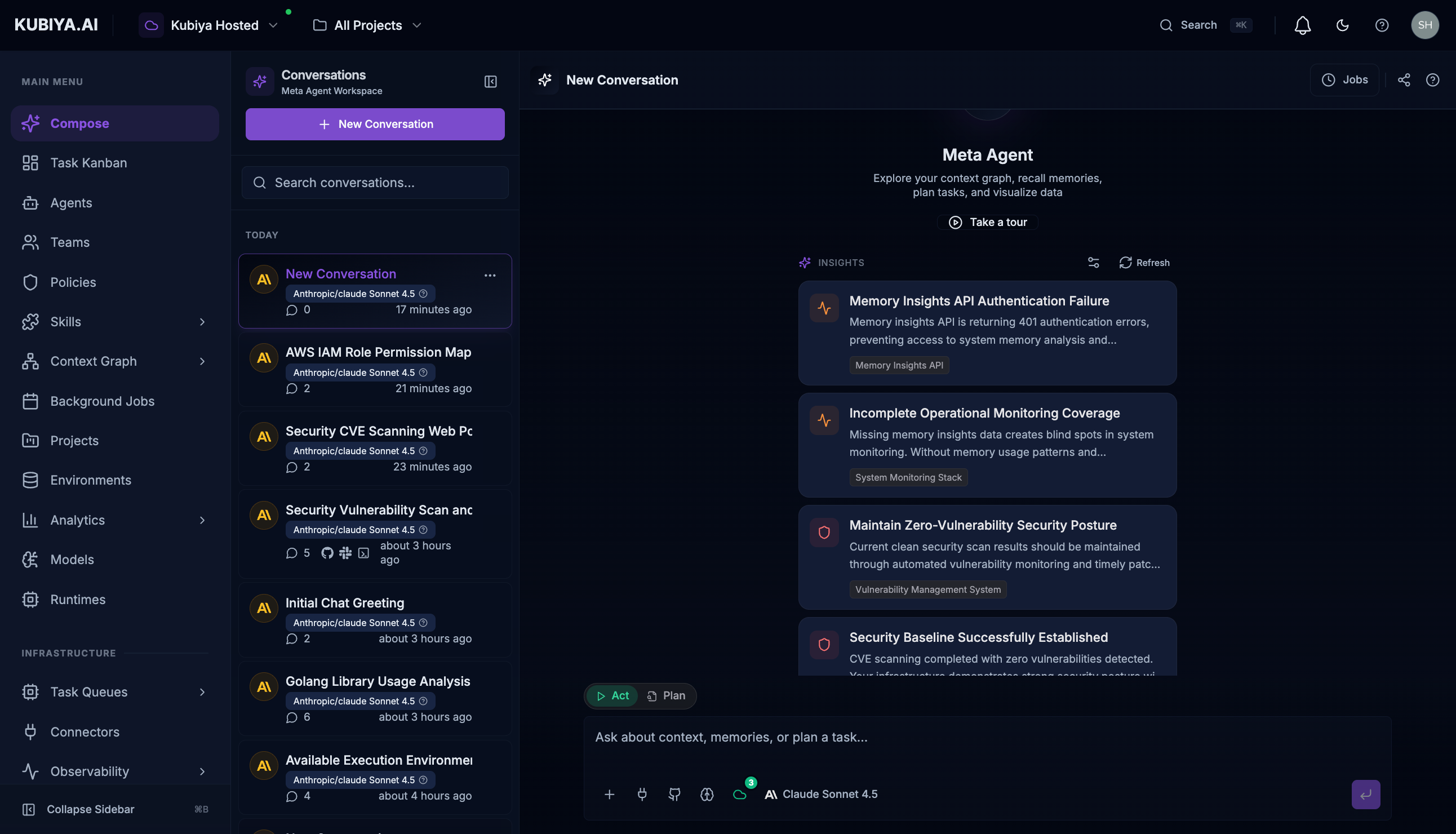
- Conversation sidebar with history and search
- Full-width message display for extended conversations
- Insights panel with AI-powered suggestions
- Multiple input controls for connectors, models, and execution modes
Floating Panel (Cmd+J)
PressCmd+J (Mac) or Ctrl+J (Windows/Linux) from any page for quick access without leaving your current context.
Input Bar Controls
At the bottom of the chat, you’ll find several control buttons:Connectors Menu
Click the connectors button to access external integrations: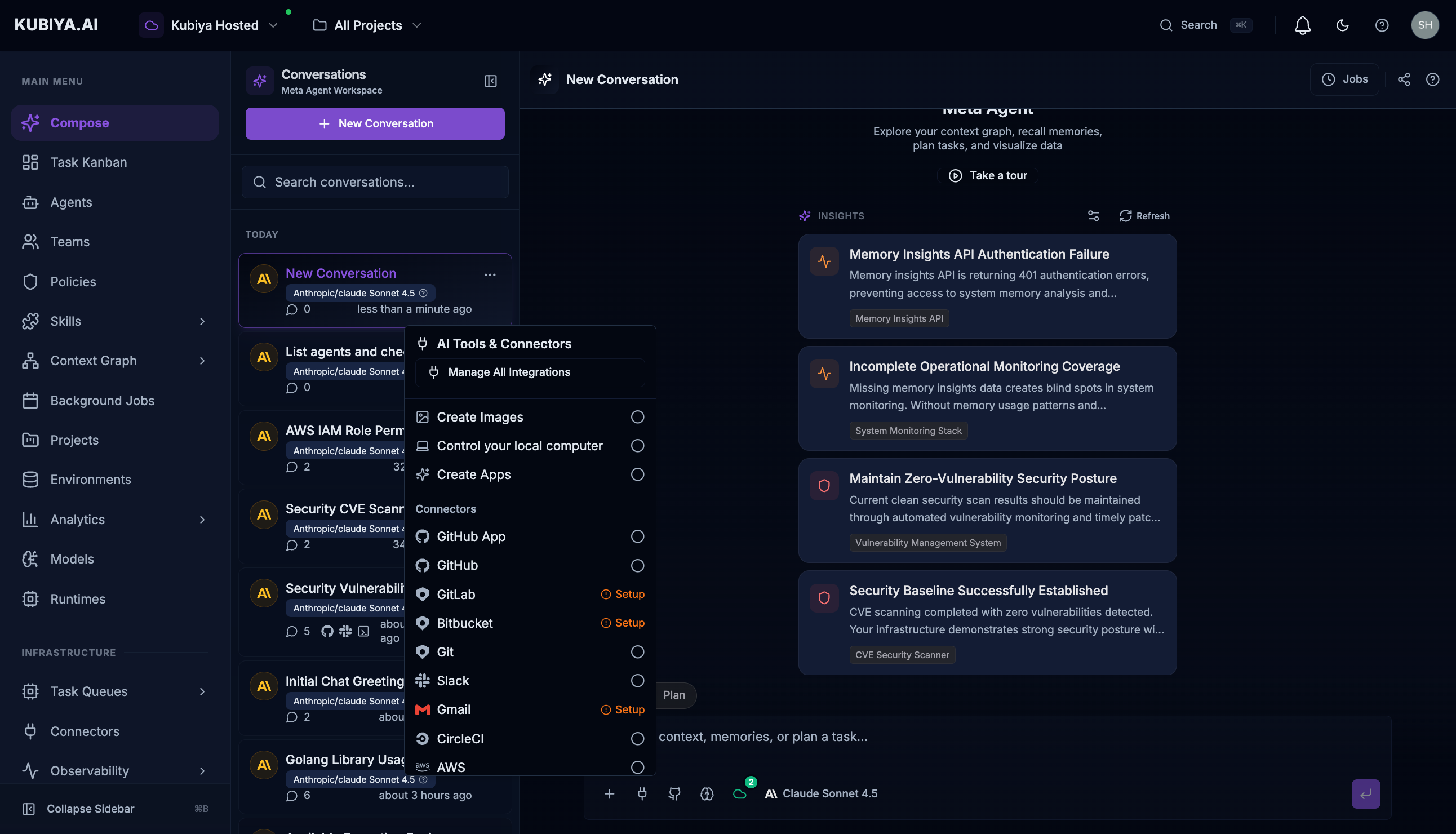
- GitHub - Repository access, PRs, issues
- Sandbox - Safe code execution environment
- Slack - Team messaging and notifications
- AWS - Cloud resource management
- Jira - Issue and project tracking
- Create Apps - Generate and deploy applications
Model Selection
Click the model selector to choose your preferred AI model: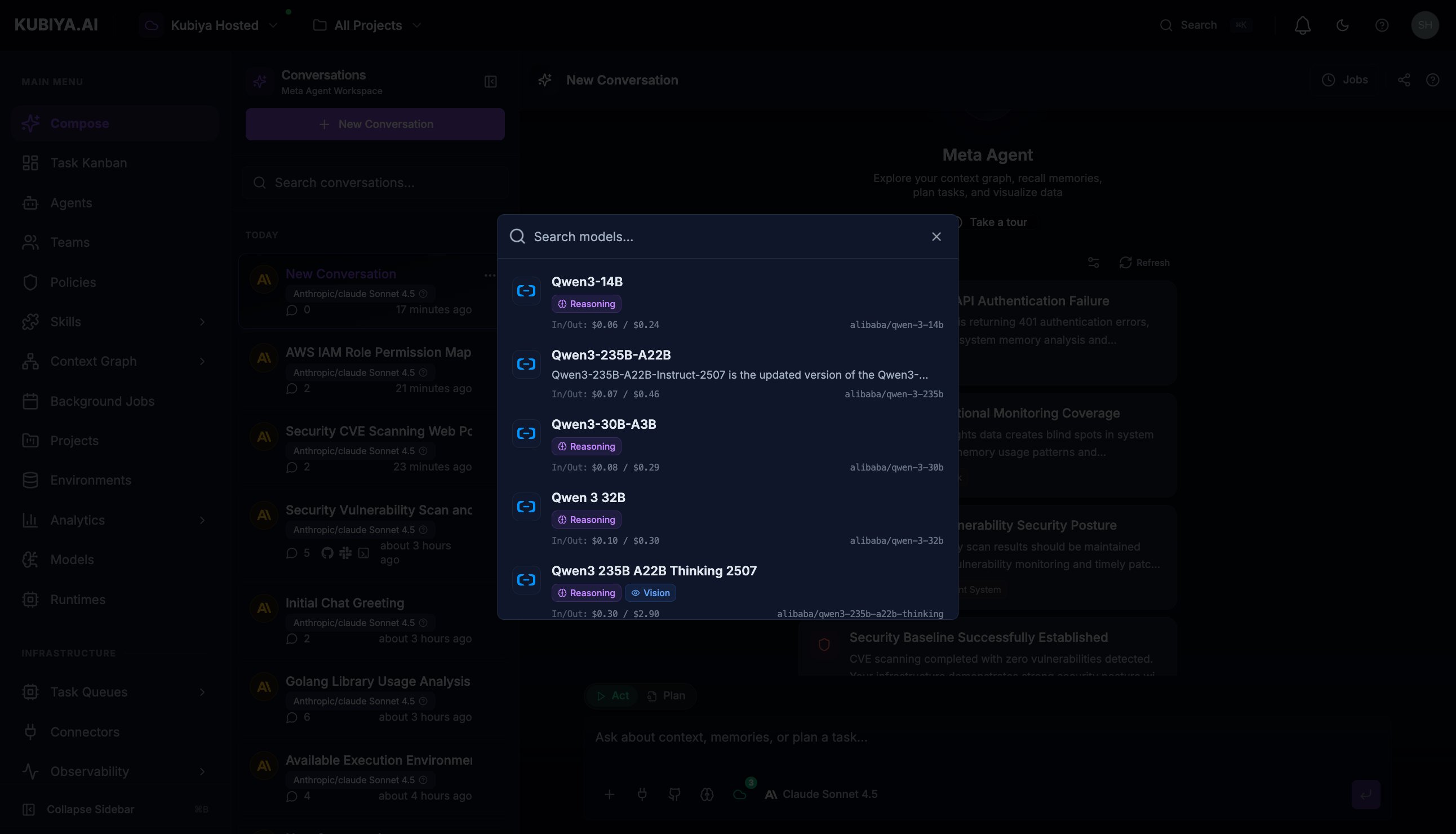
- Claude Sonnet 4.5 - Balanced performance and capability (default)
- Claude Opus 4.5 - Maximum capability for complex reasoning
- Claude Sonnet 4 - Fast, efficient for straightforward tasks
- Additional models from OpenAI, Amazon Nova, Qwen, and more
Act vs Plan Mode
Toggle between execution modes using the radio buttons above the input:
Use Plan Mode when you want to:
- Review what actions will be taken before execution
- Understand the steps involved in complex operations
- Get clarification on approach before committing
Remote Task Queues
Click the queue selector to delegate tasks to remote workers:- View all available task queues (e.g., Dev, Production, GPU workers)
- See worker capacity and availability for each queue
- Select a queue to route execution to specific infrastructure
- Ideal for tasks requiring access to private resources or specialized hardware
Conversation Management
Sidebar Features
The conversation sidebar provides:- Search: Find past conversations by keyword
- History: Browse conversations grouped by date (Today, Yesterday, This Week)
- Message count: See how many exchanges in each conversation
- Model info: Know which model was used for each conversation
Session Controls
- New Conversation: Start fresh with
New Conversationbutton - Stop Button: Halt streaming responses or cancel long-running operations
- Clear Chat: Reset the conversation context
Insights Panel
The Meta Agent proactively analyzes your infrastructure and surfaces intelligent suggestions:- Security Alerts - Detected vulnerabilities requiring attention
- Health Issues - Unhealthy resources or degraded services
- Optimization Opportunities - Cost savings or performance improvements
- Pattern Insights - Trends from cognitive memory analysis
Keyboard Shortcuts
What’s Next
- Capabilities - Learn what Meta Agent can do
- Examples - Real-world use cases
- Built-in Tools - All available tools