

Ingestion Sources vs Connectors: Ingestion Sources populate the Context Graph with data for analysis. Connectors enable agents to act on external systems. You may need both: an ingestion source to index your AWS resources, and an AWS connector to allow agents to manage them.
Data Ingestion Pages
Navigate to Context Graph in the sidebar to access:Sources
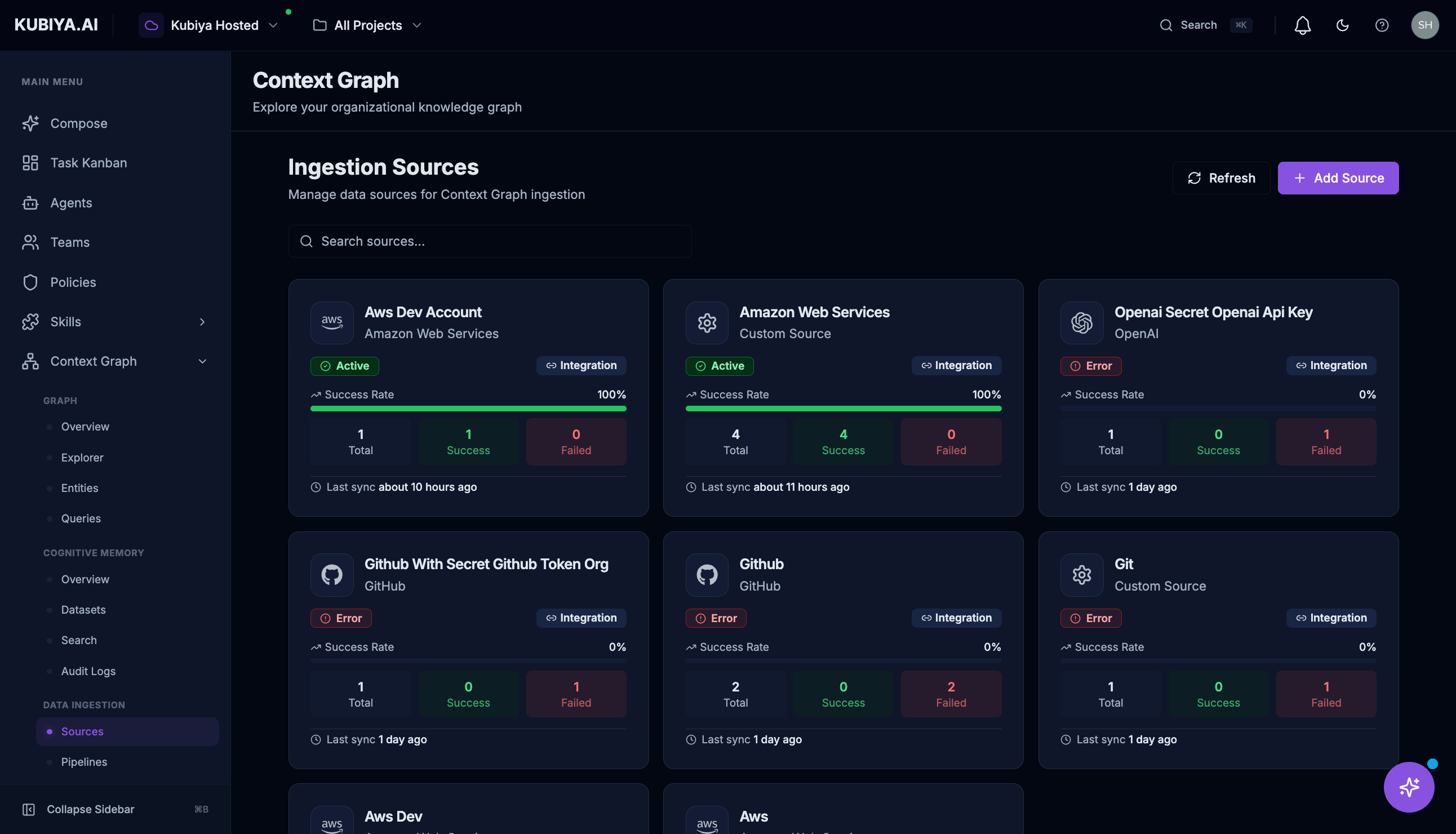
The Sources page displays all configured ingestion sources with their sync status.Source Card Information
Each source card shows:- Name and Type (e.g., AWS, GitHub, Custom)
- Status: Active (green), Error (red), or Inactive
- Success Rate: Percentage of successful syncs
- Stats: Total runs, successes, and failures
- Last Sync: When the source was last synchronized
Adding an Ingestion Source
Click Add Source to open the 3-step wizard: Step 1: Select Source Type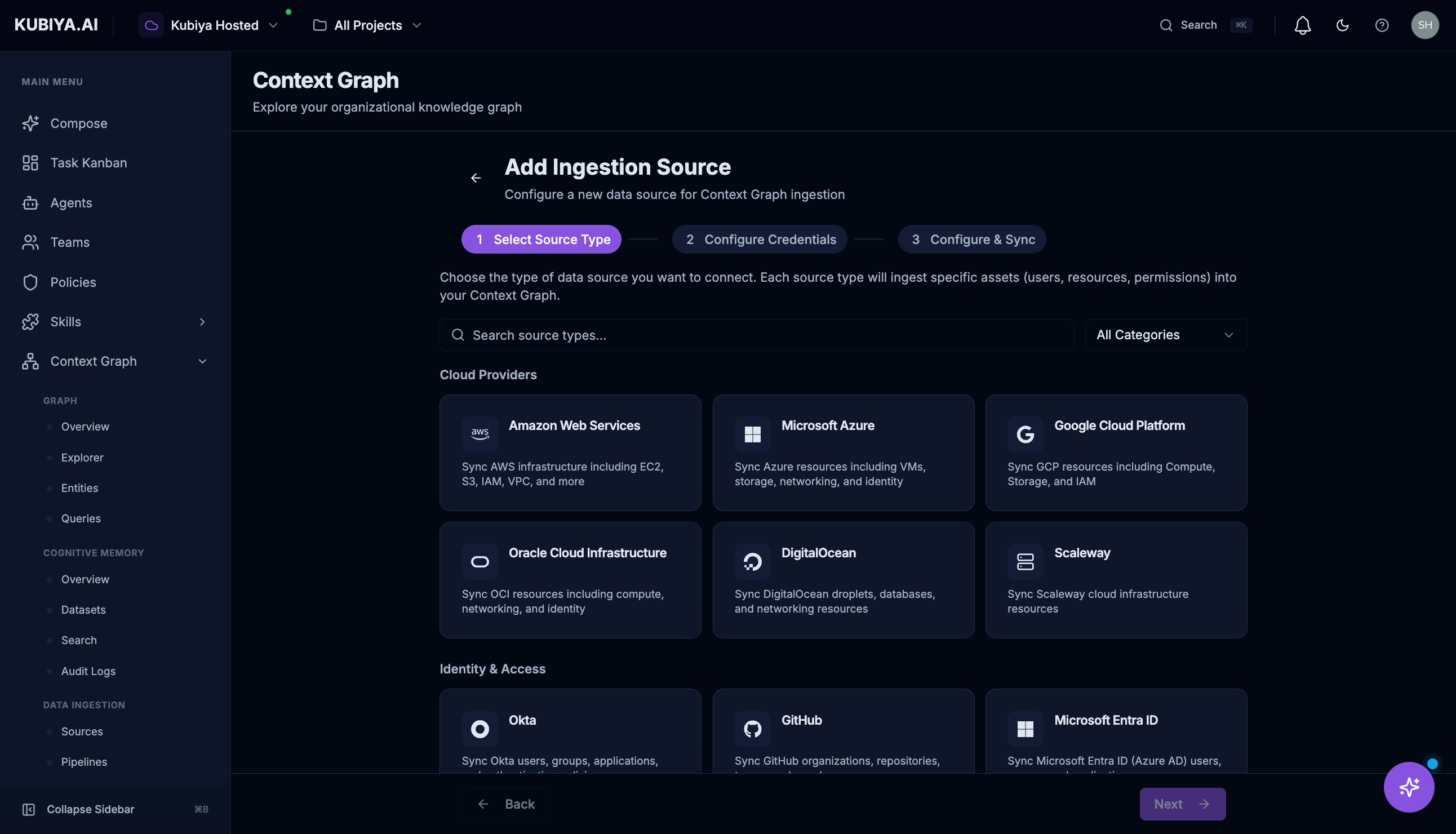
- Cloud Providers: AWS, Azure, GCP, Oracle Cloud, DigitalOcean, Scaleway
- Identity & Access: Okta, Microsoft Entra ID, Google Workspace, Keycloak
- DevOps: Kubernetes, GitHub, CircleCI, Spacelift, Cloudflare, Tailscale
- Security: CrowdStrike, SentinelOne, Trivy, CVE Database, PagerDuty
- Administration: Jamf, Kandji, Snipe-IT, Anthropic, OpenAI
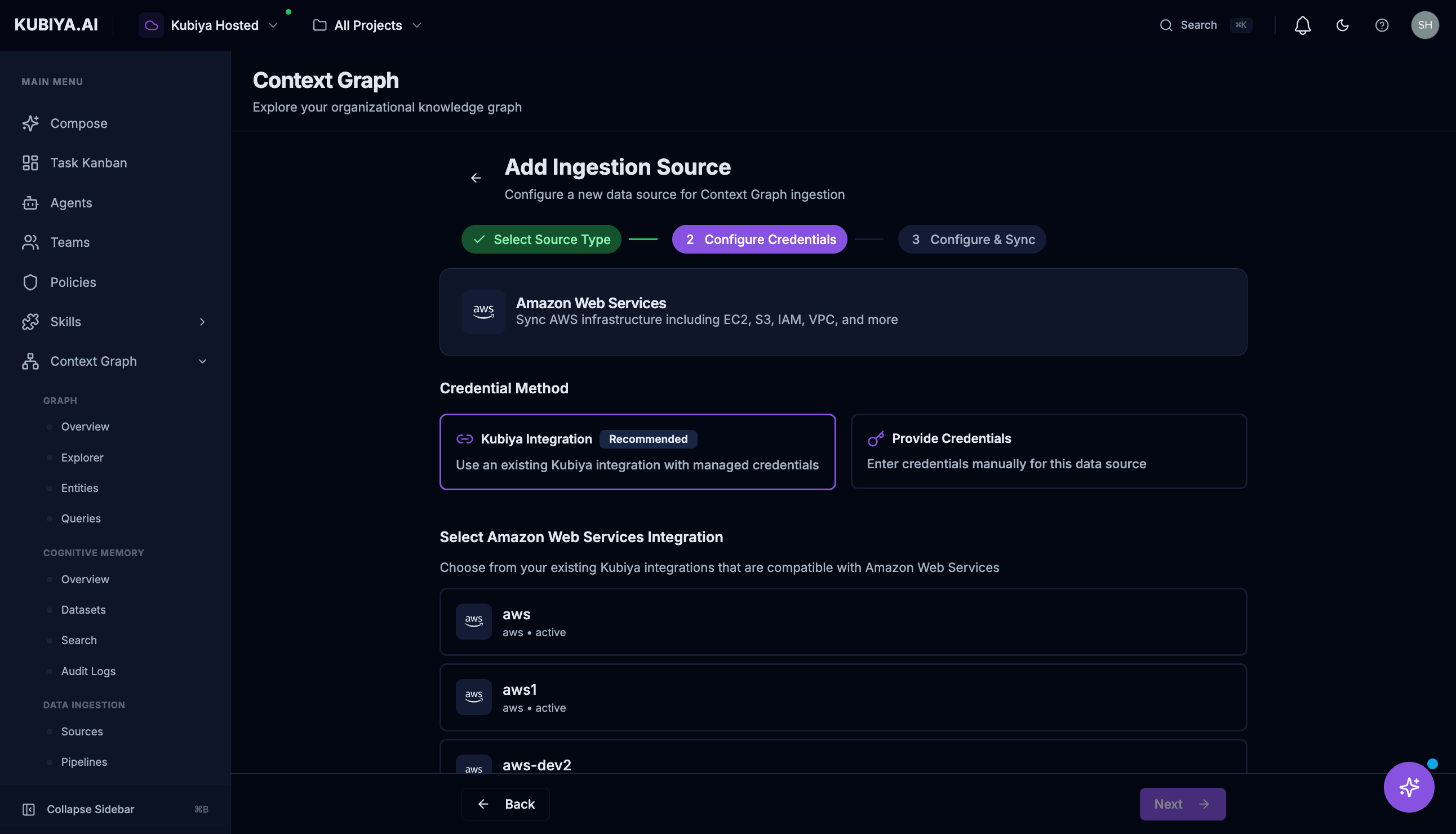
- Kubiya Integration (Recommended): Use an existing connector with managed credentials
- Provide Credentials: Enter API keys, OAuth tokens, or service account credentials manually
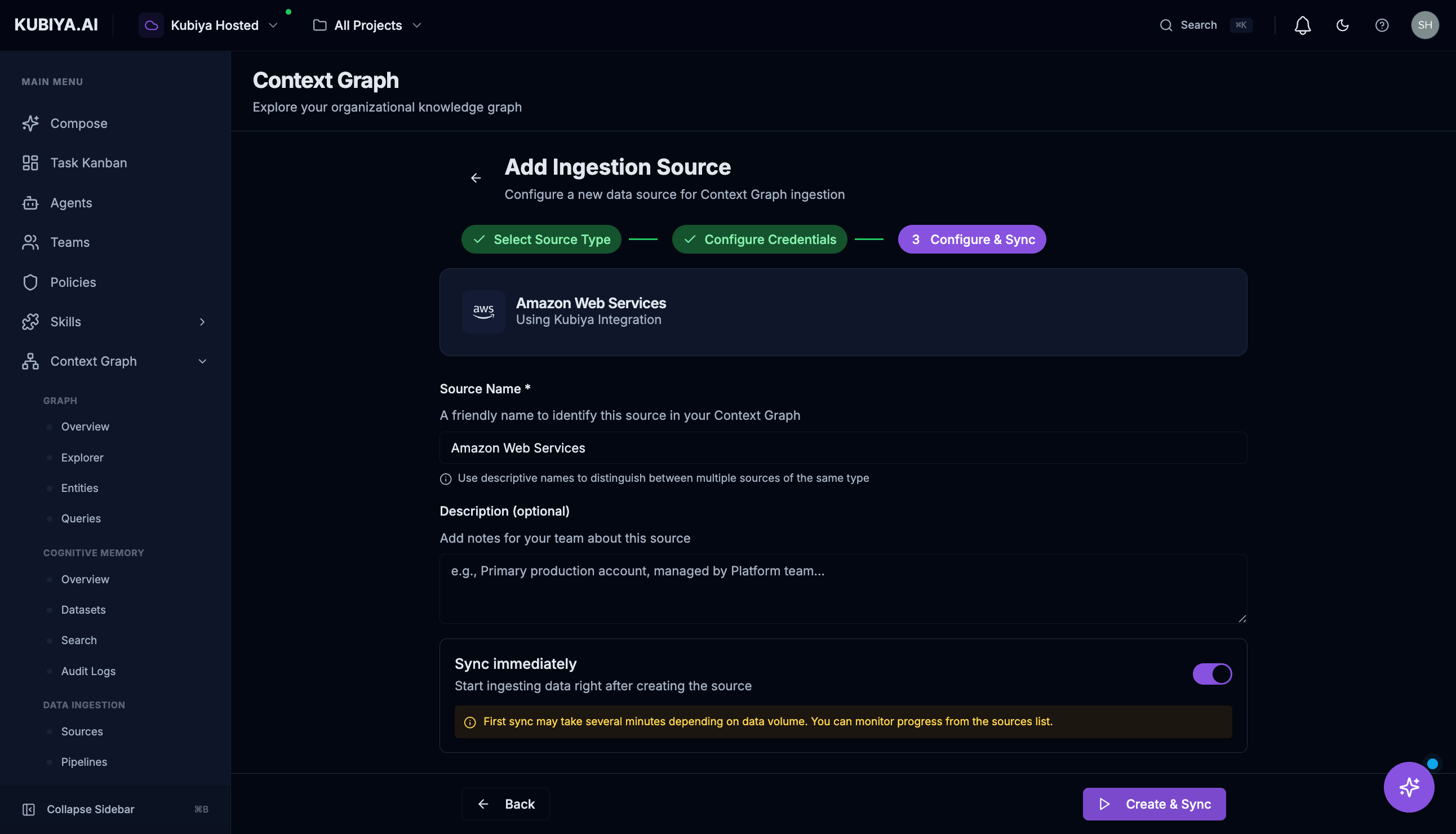
- Source Name: A friendly identifier for this source
- Description: Optional notes for your team
- Sync Immediately: Start ingesting data right away
Pipelines
The Pipelines page shows all ingestion workflow executions.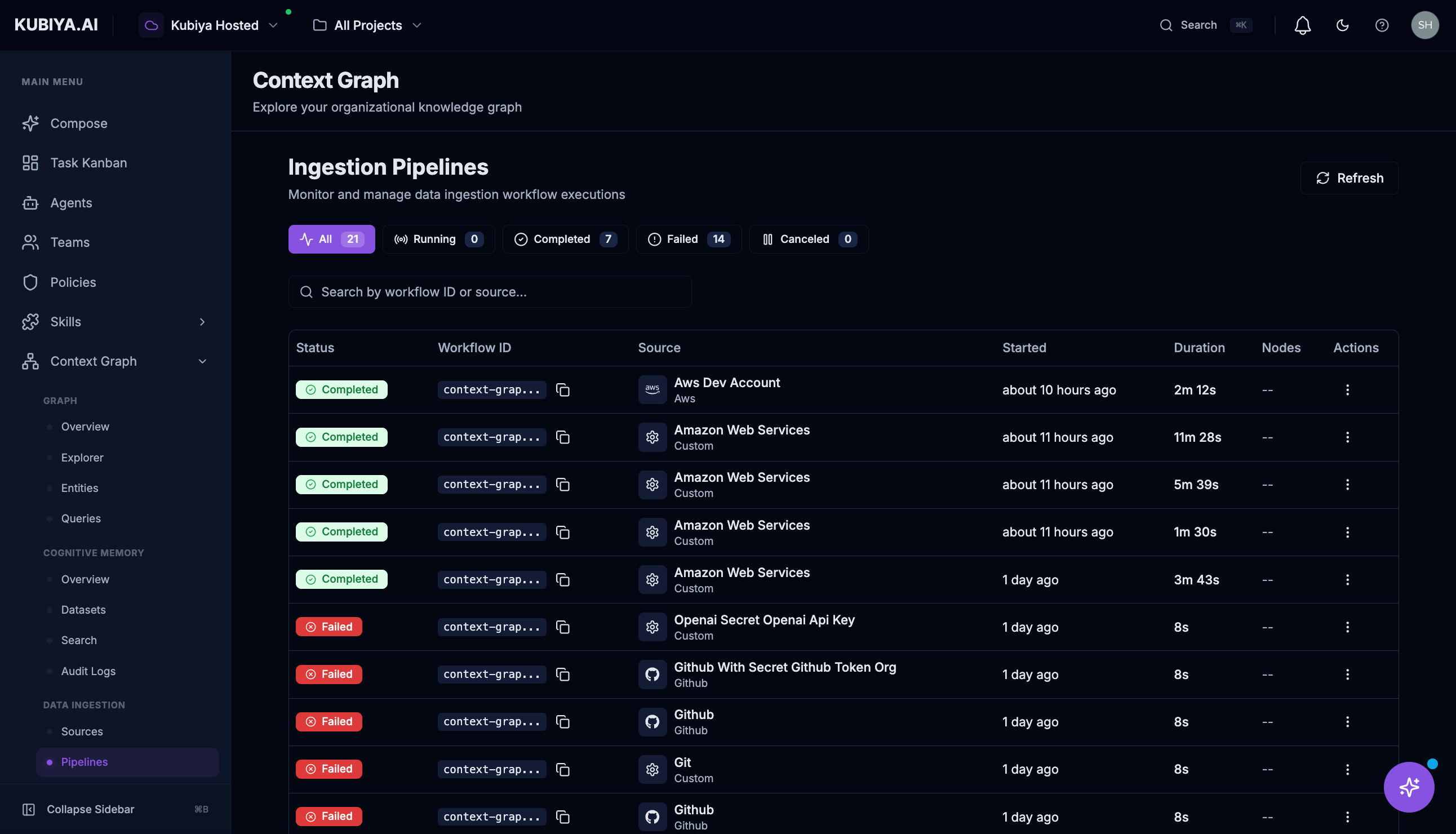
Pipeline Information
Filtering Pipelines
Use the status filters to quickly find:- All: View all pipeline runs
- Running: Currently active syncs
- Completed: Successful syncs
- Failed: Syncs that encountered errors
- Canceled: Manually stopped syncs
Troubleshooting Failed Pipelines
- Click on a failed pipeline to view details
- Check the error message for specifics
- Common issues:
- Expired credentials: Re-authenticate the source
- Permission denied: Update IAM roles or access tokens
- Rate limiting: Wait and retry, or adjust sync frequency
- Network errors: Check connectivity to the source
Activity
The Activity page provides a historical timeline of all ingestion events.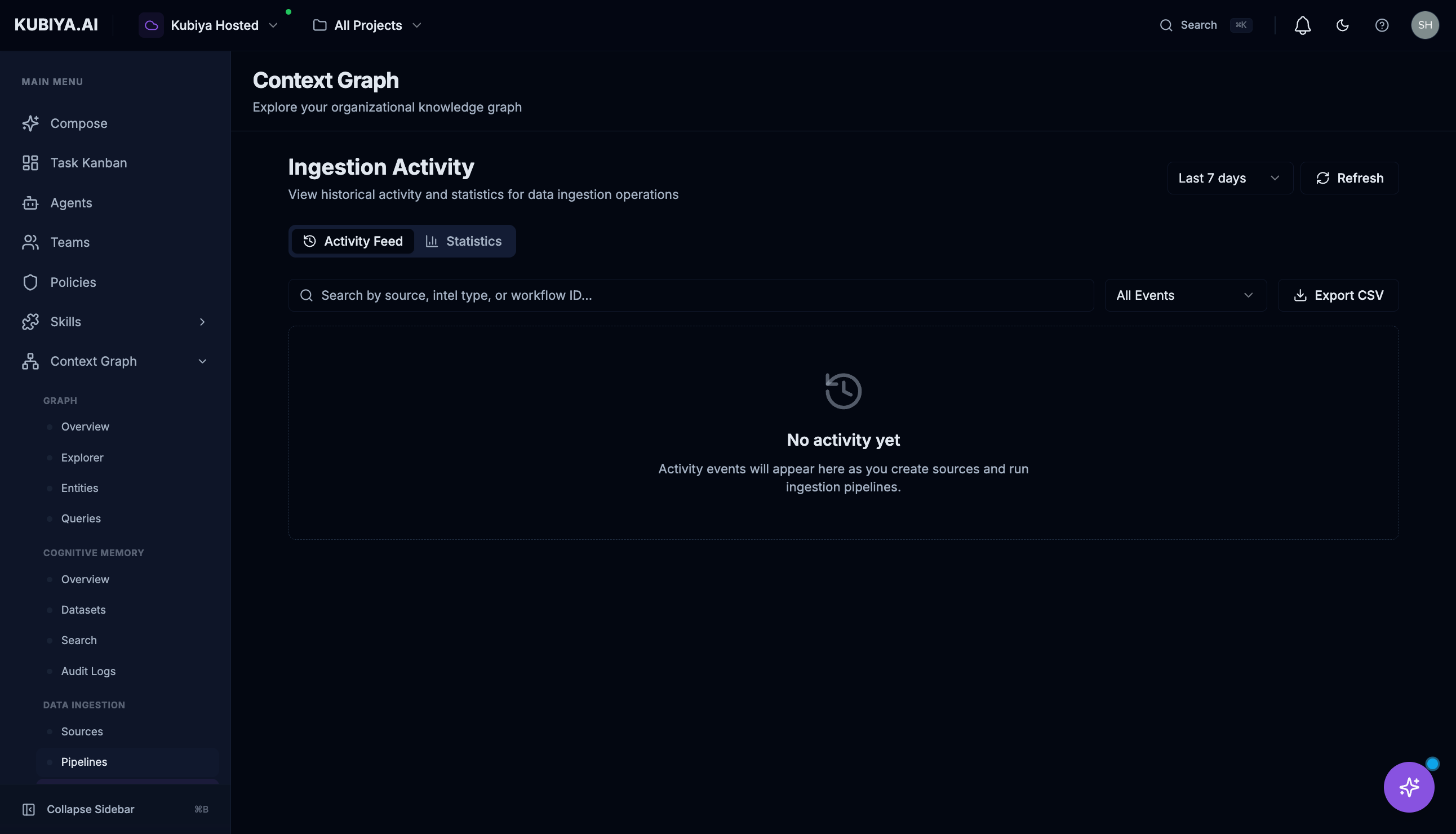
Activity Feed
View chronological events including:- Sync starts and completions
- Entity creation and updates
- Errors and warnings
- Manual triggers
Statistics
Switch to the Statistics tab for aggregated metrics:- Total syncs over time
- Success/failure rates
- Entity counts by source
Filtering
- Time Range: Last 7 days, 30 days, or custom
- Event Type: All events or specific types
- Export CSV: Download activity data for analysis
Using Ingested Data with Meta Agent
After successful data ingestion, use the Meta Agent to explore your infrastructure through natural language:Example Queries
Ask the Meta Agent questions about your ingested data:Troubleshooting
Source Shows Error Status
- Check the Pipelines page for detailed error messages
- Verify credentials haven’t expired
- Confirm permissions are correct for the source platform
- Check for network connectivity issues
Low Success Rate
- Review failed pipeline runs for specific errors
- Check if certain resource types are failing consistently
- Verify the source configuration matches the current platform state
Data Not Appearing
- Confirm the source status is Active
- Check that a sync has completed (not still running)
- Verify the sync schedule isn’t too infrequent
- Try triggering a manual sync
Stale Data
- Check when the last successful sync occurred
- Trigger a manual sync to refresh data
- Consider adjusting the sync schedule for more frequent updates
Best Practices
- Start with one source - Verify ingestion works before adding more
- Use read-only credentials - Kubiya only needs read access for ingestion
- Monitor pipelines regularly - Catch sync issues early
- Set appropriate schedules - Balance data freshness with API rate limits
- Use Kubiya Integrations - Managed credentials are easier to maintain
What’s Next
Meta Agent
Explore ingested data through natural language
Graph Explorer
Visualize relationships and dependencies
Entities
Browse and search ingested entities
Connectors
Enable agents to act on your infrastructure