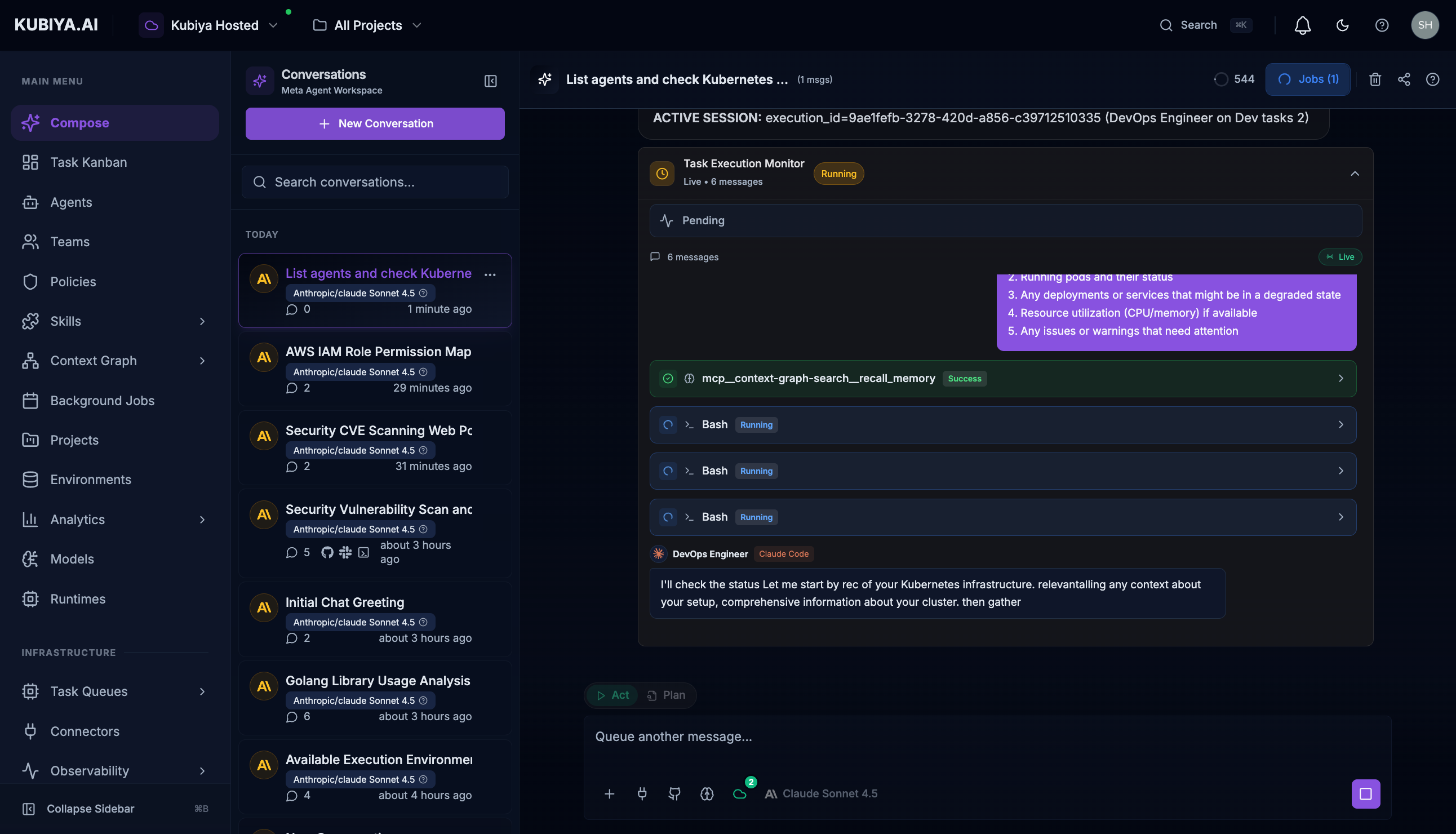
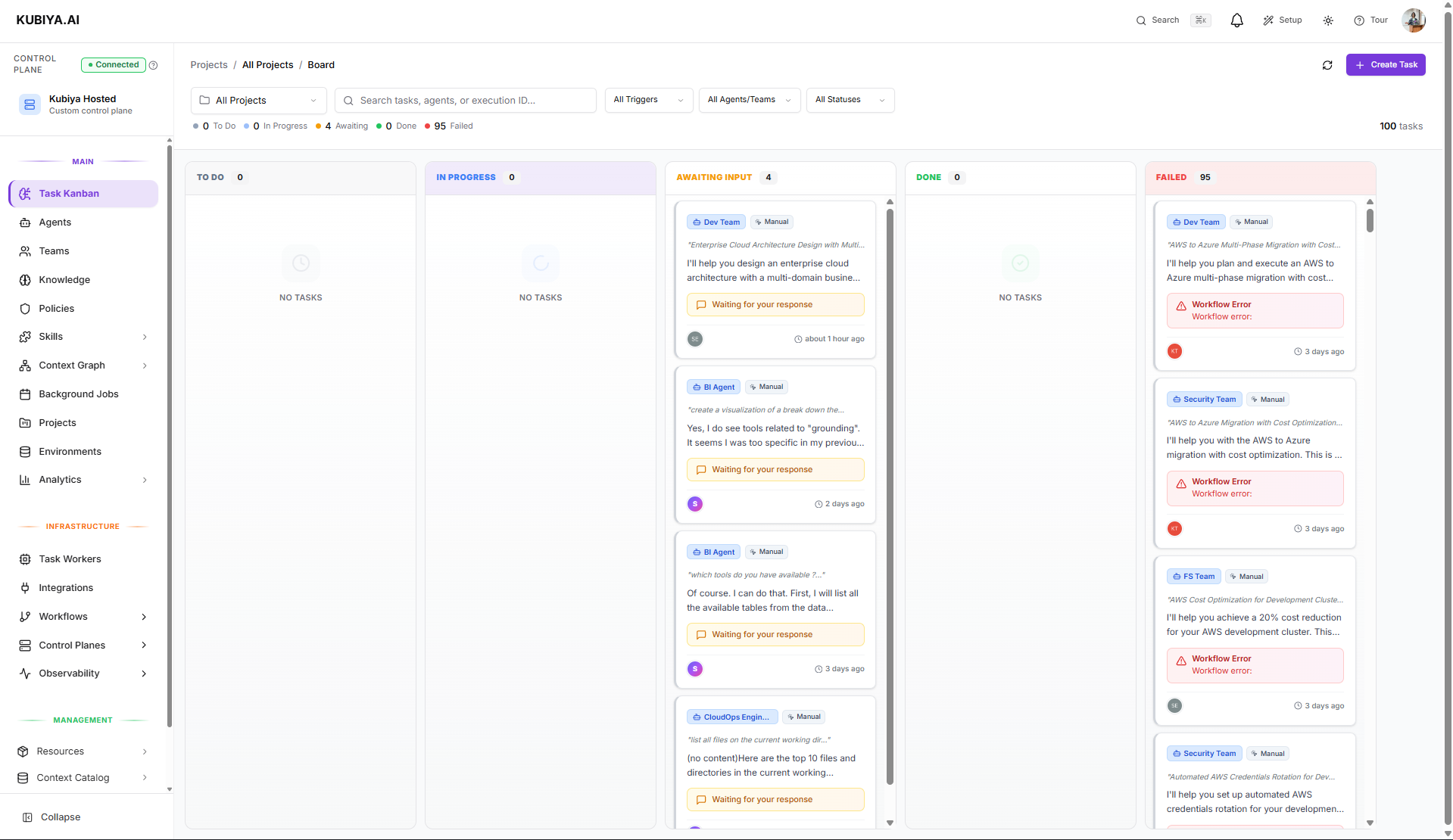
Kubiya Platform Overview The Task Kanban is the workspace where all user-submitted tasks, AI-generated plans, and active executions are tracked. Tasks begin as natural-language descriptions, are translated into structured execution plans by Kubiya’s AI engine, and move through predictable states as they run, request clarification, or complete. The board provides visibility, control, and traceability for everything agents and teams execute.

When to Use the Task Kanban

Use the Kanban when you need to:
  • Create tasks in natural language
  • Generate AI execution plans with estimates
  • Approve and execute tasks
  • Respond to agent questions requiring clarification
  • Track execution progress across environments and worker queues
  • Manage failed, running, or completed tasks
  • Review all historical executions associated with your workspace

Creating a Task

Task creation is intentionally simple, users describe what they want to achieve, and Kubiya handles the rest. Here is the step-by-step flow.

1. Open “Create Task”

You’ll see a configuration form with:
  • A large natural-language input box
  • Priority selector
  • Optional advanced settings

2. Describe the Task

Enter what you want done, exactly as you would explain it to a teammate. Good prompts include:
  • What outcome is expected
  • Requirements
  • Constraints
  • Tools, systems, or environments involved
Examples:
  • “Create a responsive landing page for our authentication product with a hero section, features list, and sign-up form.”
  • “Deploy the new API version to staging and run smoke tests.”
  • “Analyze cloud spend for the last 30 days and flag high-impact cost anomalies.”
The clearer the description, the better the generated plan.

3. Pick a Priority Level

Select:
  • Low
  • Medium
  • High
  • Critical
Priority influences which agent/team is selected and how execution is scheduled.

4. (Optional) Open Advanced Options

Advanced Options let you anchor the task into your execution environment: Assign the task to an existing Project so it appears in that project’s backlog and Kanban board.

Execution Environment

Select the environment where steps should run (e.g., development, staging, production).

Worker Queue

Choose which queue will execute the steps. If not selected, Kubiya chooses the most suitable queue.

5. Generate the Plan

Click Generate Plan. Your task is submitted and moves to the Planning column. The AI interprets your description and determines:
  • What exactly needs to be done
  • Which systems, repos, or resources are involved
  • The optimal executor (team or agent)
  • Required steps, sequence, and dependencies
Once complete, you receive a structured execution plan.

6. Review & Approve the Generated Plan

The plan includes:
  • Story points
  • Engineering hours estimate
  • Confidence level
  • Risks and assumptions
  • Requirements
  • Recommended Team/Agent
  • Execution context (Environment + Worker Queue)
  • Detailed step-by-step sequence
Actions available:
  • Approve & Execute → Task begins execution
  • Send Feedback & Refine → Plan is regenerated
  • Cancel → Task is discarded

7. Execution Begins

After approval:
  • The task enters Pending / Running depending on queue capacity
  • A worker picks up execution steps
  • Logs stream in real time
  • Policies are checked before each step
You may:
  • Monitor logs
  • Cancel the execution
  • Track step-level progress

8. Completion, Failure, or Manual Closure

Execution results in one of the following:
  • Completed: all steps executed successfully
  • Failed: errors, missing prerequisites, policy violations
  • Manually Closed: user terminates or abandons the task
Each task remains viewable for audit and historical reference.

Task Progress Flow

This describes the typical flow tasks go through on the Kanban.

1. Planning

Task has been submitted; AI is generating the plan.

2. Requires Input

The agent needs clarification before continuing. Users supply missing details and planning resumes.

3. Ready for Review

The execution plan is complete. User decides to:
  • Approve
  • Refine
  • Cancel

4. Executing

The plan is approved and running. Shows:
  • Step-by-step activity
  • Real-time logs
  • Assigned agent/team
  • Environment + Queue
  • Status of each step

5. Completed / Failed / Closed

Final state depending on outcome:
  • Completed – success
  • Failed – error, no worker capacity, policy rejection
  • Closed – terminated manually or abandoned

CLI Usage

Use the CLI to list, inspect, monitor, and control all task executions. Executions represent any task that has been approved and sent to an agent or team for processing.

1. List Executions

Lists all executions with optional filters for status, agent, team, or type. Commands
kubiya execution list
kubiya execution list --status running
kubiya execution list --agent <agent-id>
kubiya execution list --team <team-id>
kubiya execution list --type agent
kubiya execution list --limit 50
Flags
FlagDescription
--statusFilter by status: pending, running, completed, failed
--agentFilter by agent ID
--teamFilter by team ID
--typeFilter by execution type: agent or team
--limitLimit result count (default 50)
Examples
# List running executions
kubiya execution list --status running
# List executions for a specific agent
kubiya execution list --agent 8064f4c8-fb5c-4a52-99f8-9075521500a3
# List team-based executions only
kubiya execution list --type team --limit 20

2. Get Execution Details

Displays full execution metadata including plan, steps, environment, and final results. Commands
kubiya execution get <execution-id>
Examples
kubiya execution get abc123-def456
kubiya execution get 8064f4c8-fb5c-4a52-99f8-9075521500a3

3. Stream Execution Logs

Streams real-time logs and events for an active execution. Use Ctrl+C to exit log streaming. Commands
kubiya execution logs <execution-id>
Examples
# Watch execution progress
kubiya execution logs abc123-def456

4. Cancel Executions

Cancels a running execution. Kubiya attempts a graceful shutdown and halts remaining steps. Commands
kubiya execution cancel <execution-id>
Examples
# Cancel a running job
kubiya execution cancel abc123-def456
# Stop another execution
kubiya execution cancel 8064f4c8-fb5c-4a52-99f8-9075521500a3

Best Practices

  • Describe tasks with outcomes, requirements, and constraints
  • Approve plans only after reviewing steps and risk notes
  • Respond promptly if agents request clarification
  • Cancel tasks that hang or are no longer needed
  • Use CLI streaming for debugging failing or long-running tasks
  • Check policies if tasks fail unexpectedly
  • Ensure active workers are connected for real-time execution