> ## Documentation Index
> Fetch the complete documentation index at: https://docs.kubiya.ai/llms.txt
> Use this file to discover all available pages before exploring further.
# Task Kanban
> Track and manage all agent and team executions
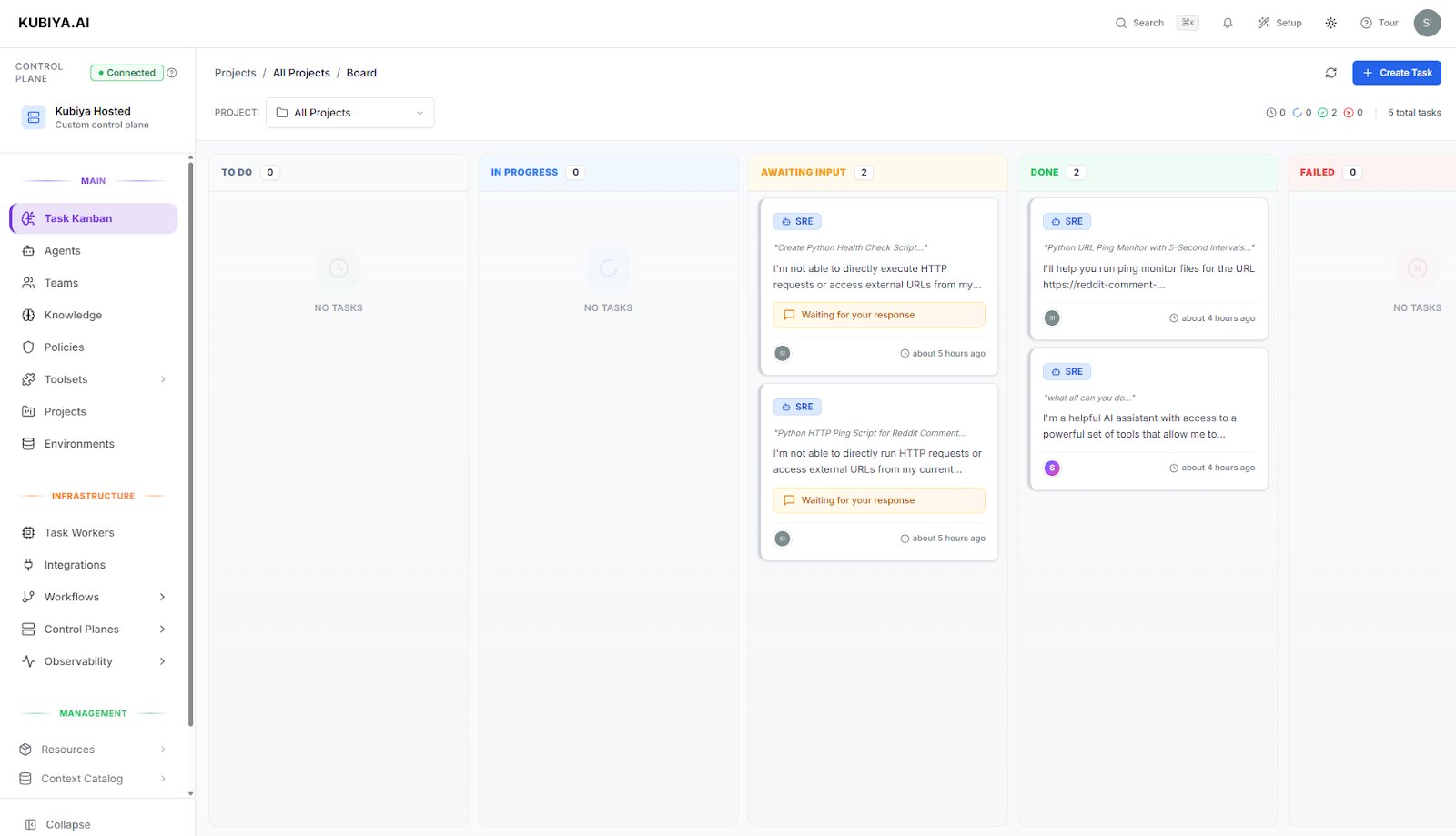
The Task Kanban provides a visual board for tracking all task executions across your agents and teams. It shows real-time status updates and allows you to manage, monitor, and debug executions.
 ## Access
Click **Task Kanban** in the sidebar to navigate to `/projects/kanban`.
## Board Layout
### Quick Stats
The top bar shows aggregate counts:
* **Active** - Currently executing tasks
* **Waiting** - Tasks in queue waiting for workers
* **Total** - Total tasks visible with current filters
### Columns
Tasks flow through these status columns:
| Column | Description |
| --------------------- | ------------------------------------------------- |
| **To Do** | Tasks queued but not yet started |
| **In Progress** | Currently executing tasks |
| **Awaiting Response** | Tasks waiting for user input or external response |
| **Done** | Successfully completed tasks |
| **Failed** | Tasks that encountered errors |
Each column shows its task count in the header.
## Filtering Tasks
### Search
Use the search bar to filter by:
* Task title
* Agent or team name
* Execution ID
### Filter Controls
| Filter | Options |
| ---------------- | ------------------------------------------- |
| **Triggers** | All, Manual, Scheduled, Webhook, Agent, Job |
| **Agents/Teams** | Select specific agents or teams |
| **Statuses** | Filter by status column |
| **Scheduled** | Show scheduled vs immediate tasks |
Combine filters to narrow down specific executions. For example: "Manual triggers from the DevOps agent that failed."
## Task Cards
Each task card displays:
### Header
* Agent or team avatar and name
* Task title
* Trigger type badge (Manual, Scheduled, Webhook, etc.)
* Timestamp
### Body
* Brief description or first message
* Attached repositories (if any)
* Current status indicator
### Actions
Click a task card to:
* Open the full conversation in a dialog
* View execution details
* See tool call history
* Access logs and outputs
## Real-Time Updates
The Kanban board updates in real-time:
* **Live indicator** shows WebSocket connection status
* Tasks move between columns automatically
* New tasks appear without refresh
If you see the Live indicator turn red, your connection was interrupted. The board will reconnect automatically, or you can click **Refresh** to reload.
## Task Actions
### Creating Tasks
Click **+ Create Task** to:
1. Select an agent or team
2. Enter your request
3. Choose execution options
4. Start the task
The new task will appear in the **To Do** column.
### Bulk Actions
Use checkboxes to select multiple tasks:
* **Delete Selected** - Remove selected tasks
* Select all visible tasks with the header checkbox
### Task Details
Click any task card to open the detail dialog:
* **Conversation** - Full message history
* **Tool Calls** - All tool invocations with results
* **Status History** - Timeline of status changes
* **Metadata** - Execution ID, timestamps, model used
## Working with Tasks
### Monitoring Active Tasks
Watch the **In Progress** column for:
* Real-time message streaming
* Tool execution status
* Progress indicators
### Debugging Failed Tasks
In the **Failed** column:
1. Click the task card
2. Review the error message
3. Check tool call results for the failure point
4. View the full conversation context
### Resuming Tasks
Tasks in **Awaiting Response** need your input:
1. Click the task card
2. Provide the requested information
3. The task will resume automatically
## Filtering by Trigger Type
| Trigger | Description |
| ------------- | ------------------------------ |
| **Manual** | Started by user interaction |
| **Scheduled** | Created by background jobs |
| **Webhook** | Triggered by external webhooks |
| **Agent** | Spawned by another agent |
| **Job** | Part of a scheduled job |
## Live Status
The top-right shows connection status:
* **Live** (green) - Real-time updates active
* **Reconnecting** (yellow) - Attempting to reconnect
* **Offline** (red) - Connection lost
## Keyboard Shortcuts
| Shortcut | Action |
| -------------- | ------------------------------------ |
| `Cmd/Ctrl + K` | Open command palette to search tasks |
| `R` | Refresh the board |
## Related Pages
* **[Compose Workspace](/web-interface/compose-workspace)** - Start conversations that create tasks
* **[Background Jobs](/core-concepts/background-jobs)** - Schedule recurring tasks
* **[Agents](/core-concepts/agents)** - Configure agents that execute tasks
## Access
Click **Task Kanban** in the sidebar to navigate to `/projects/kanban`.
## Board Layout
### Quick Stats
The top bar shows aggregate counts:
* **Active** - Currently executing tasks
* **Waiting** - Tasks in queue waiting for workers
* **Total** - Total tasks visible with current filters
### Columns
Tasks flow through these status columns:
| Column | Description |
| --------------------- | ------------------------------------------------- |
| **To Do** | Tasks queued but not yet started |
| **In Progress** | Currently executing tasks |
| **Awaiting Response** | Tasks waiting for user input or external response |
| **Done** | Successfully completed tasks |
| **Failed** | Tasks that encountered errors |
Each column shows its task count in the header.
## Filtering Tasks
### Search
Use the search bar to filter by:
* Task title
* Agent or team name
* Execution ID
### Filter Controls
| Filter | Options |
| ---------------- | ------------------------------------------- |
| **Triggers** | All, Manual, Scheduled, Webhook, Agent, Job |
| **Agents/Teams** | Select specific agents or teams |
| **Statuses** | Filter by status column |
| **Scheduled** | Show scheduled vs immediate tasks |
Combine filters to narrow down specific executions. For example: "Manual triggers from the DevOps agent that failed."
## Task Cards
Each task card displays:
### Header
* Agent or team avatar and name
* Task title
* Trigger type badge (Manual, Scheduled, Webhook, etc.)
* Timestamp
### Body
* Brief description or first message
* Attached repositories (if any)
* Current status indicator
### Actions
Click a task card to:
* Open the full conversation in a dialog
* View execution details
* See tool call history
* Access logs and outputs
## Real-Time Updates
The Kanban board updates in real-time:
* **Live indicator** shows WebSocket connection status
* Tasks move between columns automatically
* New tasks appear without refresh
If you see the Live indicator turn red, your connection was interrupted. The board will reconnect automatically, or you can click **Refresh** to reload.
## Task Actions
### Creating Tasks
Click **+ Create Task** to:
1. Select an agent or team
2. Enter your request
3. Choose execution options
4. Start the task
The new task will appear in the **To Do** column.
### Bulk Actions
Use checkboxes to select multiple tasks:
* **Delete Selected** - Remove selected tasks
* Select all visible tasks with the header checkbox
### Task Details
Click any task card to open the detail dialog:
* **Conversation** - Full message history
* **Tool Calls** - All tool invocations with results
* **Status History** - Timeline of status changes
* **Metadata** - Execution ID, timestamps, model used
## Working with Tasks
### Monitoring Active Tasks
Watch the **In Progress** column for:
* Real-time message streaming
* Tool execution status
* Progress indicators
### Debugging Failed Tasks
In the **Failed** column:
1. Click the task card
2. Review the error message
3. Check tool call results for the failure point
4. View the full conversation context
### Resuming Tasks
Tasks in **Awaiting Response** need your input:
1. Click the task card
2. Provide the requested information
3. The task will resume automatically
## Filtering by Trigger Type
| Trigger | Description |
| ------------- | ------------------------------ |
| **Manual** | Started by user interaction |
| **Scheduled** | Created by background jobs |
| **Webhook** | Triggered by external webhooks |
| **Agent** | Spawned by another agent |
| **Job** | Part of a scheduled job |
## Live Status
The top-right shows connection status:
* **Live** (green) - Real-time updates active
* **Reconnecting** (yellow) - Attempting to reconnect
* **Offline** (red) - Connection lost
## Keyboard Shortcuts
| Shortcut | Action |
| -------------- | ------------------------------------ |
| `Cmd/Ctrl + K` | Open command palette to search tasks |
| `R` | Refresh the board |
## Related Pages
* **[Compose Workspace](/web-interface/compose-workspace)** - Start conversations that create tasks
* **[Background Jobs](/core-concepts/background-jobs)** - Schedule recurring tasks
* **[Agents](/core-concepts/agents)** - Configure agents that execute tasks