> ## Documentation Index
> Fetch the complete documentation index at: https://docs.kubiya.ai/llms.txt
> Use this file to discover all available pages before exploring further.
# Web Interface Overview
> Navigate Kubiya's web interface at compose.kubiya.ai
 ## Access
Navigate to [compose.kubiya.ai](https://compose.kubiya.ai) and sign in with your organization credentials.
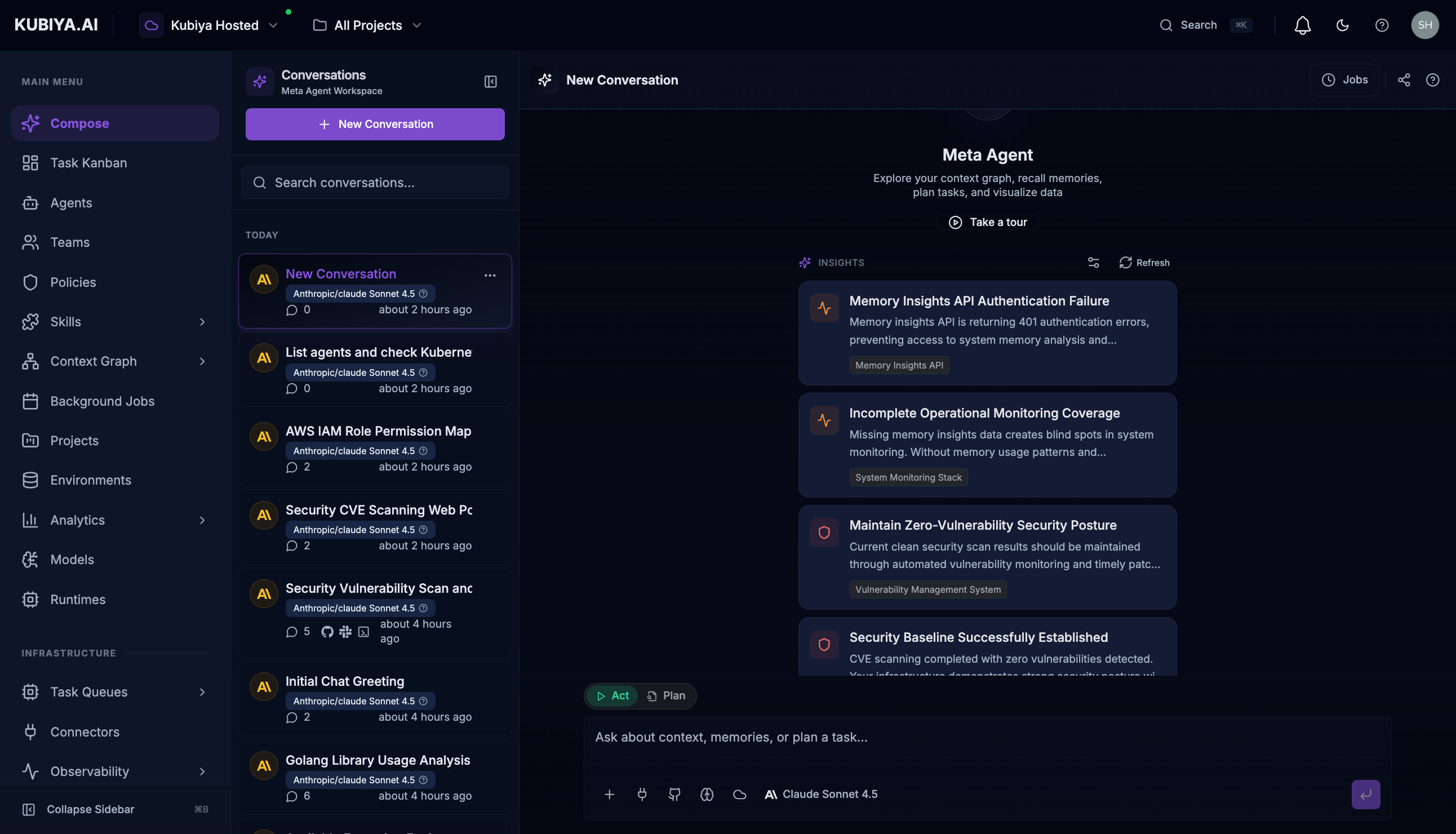
## Interface Layout
The top navigation bar contains:
| Element | Description |
| -------------------------- | ---------------------------------------------------- |
| **Kubiya Logo** | Click to return to home |
| **Control Plane Selector** | Switch between control planes (if you have multiple) |
| **Project Selector** | Filter resources by project or view all projects |
| **Search (Cmd+K)** | Quick navigation to any page, resource, or setting |
| **Notifications** | View alerts and system notifications |
| **Theme Toggle** | Switch between light and dark mode |
| **User Menu** | Access settings, profile, and sign out |
The left sidebar provides access to all major sections:
**Main Menu:**
* **Compose** - Meta Agent workspace
* **Task Kanban** - Track all executions and tasks
* **Agents** - Create and manage AI agents
* **Teams** - Configure multi-agent teams
* **Policies** - Define OPA guardrails
* **Skills** - Browse and manage agent capabilities
* **Context Graph** - Explore your infrastructure knowledge graph
* **Background Jobs** - Scheduled automation
* **Projects** - Organize work by objective
* **Environments** - Execution environment configuration
* **Analytics** - Usage metrics and dashboards
**Infrastructure:**
* **Task Queues** - Worker queue management
* **Connectors** - Cloud and tool integrations
* **Observability** - Monitoring and logs
Press **Cmd+B** (Mac) or **Ctrl+B** (Windows/Linux) to collapse or expand the sidebar.
The main content area displays the current page with layouts optimized for each purpose:
* List views with search and filters
* Detail pages with configuration panels
* Visual interfaces like the graph explorer
* Chat interfaces for Meta Agent interactions
## Key Pages
Full-screen Meta Agent conversations for complex tasks
Track all task executions across agents and teams
Explore your infrastructure knowledge graph
Configure preferences, API keys, and integrations
## Quick Navigation
Press **Cmd+K** (Mac) or **Ctrl+K** (Windows/Linux) to:
* Search for any page by name
* Jump to recent pages
* Access settings quickly
* Navigate to specific resources
Press **Cmd+J** (Mac) or **Ctrl+J** (Windows/Linux) to open the Meta Agent panel from any page.
## Next Steps
Learn the full-screen Meta Agent interface
Quick AI assistance from any page
Master navigation shortcuts
## Access
Navigate to [compose.kubiya.ai](https://compose.kubiya.ai) and sign in with your organization credentials.
## Interface Layout
The top navigation bar contains:
| Element | Description |
| -------------------------- | ---------------------------------------------------- |
| **Kubiya Logo** | Click to return to home |
| **Control Plane Selector** | Switch between control planes (if you have multiple) |
| **Project Selector** | Filter resources by project or view all projects |
| **Search (Cmd+K)** | Quick navigation to any page, resource, or setting |
| **Notifications** | View alerts and system notifications |
| **Theme Toggle** | Switch between light and dark mode |
| **User Menu** | Access settings, profile, and sign out |
The left sidebar provides access to all major sections:
**Main Menu:**
* **Compose** - Meta Agent workspace
* **Task Kanban** - Track all executions and tasks
* **Agents** - Create and manage AI agents
* **Teams** - Configure multi-agent teams
* **Policies** - Define OPA guardrails
* **Skills** - Browse and manage agent capabilities
* **Context Graph** - Explore your infrastructure knowledge graph
* **Background Jobs** - Scheduled automation
* **Projects** - Organize work by objective
* **Environments** - Execution environment configuration
* **Analytics** - Usage metrics and dashboards
**Infrastructure:**
* **Task Queues** - Worker queue management
* **Connectors** - Cloud and tool integrations
* **Observability** - Monitoring and logs
Press **Cmd+B** (Mac) or **Ctrl+B** (Windows/Linux) to collapse or expand the sidebar.
The main content area displays the current page with layouts optimized for each purpose:
* List views with search and filters
* Detail pages with configuration panels
* Visual interfaces like the graph explorer
* Chat interfaces for Meta Agent interactions
## Key Pages
Full-screen Meta Agent conversations for complex tasks
Track all task executions across agents and teams
Explore your infrastructure knowledge graph
Configure preferences, API keys, and integrations
## Quick Navigation
Press **Cmd+K** (Mac) or **Ctrl+K** (Windows/Linux) to:
* Search for any page by name
* Jump to recent pages
* Access settings quickly
* Navigate to specific resources
Press **Cmd+J** (Mac) or **Ctrl+J** (Windows/Linux) to open the Meta Agent panel from any page.
## Next Steps
Learn the full-screen Meta Agent interface
Quick AI assistance from any page
Master navigation shortcuts