> ## Documentation Index
> Fetch the complete documentation index at: https://docs.kubiya.ai/llms.txt
> Use this file to discover all available pages before exploring further.
# Meta Agent Panel
> Quick access to AI assistance from anywhere using Cmd+J
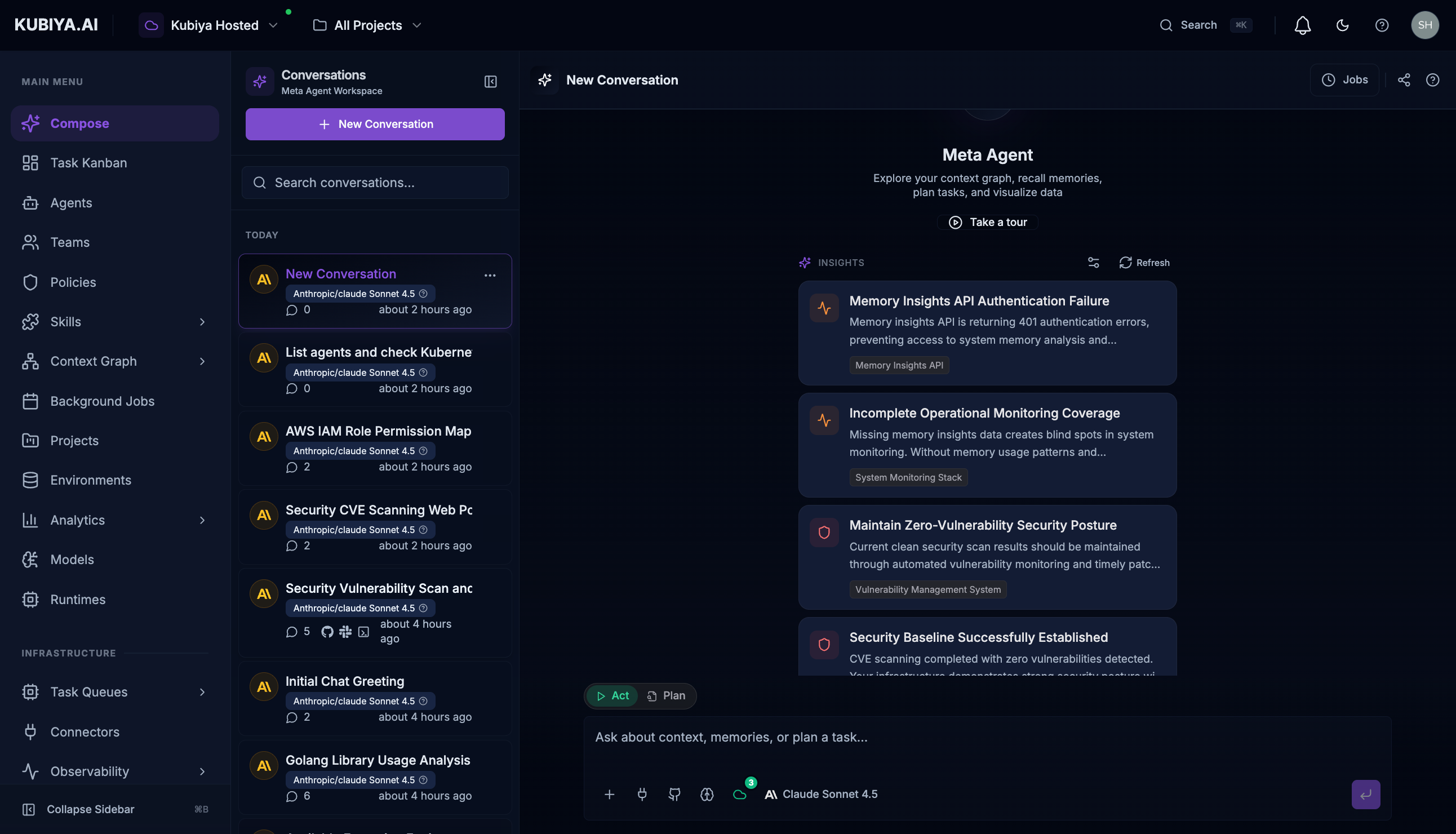
The Meta Agent Panel provides instant access to the Meta Agent from any page in the Kubiya interface. It's a floating overlay that lets you ask questions, execute tasks, and explore your infrastructure without navigating away from your current context.
 ## Opening the Panel
There are two ways to open the Meta Agent Panel:
### Keyboard Shortcut (Recommended)
Press **Cmd+J** (Mac) or **Ctrl+J** (Windows/Linux) from any page.
### Floating Action Button (FAB)
Click the purple pulsing button in the bottom-right corner of the screen. The FAB is always visible on every page.
## Panel vs Workspace
| Feature | Panel (Cmd+J) | [Workspace](/web-interface/compose-workspace) |
| ------------------------ | -------------------- | --------------------------------------------- |
| **Access** | From any page | Navigate to /chat |
| **Conversation History** | Limited | Full sidebar |
| **Best For** | Quick queries | Extended conversations |
| **Context** | Current page context | Dedicated focus |
| **Size** | Compact overlay | Full screen |
Use the **Panel** for quick questions like "What agents are available?" or "Show me today's failed tasks."
Use the **[Workspace](/web-interface/compose-workspace)** for complex conversations requiring multiple turns and detailed context.
## Panel Layout
### Header
The panel header contains:
* **Meta Agent** label with AI indicator
* **Model selector** showing current model (e.g., Claude Sonnet 4.5)
* **Token counter** showing conversation usage
* **New conversation** button
* **History** button to access previous conversations
* **Expand** button to open in full workspace
* **Close** button (or press Escape)
### Message Area
The central area displays:
* Your messages
* Agent responses with tool calls
* Expandable reasoning sections
* Visual/JSON data toggles
### Input Bar
Same controls as the [Compose Workspace](/web-interface/compose-workspace):
| Control | Description |
| ------------ | --------------------- |
| **+** | Attach files |
| **Code** | Attach repositories |
| **Shield** | Toggle sandbox mode |
| **Server** | Select task queue |
| **AI** | Model selector |
| **Act/Plan** | Toggle execution mode |
## First-Time Setup
On your first use, you may see an onboarding screen to personalize your experience:
### Category Selection
Choose categories relevant to your role:
* **Security** - CVEs, vulnerabilities, compliance
* **Infrastructure** - Kubernetes, databases, services
* **Cost Optimization** - Cloud spend, unused resources
* **CI/CD** - Pipelines, deployments, releases
* **Memory & Insights** - Historical patterns, knowledge
* **Tasks & Jobs** - Execution planning, automation
These preferences customize the AI-powered suggestions shown in the panel.
## Common Uses
### Quick Infrastructure Queries
```
"What Kubernetes pods are running in production?"
```
```
"Show me EC2 instances with high CPU usage"
```
### Resource Lookups
```
"Find the DevOps agent and show its capabilities"
```
```
"What skills does the security team have access to?"
```
### Status Checks
```
"Are there any failed tasks in the last hour?"
```
```
"What's the status of worker queue 'production'?"
```
### Quick Actions
```
"Execute the cost-analyzer agent on AWS resources"
```
```
"Create a task to review security vulnerabilities"
```
## Keyboard Shortcuts
| Shortcut | Action |
| --------------- | ------------------------ |
| `Cmd/Ctrl + J` | Toggle panel open/closed |
| `Escape` | Close panel |
| `Enter` | Send message |
| `Shift + Enter` | New line |
## Panel Controls
### Expanding to Workspace
Click the expand icon in the header to open the current conversation in the full [Compose Workspace](/web-interface/compose-workspace). This preserves your conversation context.
### Accessing History
Click the history icon to see recent conversations started from the panel. You can resume any previous conversation.
### Switching Models
Click the model selector to choose a different AI model:
* **Claude Sonnet 4.5** - Balanced (default)
* **Claude Opus 4.5** - Maximum capability
* **Claude Sonnet 4** - Fast, efficient
* Other available models
## Best Practices
1. **Keep queries focused** - The panel works best for single-purpose requests
2. **Expand for complexity** - Move to the workspace for multi-step operations
3. **Use keyboard shortcuts** - Cmd+J is faster than clicking
4. **Check the model** - Ensure you're using the right model for your task
5. **Review before executing** - Use Plan mode for sensitive operations
## Related Pages
* **[Compose Workspace](/web-interface/compose-workspace)** - Full-screen conversation interface
* **[Meta Agent](/core-concepts/meta-agent)** - Learn about Meta Agent capabilities
* **[Keyboard Shortcuts](/web-interface/keyboard-shortcuts)** - All navigation shortcuts
## Opening the Panel
There are two ways to open the Meta Agent Panel:
### Keyboard Shortcut (Recommended)
Press **Cmd+J** (Mac) or **Ctrl+J** (Windows/Linux) from any page.
### Floating Action Button (FAB)
Click the purple pulsing button in the bottom-right corner of the screen. The FAB is always visible on every page.
## Panel vs Workspace
| Feature | Panel (Cmd+J) | [Workspace](/web-interface/compose-workspace) |
| ------------------------ | -------------------- | --------------------------------------------- |
| **Access** | From any page | Navigate to /chat |
| **Conversation History** | Limited | Full sidebar |
| **Best For** | Quick queries | Extended conversations |
| **Context** | Current page context | Dedicated focus |
| **Size** | Compact overlay | Full screen |
Use the **Panel** for quick questions like "What agents are available?" or "Show me today's failed tasks."
Use the **[Workspace](/web-interface/compose-workspace)** for complex conversations requiring multiple turns and detailed context.
## Panel Layout
### Header
The panel header contains:
* **Meta Agent** label with AI indicator
* **Model selector** showing current model (e.g., Claude Sonnet 4.5)
* **Token counter** showing conversation usage
* **New conversation** button
* **History** button to access previous conversations
* **Expand** button to open in full workspace
* **Close** button (or press Escape)
### Message Area
The central area displays:
* Your messages
* Agent responses with tool calls
* Expandable reasoning sections
* Visual/JSON data toggles
### Input Bar
Same controls as the [Compose Workspace](/web-interface/compose-workspace):
| Control | Description |
| ------------ | --------------------- |
| **+** | Attach files |
| **Code** | Attach repositories |
| **Shield** | Toggle sandbox mode |
| **Server** | Select task queue |
| **AI** | Model selector |
| **Act/Plan** | Toggle execution mode |
## First-Time Setup
On your first use, you may see an onboarding screen to personalize your experience:
### Category Selection
Choose categories relevant to your role:
* **Security** - CVEs, vulnerabilities, compliance
* **Infrastructure** - Kubernetes, databases, services
* **Cost Optimization** - Cloud spend, unused resources
* **CI/CD** - Pipelines, deployments, releases
* **Memory & Insights** - Historical patterns, knowledge
* **Tasks & Jobs** - Execution planning, automation
These preferences customize the AI-powered suggestions shown in the panel.
## Common Uses
### Quick Infrastructure Queries
```
"What Kubernetes pods are running in production?"
```
```
"Show me EC2 instances with high CPU usage"
```
### Resource Lookups
```
"Find the DevOps agent and show its capabilities"
```
```
"What skills does the security team have access to?"
```
### Status Checks
```
"Are there any failed tasks in the last hour?"
```
```
"What's the status of worker queue 'production'?"
```
### Quick Actions
```
"Execute the cost-analyzer agent on AWS resources"
```
```
"Create a task to review security vulnerabilities"
```
## Keyboard Shortcuts
| Shortcut | Action |
| --------------- | ------------------------ |
| `Cmd/Ctrl + J` | Toggle panel open/closed |
| `Escape` | Close panel |
| `Enter` | Send message |
| `Shift + Enter` | New line |
## Panel Controls
### Expanding to Workspace
Click the expand icon in the header to open the current conversation in the full [Compose Workspace](/web-interface/compose-workspace). This preserves your conversation context.
### Accessing History
Click the history icon to see recent conversations started from the panel. You can resume any previous conversation.
### Switching Models
Click the model selector to choose a different AI model:
* **Claude Sonnet 4.5** - Balanced (default)
* **Claude Opus 4.5** - Maximum capability
* **Claude Sonnet 4** - Fast, efficient
* Other available models
## Best Practices
1. **Keep queries focused** - The panel works best for single-purpose requests
2. **Expand for complexity** - Move to the workspace for multi-step operations
3. **Use keyboard shortcuts** - Cmd+J is faster than clicking
4. **Check the model** - Ensure you're using the right model for your task
5. **Review before executing** - Use Plan mode for sensitive operations
## Related Pages
* **[Compose Workspace](/web-interface/compose-workspace)** - Full-screen conversation interface
* **[Meta Agent](/core-concepts/meta-agent)** - Learn about Meta Agent capabilities
* **[Keyboard Shortcuts](/web-interface/keyboard-shortcuts)** - All navigation shortcuts