> ## Documentation Index
> Fetch the complete documentation index at: https://docs.kubiya.ai/llms.txt
> Use this file to discover all available pages before exploring further.
# Data Ingestion
> Manage data sources that feed the Context Graph
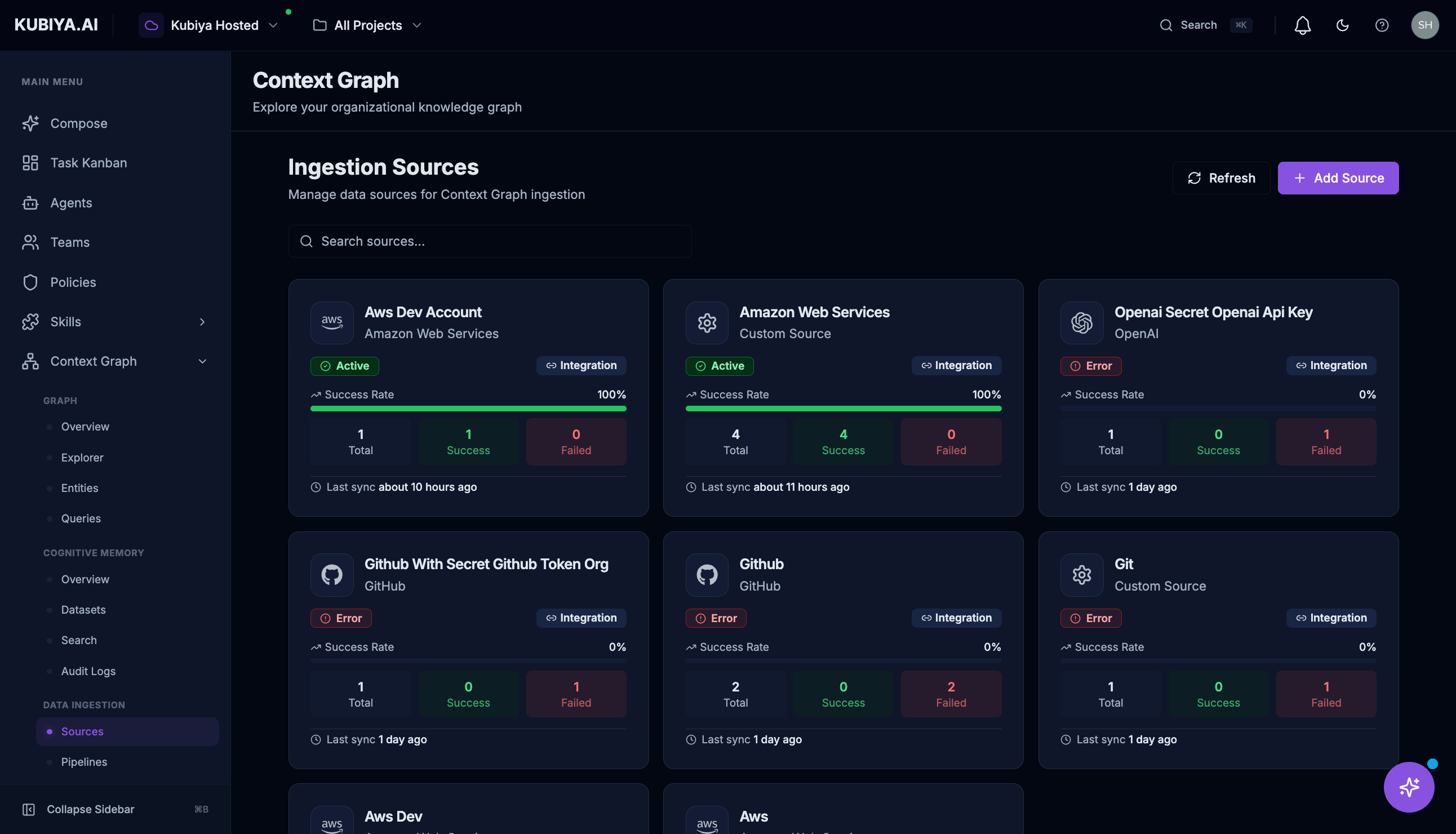 The Data Ingestion interface allows you to manage the sources that populate your Context Graph. Connect cloud providers, code repositories, monitoring tools, and other systems to build a comprehensive view of your infrastructure.
## Access
Click **Context Graph** in the sidebar, then under **DATA INGESTION**:
* **Sources** - Manage connected data sources
* **Pipelines** - View ingestion pipelines
* **Activity** - Monitor ingestion activity
## Ingestion Sources
The Sources page shows all connected data sources that feed entities into your Context Graph.
### Source Cards
Each source displays:
| Field | Description |
| ---------------- | ---------------------------------------------------- |
| **Name** | Source identifier |
| **Type** | Integration type (e.g., Amazon Web Services, GitHub) |
| **Status** | Active, Error, or Inactive |
| **Success Rate** | Percentage of successful syncs |
| **Stats** | Total entities, Success count, Failed count |
| **Last Sync** | When the source was last synchronized |
### Status Indicators
* **Active** (green) - Source is syncing successfully
* **Error** (red) - Recent sync failures
* **Inactive** (gray) - Source is disabled or not configured
### Adding a Source
Click **+ Add Source** to connect a new data source:
The Data Ingestion interface allows you to manage the sources that populate your Context Graph. Connect cloud providers, code repositories, monitoring tools, and other systems to build a comprehensive view of your infrastructure.
## Access
Click **Context Graph** in the sidebar, then under **DATA INGESTION**:
* **Sources** - Manage connected data sources
* **Pipelines** - View ingestion pipelines
* **Activity** - Monitor ingestion activity
## Ingestion Sources
The Sources page shows all connected data sources that feed entities into your Context Graph.
### Source Cards
Each source displays:
| Field | Description |
| ---------------- | ---------------------------------------------------- |
| **Name** | Source identifier |
| **Type** | Integration type (e.g., Amazon Web Services, GitHub) |
| **Status** | Active, Error, or Inactive |
| **Success Rate** | Percentage of successful syncs |
| **Stats** | Total entities, Success count, Failed count |
| **Last Sync** | When the source was last synchronized |
### Status Indicators
* **Active** (green) - Source is syncing successfully
* **Error** (red) - Recent sync failures
* **Inactive** (gray) - Source is disabled or not configured
### Adding a Source
Click **+ Add Source** to connect a new data source:
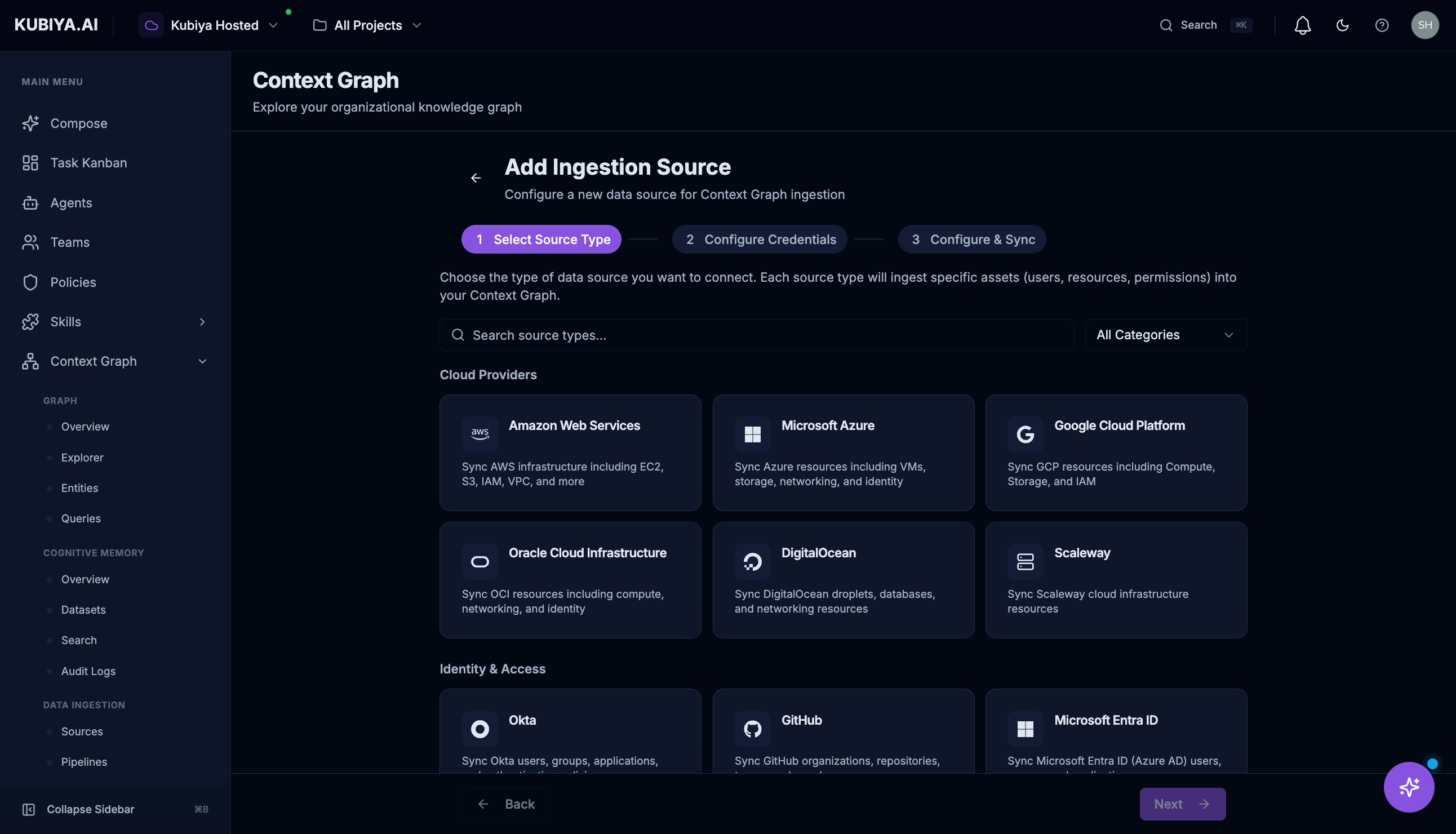 1. **Select Provider**
* AWS
* GitHub
* GitLab
* Azure
* GCP
* Kubernetes
* Custom sources
2. **Configure Connection**
1. **Select Provider**
* AWS
* GitHub
* GitLab
* Azure
* GCP
* Kubernetes
* Custom sources
2. **Configure Connection**
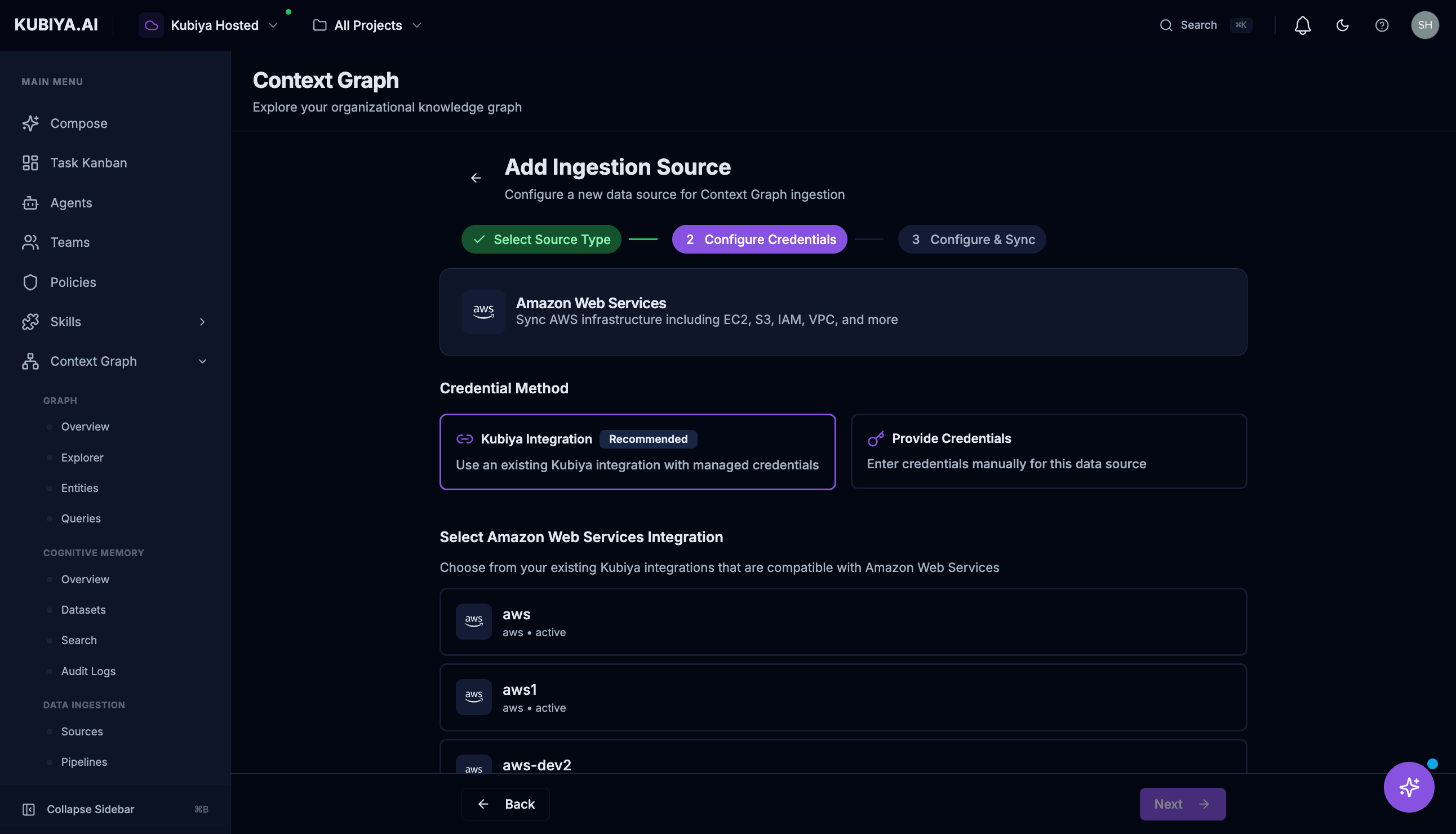 * Enter credentials or connection details
* For AWS: Role ARN, Region, Account ID
* For GitHub: Organization, access token
* For custom: API endpoint, authentication
3. **Set Sync Schedule**
* Continuous
* Hourly
* Daily
* Custom cron expression
4. **Review and Connect**
* Enter credentials or connection details
* For AWS: Role ARN, Region, Account ID
* For GitHub: Organization, access token
* For custom: API endpoint, authentication
3. **Set Sync Schedule**
* Continuous
* Hourly
* Daily
* Custom cron expression
4. **Review and Connect**
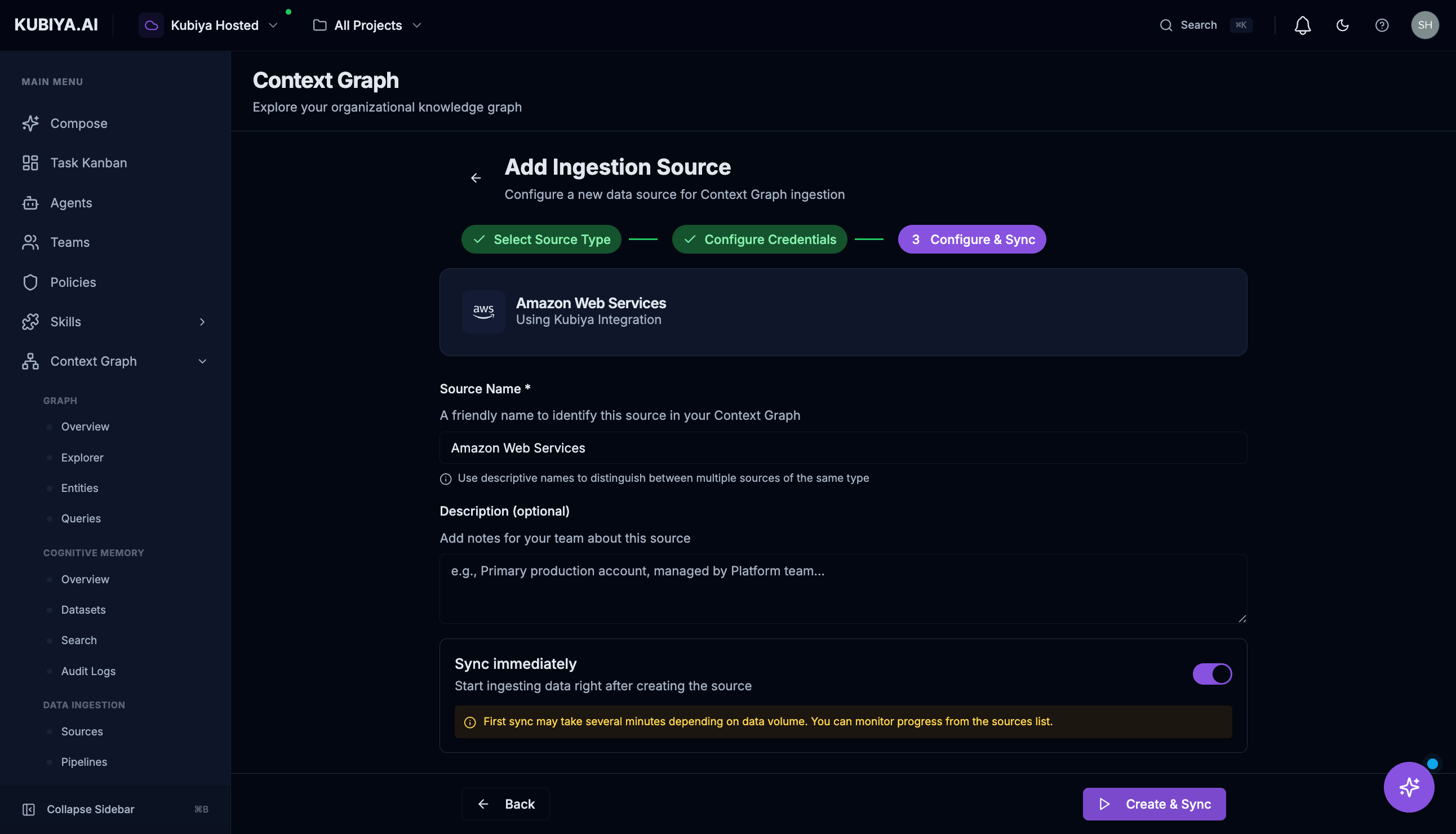 * Verify configuration
* Test connection
* Start initial sync
### Managing Sources
Click **View Details** on any source to:
* View detailed sync history
* Edit configuration
* Trigger manual sync
* Disable or delete the source
## AWS Integration Example
**Prerequisite:** You must first set up an AWS connector with an IAM trust relationship before adding AWS as an ingestion source. Follow the **[Connect AWS guide](/infrastructure/connect-aws)** to create the IAM role and connector.
To connect an AWS account:
1. Click **+ Add Source**
2. Select **Amazon Web Services**
3. Enter:
* **Account ID**: Your AWS account number
* **Region**: Primary region (e.g., us-east-1)
* **Role ARN**: IAM role for Kubiya to assume (created in the [AWS connector setup](/infrastructure/connect-aws))
4. Click **Connect**
### Required IAM Permissions
For comprehensive AWS indexing:
```json theme={null}
{
"Version": "2012-10-17",
"Statement": [
{
"Effect": "Allow",
"Action": [
"ec2:Describe*",
"iam:Get*",
"iam:List*",
"s3:GetBucket*",
"s3:ListBucket",
"lambda:List*",
"lambda:Get*",
"rds:Describe*"
],
"Resource": "*"
}
]
}
```
## GitHub Integration Example
To connect a GitHub organization:
1. Click **+ Add Source**
2. Select **GitHub**
3. Authenticate with GitHub OAuth or enter a token
4. Select organizations and repositories to index
5. Click **Connect**
Indexed data includes:
* Repositories
* Users and teams
* Pull requests
* Issues
* Code structure
## Pipelines
* Verify configuration
* Test connection
* Start initial sync
### Managing Sources
Click **View Details** on any source to:
* View detailed sync history
* Edit configuration
* Trigger manual sync
* Disable or delete the source
## AWS Integration Example
**Prerequisite:** You must first set up an AWS connector with an IAM trust relationship before adding AWS as an ingestion source. Follow the **[Connect AWS guide](/infrastructure/connect-aws)** to create the IAM role and connector.
To connect an AWS account:
1. Click **+ Add Source**
2. Select **Amazon Web Services**
3. Enter:
* **Account ID**: Your AWS account number
* **Region**: Primary region (e.g., us-east-1)
* **Role ARN**: IAM role for Kubiya to assume (created in the [AWS connector setup](/infrastructure/connect-aws))
4. Click **Connect**
### Required IAM Permissions
For comprehensive AWS indexing:
```json theme={null}
{
"Version": "2012-10-17",
"Statement": [
{
"Effect": "Allow",
"Action": [
"ec2:Describe*",
"iam:Get*",
"iam:List*",
"s3:GetBucket*",
"s3:ListBucket",
"lambda:List*",
"lambda:Get*",
"rds:Describe*"
],
"Resource": "*"
}
]
}
```
## GitHub Integration Example
To connect a GitHub organization:
1. Click **+ Add Source**
2. Select **GitHub**
3. Authenticate with GitHub OAuth or enter a token
4. Select organizations and repositories to index
5. Click **Connect**
Indexed data includes:
* Repositories
* Users and teams
* Pull requests
* Issues
* Code structure
## Pipelines
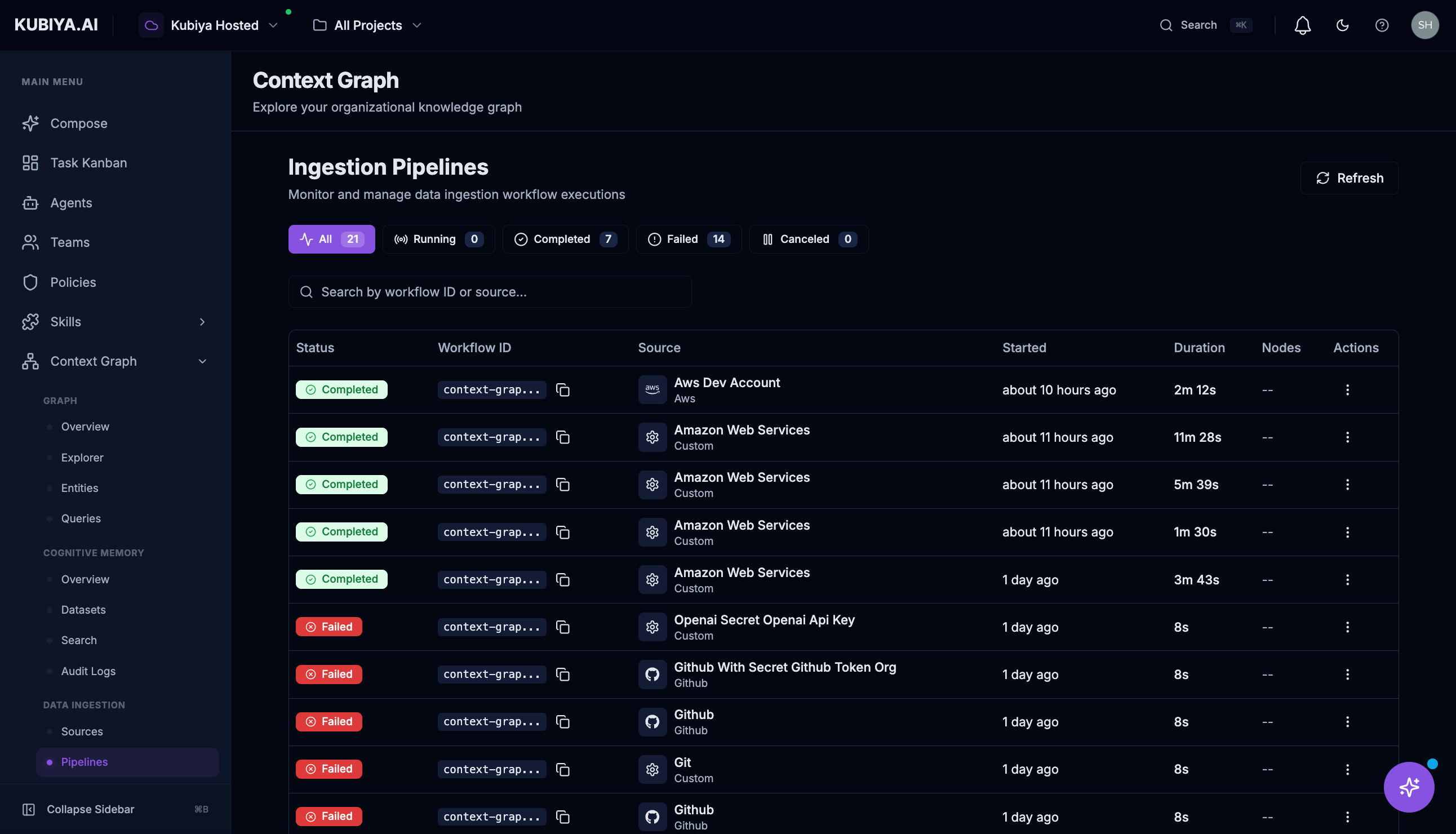 The Pipelines view shows the data flow from sources to the graph:
* **Active pipelines** - Currently running
* **Scheduled pipelines** - Next run times
* **Failed pipelines** - Errors requiring attention
## Activity Log
The Pipelines view shows the data flow from sources to the graph:
* **Active pipelines** - Currently running
* **Scheduled pipelines** - Next run times
* **Failed pipelines** - Errors requiring attention
## Activity Log
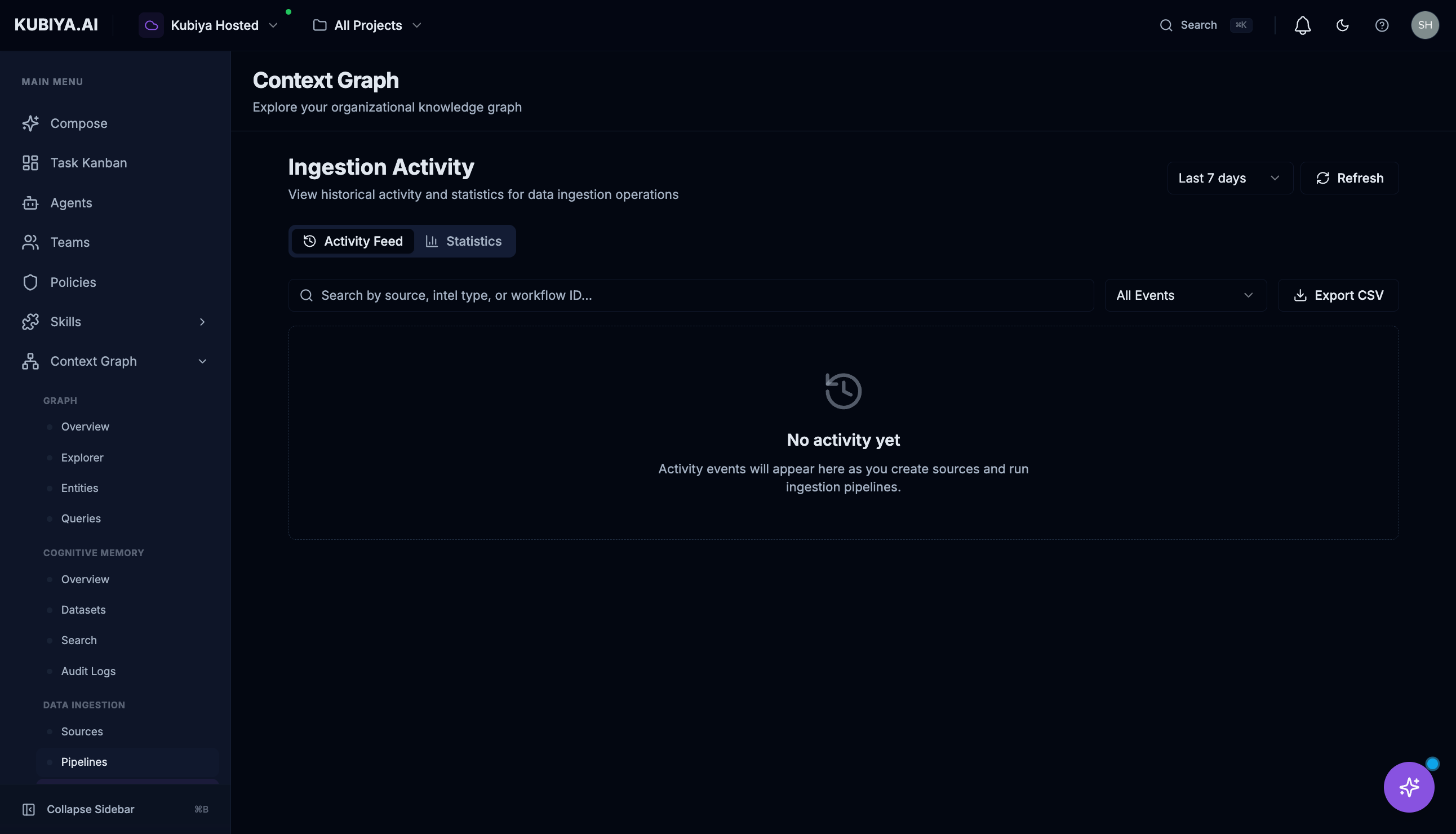 The Activity view provides a timeline of:
* Sync events
* Entity creation/updates
* Errors and warnings
* Manual triggers
Filter by:
* Date range
* Source
* Event type
* Status
## Troubleshooting
### Source Shows Error Status
1. Click **View Details** on the source
2. Check the error message in sync history
3. Common issues:
* Expired credentials
* Changed permissions
* Network connectivity
* Rate limiting
### Low Success Rate
If success rate is below 100%:
1. Review failed entity syncs
2. Check for permission issues on specific resources
3. Verify the source configuration is current
### Stale Data
If entities aren't updating:
1. Check the sync schedule
2. Trigger a manual sync
3. Verify the source is Active
## Best Practices
1. **Start with one source** - Verify ingestion works before adding more
2. **Use read-only credentials** - Kubiya only needs read access
3. **Monitor activity regularly** - Catch sync issues early
4. **Set appropriate schedules** - Balance freshness with API limits
## Related Pages
* **[Context Graph Overview](/web-interface/context-graph/overview)** - Graph metrics
* **[Integrations](/infrastructure/integrations)** - Detailed integration guides
* **[Graph Explorer](/web-interface/context-graph/graph-explorer)** - Visualize ingested data
The Activity view provides a timeline of:
* Sync events
* Entity creation/updates
* Errors and warnings
* Manual triggers
Filter by:
* Date range
* Source
* Event type
* Status
## Troubleshooting
### Source Shows Error Status
1. Click **View Details** on the source
2. Check the error message in sync history
3. Common issues:
* Expired credentials
* Changed permissions
* Network connectivity
* Rate limiting
### Low Success Rate
If success rate is below 100%:
1. Review failed entity syncs
2. Check for permission issues on specific resources
3. Verify the source configuration is current
### Stale Data
If entities aren't updating:
1. Check the sync schedule
2. Trigger a manual sync
3. Verify the source is Active
## Best Practices
1. **Start with one source** - Verify ingestion works before adding more
2. **Use read-only credentials** - Kubiya only needs read access
3. **Monitor activity regularly** - Catch sync issues early
4. **Set appropriate schedules** - Balance freshness with API limits
## Related Pages
* **[Context Graph Overview](/web-interface/context-graph/overview)** - Graph metrics
* **[Integrations](/infrastructure/integrations)** - Detailed integration guides
* **[Graph Explorer](/web-interface/context-graph/graph-explorer)** - Visualize ingested data