> ## Documentation Index
> Fetch the complete documentation index at: https://docs.kubiya.ai/llms.txt
> Use this file to discover all available pages before exploring further.
# Compose Workspace
> The full-screen Meta Agent workspace for conversations and orchestration
The Compose Workspace is your primary interface for extended conversations with the Meta Agent. Unlike the [floating panel](/web-interface/meta-agent-panel), the workspace provides a dedicated full-screen environment with conversation history and enhanced controls.
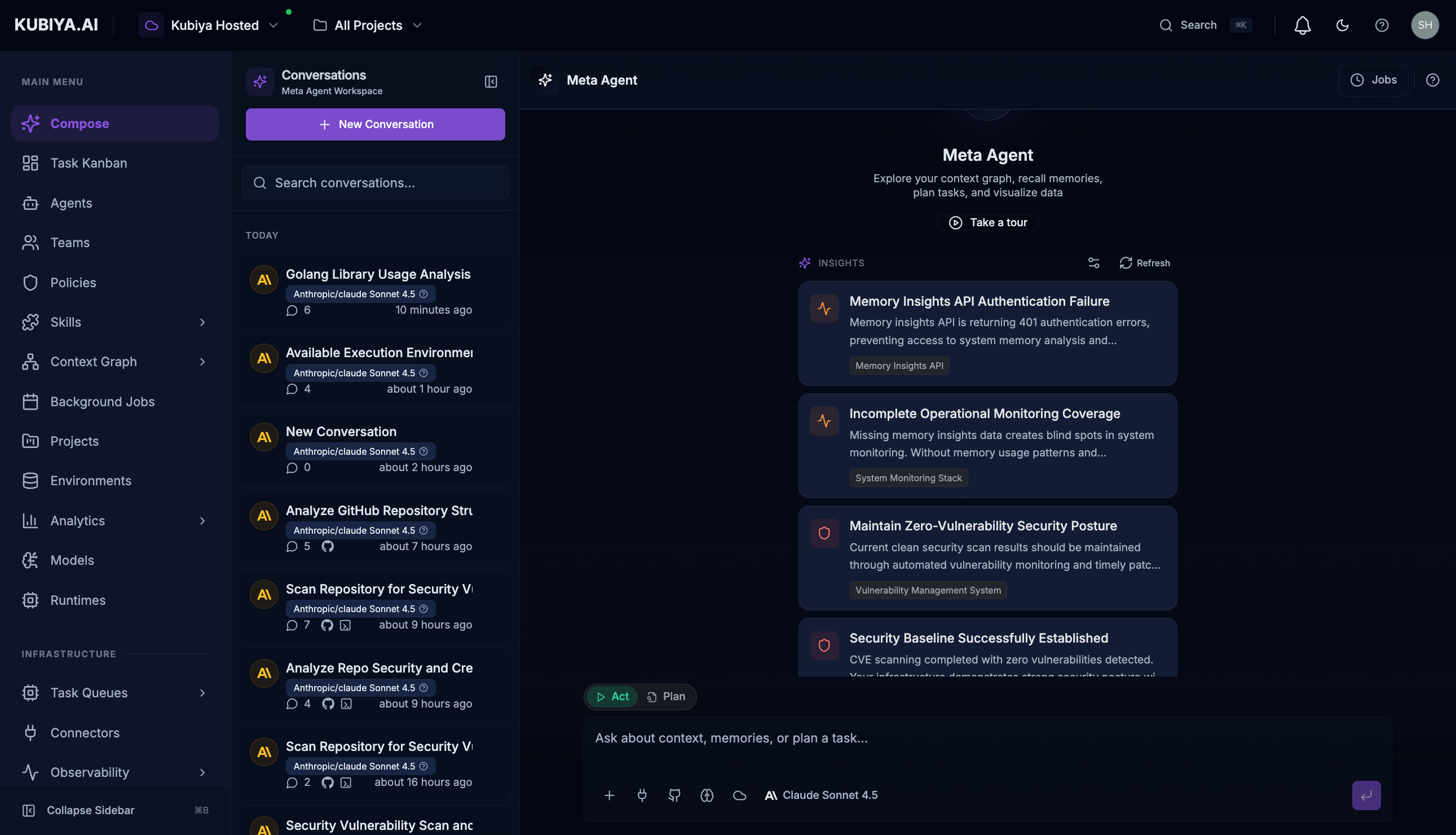 The workspace features a three-panel layout:
* **Left sidebar**: Conversation history with search and new conversation button
* **Center panel**: Active conversation with messages and responses
* **Input bar**: Controls for attachments, model selection, and execution mode
## Access
Click **Compose** in the sidebar to navigate to the workspace at `/chat`.
**Compose vs Panel:** Use the Compose Workspace for focused, multi-turn conversations. Use the [Meta Agent Panel](/web-interface/meta-agent-panel) (Cmd+J) for quick queries without leaving your current page.
## Workspace Layout
### Conversation Sidebar
The left panel manages your conversation history:
* **New Conversation** - Start a fresh conversation
* **Search** - Find conversations by content
* **Conversation List** - Browse previous conversations grouped by time:
* Today
* Yesterday
* Last 7 days
* Older
Each conversation shows:
* Title (auto-generated from first message or renamed)
* Model used (e.g., Claude Sonnet 4.5)
* Message count
* Timestamp
* GitHub/repository attachments (if any)
**Right-click** on any conversation to:
* Rename the conversation
* Delete the conversation
### Main Chat Area
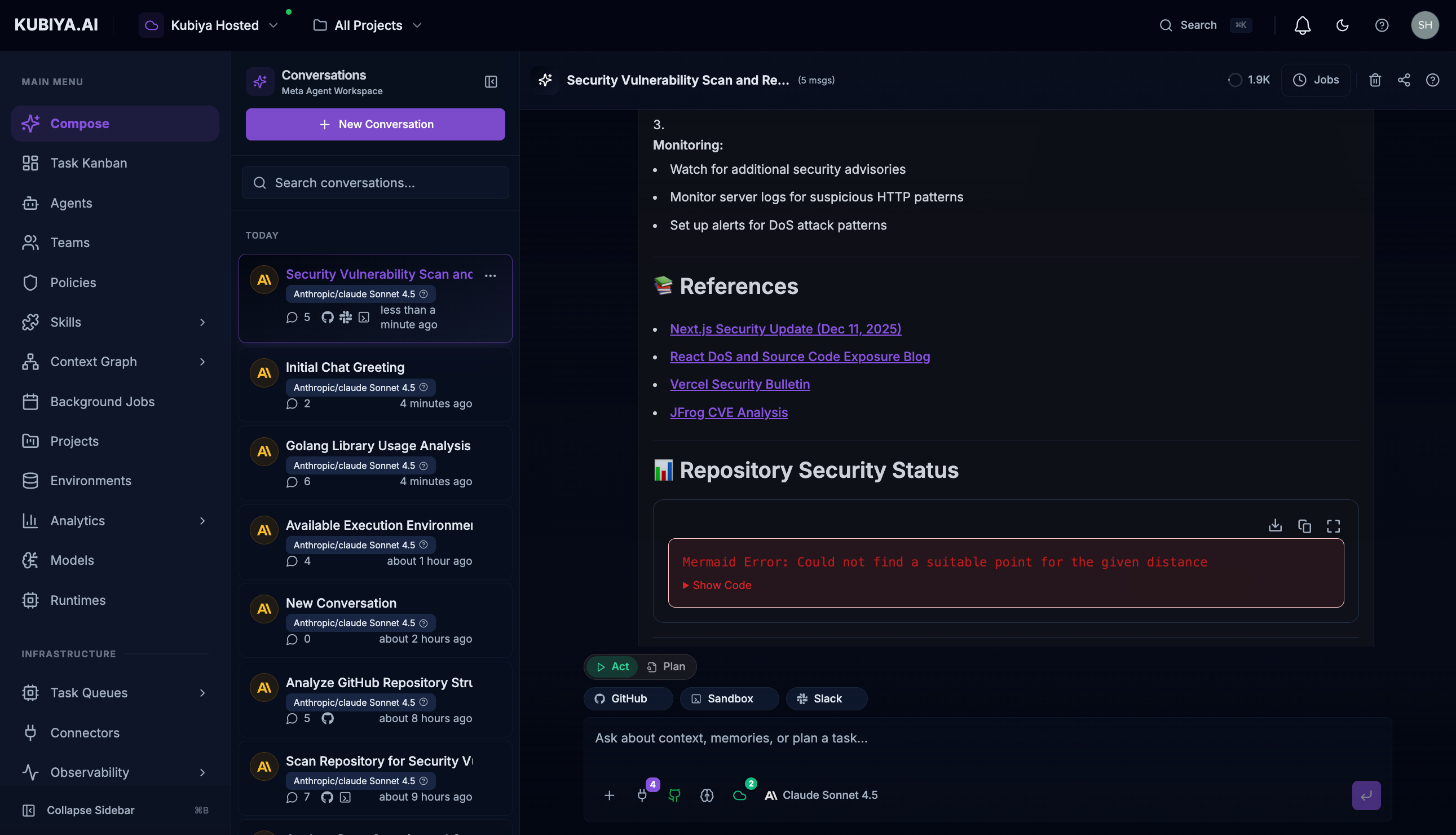
The center panel displays the current conversation:
**Header:**
* Conversation title
* Jobs indicator (shows active background tasks)
* Share button
* Settings menu
**Messages:**
* User messages appear on the right
* Agent responses appear on the left with:
* Reasoning sections (expandable)
* Tool calls with results
* Visual/JSON toggle for structured data
* Copy button for responses
### Input Bar
The bottom input area provides powerful controls:
| Control | Icon | Description |
| ----------------------- | ------ | ---------------------------------------------------- |
| **Attach Files** | + | Upload images or files to include in context |
| **Attach Repositories** | Code | Select GitHub repositories for code context |
| **Sandbox Mode** | Shield | Toggle sandboxed execution for safe testing |
| **Task Queue** | Server | Route execution to a specific worker queue |
| **Model Selector** | AI | Choose the AI model for this conversation |
| **Act/Plan Toggle** | Toggle | Switch between immediate execution and planning mode |
### Input Modes
**Act Mode (Default):**
* Execute tasks immediately
* Real actions are performed
* Results are returned in real-time
**Plan Mode:**
* Generate execution plans without taking action
* Review steps before committing
* Ideal for complex or sensitive operations
## Conversation Management
### Starting a Conversation
The workspace features a three-panel layout:
* **Left sidebar**: Conversation history with search and new conversation button
* **Center panel**: Active conversation with messages and responses
* **Input bar**: Controls for attachments, model selection, and execution mode
## Access
Click **Compose** in the sidebar to navigate to the workspace at `/chat`.
**Compose vs Panel:** Use the Compose Workspace for focused, multi-turn conversations. Use the [Meta Agent Panel](/web-interface/meta-agent-panel) (Cmd+J) for quick queries without leaving your current page.
## Workspace Layout
### Conversation Sidebar
The left panel manages your conversation history:
* **New Conversation** - Start a fresh conversation
* **Search** - Find conversations by content
* **Conversation List** - Browse previous conversations grouped by time:
* Today
* Yesterday
* Last 7 days
* Older
Each conversation shows:
* Title (auto-generated from first message or renamed)
* Model used (e.g., Claude Sonnet 4.5)
* Message count
* Timestamp
* GitHub/repository attachments (if any)
**Right-click** on any conversation to:
* Rename the conversation
* Delete the conversation
### Main Chat Area
The center panel displays the current conversation:
**Header:**
* Conversation title
* Jobs indicator (shows active background tasks)
* Share button
* Settings menu
**Messages:**
* User messages appear on the right
* Agent responses appear on the left with:
* Reasoning sections (expandable)
* Tool calls with results
* Visual/JSON toggle for structured data
* Copy button for responses
### Input Bar
The bottom input area provides powerful controls:
| Control | Icon | Description |
| ----------------------- | ------ | ---------------------------------------------------- |
| **Attach Files** | + | Upload images or files to include in context |
| **Attach Repositories** | Code | Select GitHub repositories for code context |
| **Sandbox Mode** | Shield | Toggle sandboxed execution for safe testing |
| **Task Queue** | Server | Route execution to a specific worker queue |
| **Model Selector** | AI | Choose the AI model for this conversation |
| **Act/Plan Toggle** | Toggle | Switch between immediate execution and planning mode |
### Input Modes
**Act Mode (Default):**
* Execute tasks immediately
* Real actions are performed
* Results are returned in real-time
**Plan Mode:**
* Generate execution plans without taking action
* Review steps before committing
* Ideal for complex or sensitive operations
## Conversation Management
### Starting a Conversation
 1. Click **+ New Conversation** in the sidebar
2. Type your request in the input bar
3. Press **Enter** or click the send button
### Continuing Conversations
* Click any conversation in the sidebar to resume
* All context from previous messages is preserved
* The Meta Agent remembers what you discussed
### Attaching Context
**Files:**
Click the **+** button to upload:
* Images for visual analysis
* Documents for reference
* Data files for processing
**Repositories:**
Click the code icon to:
* Search connected GitHub repositories
* Select up to 10 repositories
* Provide code context for the agent
**Remote Execution:**
Click the server icon to:
* View available task queues
* See worker availability
* Route tasks to specific infrastructure
## Working with Responses
### Tool Calls
When the Meta Agent uses platform tools, you'll see:
1. Click **+ New Conversation** in the sidebar
2. Type your request in the input bar
3. Press **Enter** or click the send button
### Continuing Conversations
* Click any conversation in the sidebar to resume
* All context from previous messages is preserved
* The Meta Agent remembers what you discussed
### Attaching Context
**Files:**
Click the **+** button to upload:
* Images for visual analysis
* Documents for reference
* Data files for processing
**Repositories:**
Click the code icon to:
* Search connected GitHub repositories
* Select up to 10 repositories
* Provide code context for the agent
**Remote Execution:**
Click the server icon to:
* View available task queues
* See worker availability
* Route tasks to specific infrastructure
## Working with Responses
### Tool Calls
When the Meta Agent uses platform tools, you'll see:
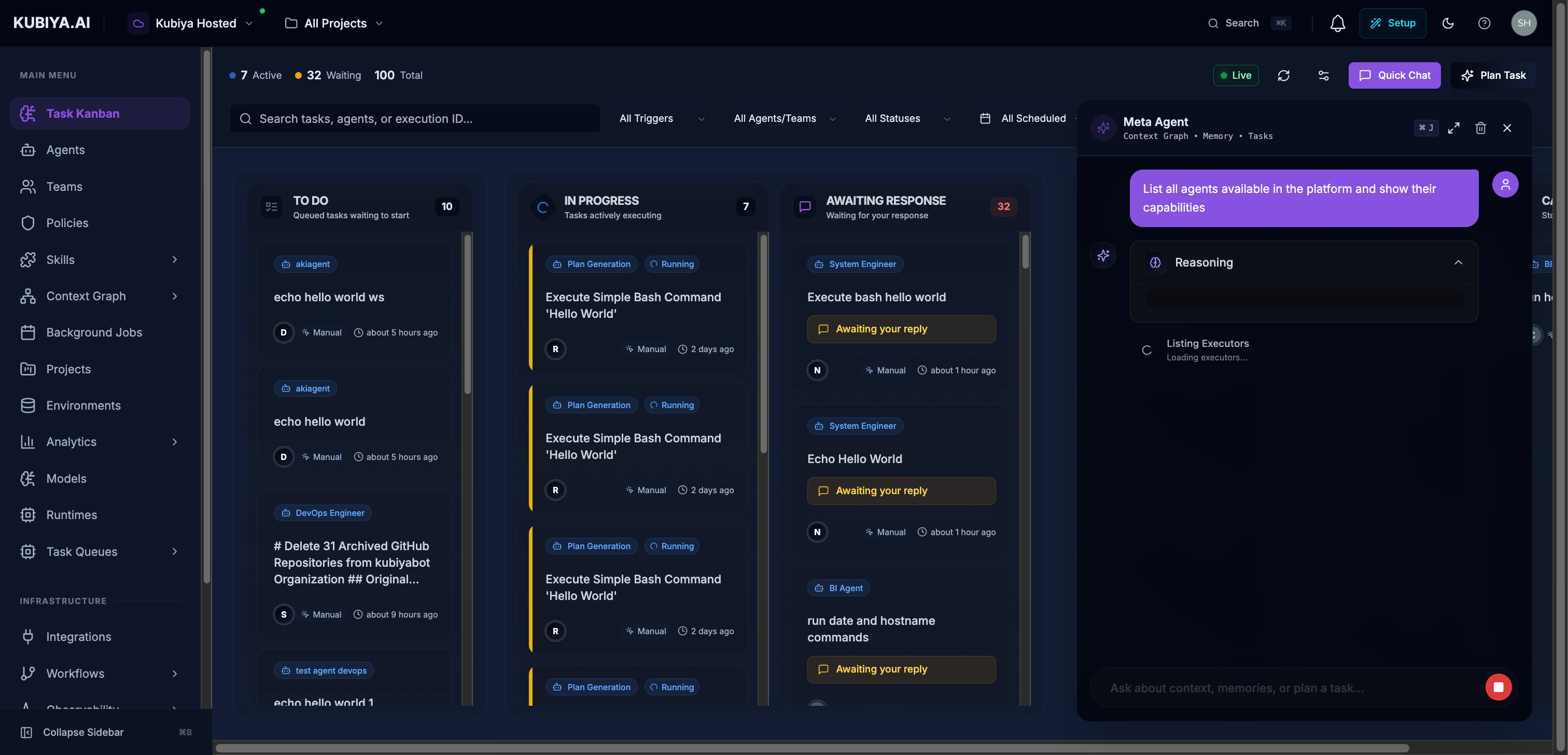 * Tool name and status
* Execution time
* Expandable results section
* Visual or JSON view toggle
### Structured Output
For data responses, toggle between:
* **Visual** - Formatted tables and cards
* **JSON** - Raw data for copying
### Reasoning
Expand the "Reasoning" section to see how the agent:
* Interpreted your request
* Selected tools to use
* Arrived at conclusions
## Header Controls
| Control | Description |
| ----------------- | --------------------------------------------- |
| **Jobs (n)** | Shows count of active background jobs |
| **Share** | Generate a shareable link to the conversation |
| **Delete** | Remove the current conversation |
| **Token Counter** | Shows token usage for the conversation |
## Keyboard Shortcuts
| Shortcut | Action |
| --------------- | -------------------- |
| `Enter` | Send message |
| `Shift + Enter` | New line in message |
| `Cmd/Ctrl + /` | Toggle Act/Plan mode |
## Best Practices
1. **Use descriptive first messages** - The first message becomes the conversation title
2. **Attach relevant repositories** - Code context improves suggestions
3. **Review tool calls** - Understand what actions are being performed
4. **Use Plan mode for sensitive operations** - Review before executing
5. **Organize with projects** - Filter conversations by project scope
## Related Pages
* **[Meta Agent](/core-concepts/meta-agent)** - Learn about Meta Agent capabilities
* **[Meta Agent Panel](/web-interface/meta-agent-panel)** - Quick access from any page
* **[Task Kanban](/web-interface/task-kanban)** - Track executions created from conversations
* Tool name and status
* Execution time
* Expandable results section
* Visual or JSON view toggle
### Structured Output
For data responses, toggle between:
* **Visual** - Formatted tables and cards
* **JSON** - Raw data for copying
### Reasoning
Expand the "Reasoning" section to see how the agent:
* Interpreted your request
* Selected tools to use
* Arrived at conclusions
## Header Controls
| Control | Description |
| ----------------- | --------------------------------------------- |
| **Jobs (n)** | Shows count of active background jobs |
| **Share** | Generate a shareable link to the conversation |
| **Delete** | Remove the current conversation |
| **Token Counter** | Shows token usage for the conversation |
## Keyboard Shortcuts
| Shortcut | Action |
| --------------- | -------------------- |
| `Enter` | Send message |
| `Shift + Enter` | New line in message |
| `Cmd/Ctrl + /` | Toggle Act/Plan mode |
## Best Practices
1. **Use descriptive first messages** - The first message becomes the conversation title
2. **Attach relevant repositories** - Code context improves suggestions
3. **Review tool calls** - Understand what actions are being performed
4. **Use Plan mode for sensitive operations** - Review before executing
5. **Organize with projects** - Filter conversations by project scope
## Related Pages
* **[Meta Agent](/core-concepts/meta-agent)** - Learn about Meta Agent capabilities
* **[Meta Agent Panel](/web-interface/meta-agent-panel)** - Quick access from any page
* **[Task Kanban](/web-interface/task-kanban)** - Track executions created from conversations