> ## Documentation Index
> Fetch the complete documentation index at: https://docs.kubiya.ai/llms.txt
> Use this file to discover all available pages before exploring further.
# Get Started
> Get started with Kubiya in 5 minutes. Open the Meta Agent, connect your infrastructure, and execute your first task.
## What You'll Do
Open the Meta Agent, explore your infrastructure, and execute your first task through natural language.
**Time:** \~5 minutes
## Before You Begin
* Sign in to [compose.kubiya.ai](https://compose.kubiya.ai)
* Keep **Kubiya Hosted** selected (default control plane)
***
## Step 1: Open the Meta Agent
The Meta Agent is your primary interface for exploring and interacting with Kubiya.
**Two ways to access:**
1. **Compose Workspace** - Click **Compose** in the sidebar for the full-screen workspace at `/chat`
2. **Quick Panel** - Press `Cmd+J` (Mac) or `Ctrl+J` (Windows/Linux) from any page
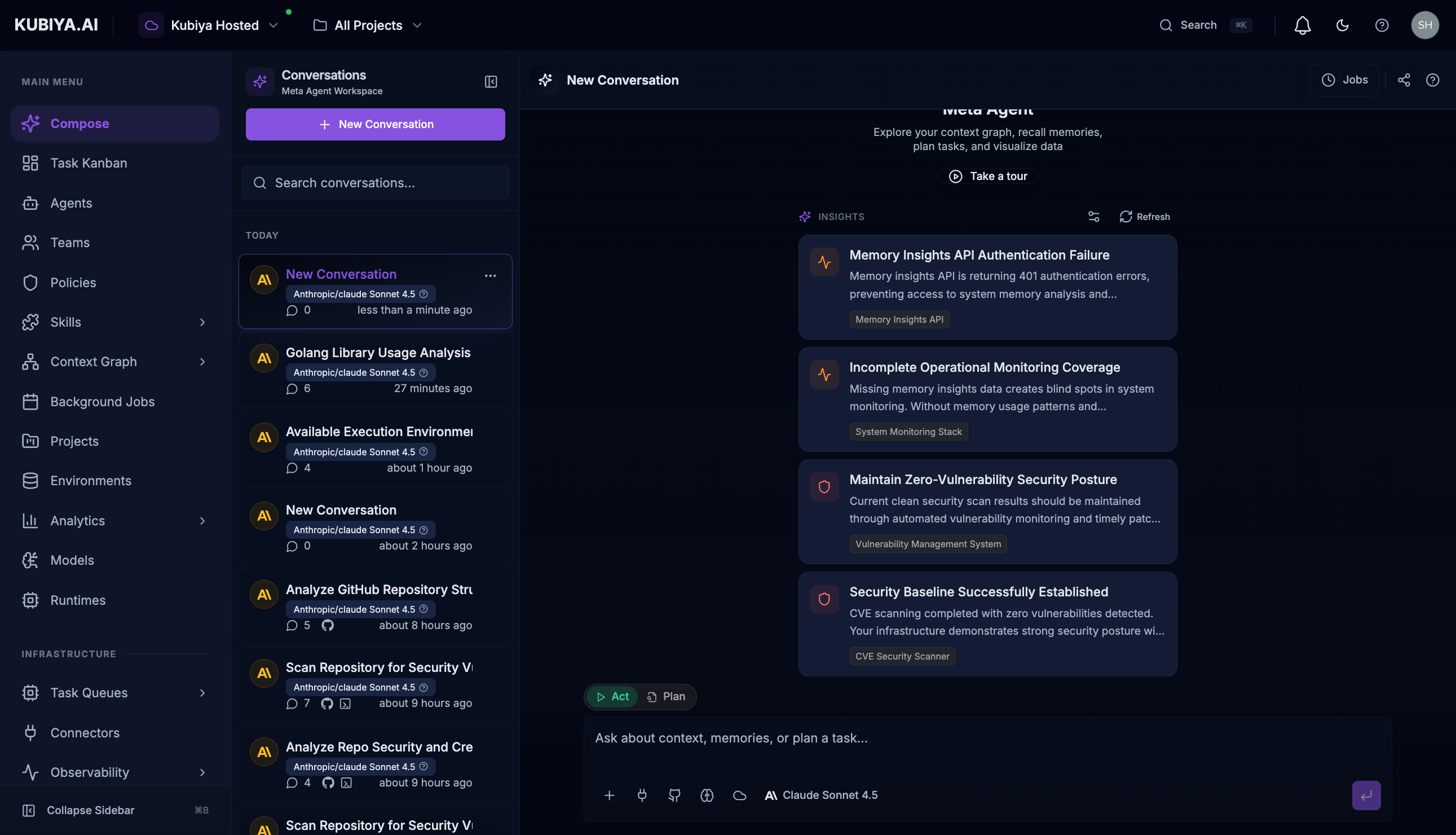 The Compose workspace provides a dedicated space for conversations with conversation history in the sidebar. Use the Quick Panel for fast queries without leaving your current page.
For detailed UI navigation, see the [Web Interface Guide](/web-interface/overview).
On first use, select the categories most relevant to your role (Security, Infrastructure, Cost Optimization, etc.).
***
## Step 2: Try Your First Query
Ask the Meta Agent a simple question:
```
"What environments are available?"
```
```
"List all connected data sources"
```
```
"Show me the status of my task queues"
```
The Meta Agent has access to all Kubiya platform capabilities through MCP tools.
***
## Step 3: Set Up a Connector
**Connectors** enable agents to **act** on external systems.
Go to **Infrastructure → Connectors** and add your first connection:
| Connector | Description |
| -------------- | ------------------------- |
| **AWS** | Cloud resource management |
| **GitHub** | Repository access, CI/CD |
| **Slack** | Team messaging |
| **Jira** | Issue tracking |
| **Kubernetes** | Container orchestration |
Without connectors, agents can explore and analyze but cannot take actions on external systems.
***
## Step 4: Add an Ingestion Source
**Ingestion Sources** populate the Context Graph with data about your infrastructure.
Go to **Context Graph → Data Ingestion** and add your first source:
* **Cloud Providers:** AWS, Azure, GCP
* **Identity:** Okta, Microsoft Entra ID
* **DevOps:** GitHub, Kubernetes, CircleCI
* **Custom:** Upload CSV/JSON files
The Context Graph starts empty. Add ingestion sources so the Meta Agent can explore your infrastructure.
***
## Step 5: Execute a Task
Back in the Meta Agent, try more advanced queries:
```
"What EC2 instances are running in production?"
```
```
"Show me all IAM roles with admin access"
```
```
"What services depend on the auth database?"
```
Use the **Remote Task Queues** button in the chat to route execution to specific workers.
***
## What You Used
| Component | Purpose |
| ------------------------ | --------------------------------------------------- |
| **Meta Agent** | Unified interface for exploration and orchestration |
| **Connectors** | Credentials for agents to act on external systems |
| **Ingestion Sources** | Data that populates the Context Graph |
| **Hosted Control Plane** | Zero-setup coordination layer |
| **Hosted Workers** | Isolated execution for your tasks |
***
## Next Steps
Deep dive into natural language orchestration
Enable agents to act on external systems
Populate your Context Graph with infrastructure data
Distributed execution with remote workers
***
## Advanced: Specialized Agents & Teams
When you need domain-specific automation beyond the Meta Agent:
* **[Agents](/core-concepts/agents)** - Create specialized AI agents for specific domains (DevOps, Security, FinOps)
* **[Teams](/core-concepts/teams)** - Coordinate multiple agents for complex multi-domain operations
Most users interact through the Meta Agent for general orchestration. Create custom agents only when you need specialized, reusable automation.
The Compose workspace provides a dedicated space for conversations with conversation history in the sidebar. Use the Quick Panel for fast queries without leaving your current page.
For detailed UI navigation, see the [Web Interface Guide](/web-interface/overview).
On first use, select the categories most relevant to your role (Security, Infrastructure, Cost Optimization, etc.).
***
## Step 2: Try Your First Query
Ask the Meta Agent a simple question:
```
"What environments are available?"
```
```
"List all connected data sources"
```
```
"Show me the status of my task queues"
```
The Meta Agent has access to all Kubiya platform capabilities through MCP tools.
***
## Step 3: Set Up a Connector
**Connectors** enable agents to **act** on external systems.
Go to **Infrastructure → Connectors** and add your first connection:
| Connector | Description |
| -------------- | ------------------------- |
| **AWS** | Cloud resource management |
| **GitHub** | Repository access, CI/CD |
| **Slack** | Team messaging |
| **Jira** | Issue tracking |
| **Kubernetes** | Container orchestration |
Without connectors, agents can explore and analyze but cannot take actions on external systems.
***
## Step 4: Add an Ingestion Source
**Ingestion Sources** populate the Context Graph with data about your infrastructure.
Go to **Context Graph → Data Ingestion** and add your first source:
* **Cloud Providers:** AWS, Azure, GCP
* **Identity:** Okta, Microsoft Entra ID
* **DevOps:** GitHub, Kubernetes, CircleCI
* **Custom:** Upload CSV/JSON files
The Context Graph starts empty. Add ingestion sources so the Meta Agent can explore your infrastructure.
***
## Step 5: Execute a Task
Back in the Meta Agent, try more advanced queries:
```
"What EC2 instances are running in production?"
```
```
"Show me all IAM roles with admin access"
```
```
"What services depend on the auth database?"
```
Use the **Remote Task Queues** button in the chat to route execution to specific workers.
***
## What You Used
| Component | Purpose |
| ------------------------ | --------------------------------------------------- |
| **Meta Agent** | Unified interface for exploration and orchestration |
| **Connectors** | Credentials for agents to act on external systems |
| **Ingestion Sources** | Data that populates the Context Graph |
| **Hosted Control Plane** | Zero-setup coordination layer |
| **Hosted Workers** | Isolated execution for your tasks |
***
## Next Steps
Deep dive into natural language orchestration
Enable agents to act on external systems
Populate your Context Graph with infrastructure data
Distributed execution with remote workers
***
## Advanced: Specialized Agents & Teams
When you need domain-specific automation beyond the Meta Agent:
* **[Agents](/core-concepts/agents)** - Create specialized AI agents for specific domains (DevOps, Security, FinOps)
* **[Teams](/core-concepts/teams)** - Coordinate multiple agents for complex multi-domain operations
Most users interact through the Meta Agent for general orchestration. Create custom agents only when you need specialized, reusable automation.