> ## Documentation Index
> Fetch the complete documentation index at: https://docs.kubiya.ai/llms.txt
> Use this file to discover all available pages before exploring further.
# Connect Slack
> Connect Slack via OAuth to enable workflow triggers, notifications, and slash commands. Authorize, manage workspaces, and control permissions to collaborate and automate securely in channels and DMs.
The **Slack Integration** allows Kubiya to connect securely with Slack workspaces for collaboration, task automation, and message-based workflows.
Once connected, Kubiya agents can send messages, post workflow updates, and trigger automated actions directly from Slack channels or DMs.
### **1. Open Add Platform Integration**
1. In the **Integrations** section, go to **Platform Integrations**.
2. Click **Add Credential**.
3. From the list of available integrations, select **Slack**.
4. You’ll be redirected to the **Slack Integration Setup** page.
### **2. Slack Authorization**
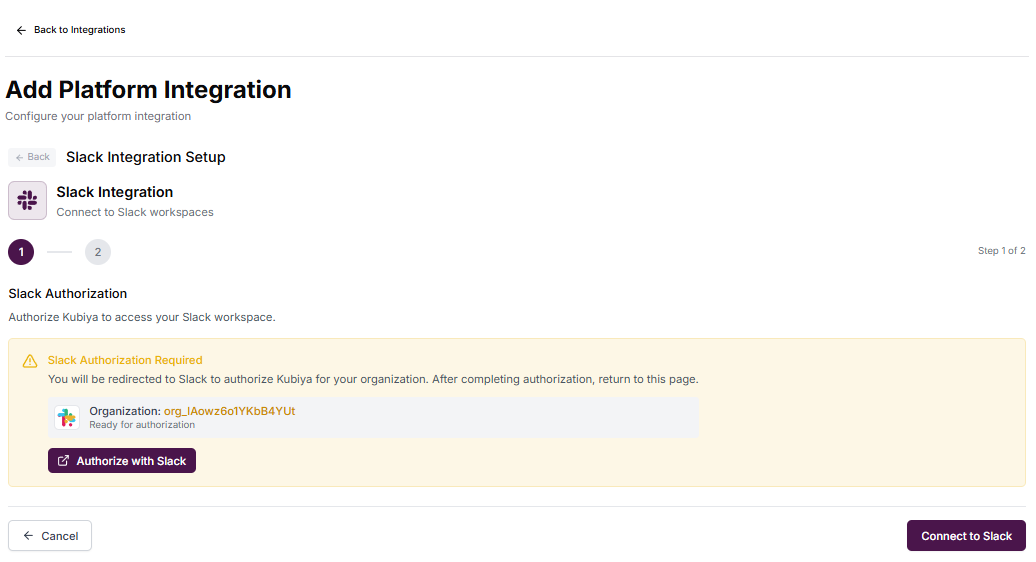 In this step, you authorize Kubiya to connect to your Slack workspace using the official Slack OAuth 2.0 flow.
**Slack Authorization Details**
* A notification box appears showing the organization ID (e.g., `org_lAowz6o1YKbB4YUt`) that will be used for this integration.
* The integration status shows as **Ready for authorization**.
**Action Steps**
1. Click **Authorize with Slack** to begin the OAuth flow.
2. You’ll be redirected to Slack’s permissions page.
3. Select the Slack workspace where you want to install Kubiya.
4. Review the requested permissions:
* Send messages as Kubiya
* View basic channel information
* Post updates and respond to commands
* Access public channels and DMs where Kubiya is invited
5. Click **Allow** to approve and complete authorization.
After successful authorization, you’ll be redirected back to Kubiya. The authorization status updates automatically to confirm a secure connection.
### **3. Connect and Finalize Integration**
Once authorization is complete:
1. Kubiya validates your Slack workspace and generates a secure token for communication.
2. The connection status changes to **Active**, and the integration appears in your **Platform Integrations** list.
3. You can now use the Slack integration for:
* Triggering workflows via Slack messages or slash commands.
* Receiving task status updates, notifications, and completion summaries directly in Slack channels.
* Collaborating with agents by issuing instructions from within Slack.
### **4. Managing the Slack Integration**
You can manage all connected Slack workspaces from **Integrations > Platform Integrations > Slack**.
**Available Actions**
* **View Details:** Displays the connected organization ID, workspace name, and authorization status.
* **Reauthorize:** Reconnect Slack if authorization expires or permissions change.
* **Remove Integration:** Disconnect the Slack workspace safely when no longer in use.
* **Add Additional Workspace:** Use **Add Credential** again to connect multiple Slack workspaces to the same organization.
### **5. Permissions Requested**
Kubiya’s Slack integration uses OAuth 2.0 and requests only the permissions necessary for workflow automation and communication.
**Common Permissions:**
* `chat:write` – Send messages as Kubiya.
* `channels:read` – Access metadata for public channels.
* `groups:read` – Access metadata for private channels where Kubiya is invited.
* `im:read` and `mpim:read` – Read messages from direct or multi-party conversations involving Kubiya.
* `commands` – Allow users to invoke Kubiya commands via `/slash` shortcuts.
These permissions enable Kubiya to deliver workflow notifications and interact contextually with Slack users while maintaining least-privilege security.
### **6. Troubleshooting**
| Issue | Possible Cause | Resolution |
| ------------------------------------- | ------------------------------------- | -------------------------------------------------------------- |
| **Authorization popup does not open** | Browser blocking pop-ups | Allow pop-ups or retry in incognito mode |
| **Slack workspace not listed** | User lacks permission to install apps | Contact your Slack workspace admin to authorize the Kubiya app |
| **Integration shows inactive** | OAuth token expired | Click “Reauthorize” in the integration settings |
| **Messages not posting** | Kubiya not invited to the channel | Add Kubiya to the target channel using `/invite @Kubiya` |
### **7. Security Notes**
* All Slack OAuth tokens are encrypted and stored securely in Kubiya’s credential system.
* Only authorized workspace admins can add or remove Slack integrations.
* Kubiya operates with the minimum permissions required for workflow automation.
* Revoking permissions from Slack will automatically disable associated workflows in Kubiya until reauthorization.
In this step, you authorize Kubiya to connect to your Slack workspace using the official Slack OAuth 2.0 flow.
**Slack Authorization Details**
* A notification box appears showing the organization ID (e.g., `org_lAowz6o1YKbB4YUt`) that will be used for this integration.
* The integration status shows as **Ready for authorization**.
**Action Steps**
1. Click **Authorize with Slack** to begin the OAuth flow.
2. You’ll be redirected to Slack’s permissions page.
3. Select the Slack workspace where you want to install Kubiya.
4. Review the requested permissions:
* Send messages as Kubiya
* View basic channel information
* Post updates and respond to commands
* Access public channels and DMs where Kubiya is invited
5. Click **Allow** to approve and complete authorization.
After successful authorization, you’ll be redirected back to Kubiya. The authorization status updates automatically to confirm a secure connection.
### **3. Connect and Finalize Integration**
Once authorization is complete:
1. Kubiya validates your Slack workspace and generates a secure token for communication.
2. The connection status changes to **Active**, and the integration appears in your **Platform Integrations** list.
3. You can now use the Slack integration for:
* Triggering workflows via Slack messages or slash commands.
* Receiving task status updates, notifications, and completion summaries directly in Slack channels.
* Collaborating with agents by issuing instructions from within Slack.
### **4. Managing the Slack Integration**
You can manage all connected Slack workspaces from **Integrations > Platform Integrations > Slack**.
**Available Actions**
* **View Details:** Displays the connected organization ID, workspace name, and authorization status.
* **Reauthorize:** Reconnect Slack if authorization expires or permissions change.
* **Remove Integration:** Disconnect the Slack workspace safely when no longer in use.
* **Add Additional Workspace:** Use **Add Credential** again to connect multiple Slack workspaces to the same organization.
### **5. Permissions Requested**
Kubiya’s Slack integration uses OAuth 2.0 and requests only the permissions necessary for workflow automation and communication.
**Common Permissions:**
* `chat:write` – Send messages as Kubiya.
* `channels:read` – Access metadata for public channels.
* `groups:read` – Access metadata for private channels where Kubiya is invited.
* `im:read` and `mpim:read` – Read messages from direct or multi-party conversations involving Kubiya.
* `commands` – Allow users to invoke Kubiya commands via `/slash` shortcuts.
These permissions enable Kubiya to deliver workflow notifications and interact contextually with Slack users while maintaining least-privilege security.
### **6. Troubleshooting**
| Issue | Possible Cause | Resolution |
| ------------------------------------- | ------------------------------------- | -------------------------------------------------------------- |
| **Authorization popup does not open** | Browser blocking pop-ups | Allow pop-ups or retry in incognito mode |
| **Slack workspace not listed** | User lacks permission to install apps | Contact your Slack workspace admin to authorize the Kubiya app |
| **Integration shows inactive** | OAuth token expired | Click “Reauthorize” in the integration settings |
| **Messages not posting** | Kubiya not invited to the channel | Add Kubiya to the target channel using `/invite @Kubiya` |
### **7. Security Notes**
* All Slack OAuth tokens are encrypted and stored securely in Kubiya’s credential system.
* Only authorized workspace admins can add or remove Slack integrations.
* Kubiya operates with the minimum permissions required for workflow automation.
* Revoking permissions from Slack will automatically disable associated workflows in Kubiya until reauthorization.