> ## Documentation Index
> Fetch the complete documentation index at: https://docs.kubiya.ai/llms.txt
> Use this file to discover all available pages before exploring further.
# Chat Interface
> Complete guide to the Meta Agent chat interface, controls, connectors, and model selection.
The Meta Agent chat interface provides a full-featured workspace for interacting with the Kubiya platform through natural language.
## Accessing the Meta Agent
### Compose Workspace (`/chat`)
Click **Compose** in the sidebar for the full-screen workspace:
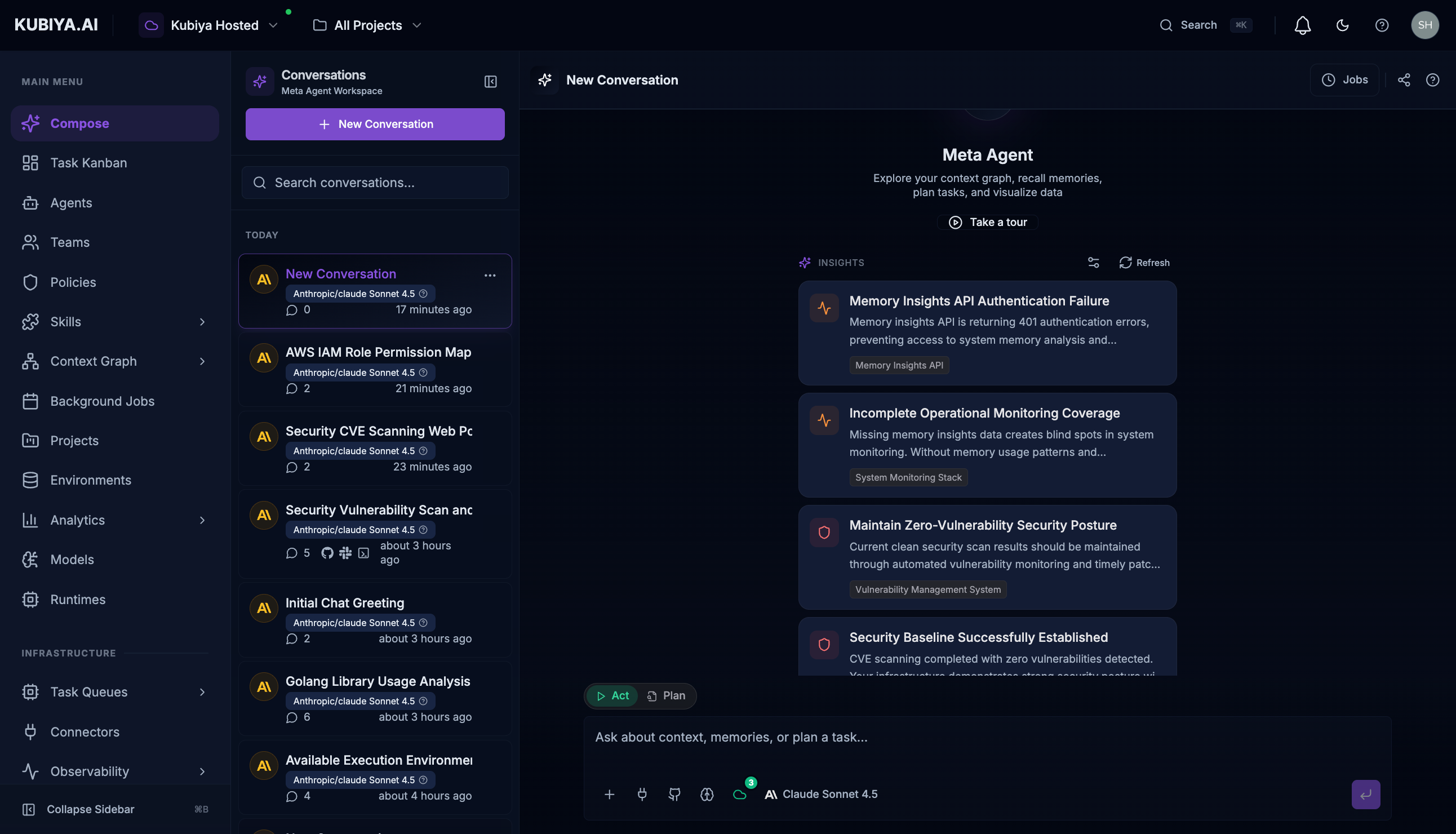 Features include:
* **Conversation sidebar** with history and search
* **Full-width message display** for extended conversations
* **Insights panel** with AI-powered suggestions
* **Multiple input controls** for connectors, models, and execution modes
### Floating Panel (Cmd+J)
Press `Cmd+J` (Mac) or `Ctrl+J` (Windows/Linux) from any page for quick access without leaving your current context.
| Use Panel | Use Workspace |
| -------------------- | ---------------------- |
| Quick questions | Extended conversations |
| While on other pages | Dedicated focus |
| Single queries | Multi-turn dialogues |
***
## Input Bar Controls
At the bottom of the chat, you'll find several control buttons:
| Control | Description |
| ----------------------- | -------------------------------------------------------------- |
| **Add Files** | Upload photos or files to include in your conversation context |
| **Attach Repositories** | Select GitHub repositories to attach to the session (up to 10) |
| **Remote Task Queues** | Select a worker queue for distributed task execution |
| **Connectors** | Enable integrations like GitHub, Sandbox, Slack |
| **Model Selector** | Choose the AI model for this conversation |
***
## Connectors Menu
Click the connectors button to access external integrations:
Features include:
* **Conversation sidebar** with history and search
* **Full-width message display** for extended conversations
* **Insights panel** with AI-powered suggestions
* **Multiple input controls** for connectors, models, and execution modes
### Floating Panel (Cmd+J)
Press `Cmd+J` (Mac) or `Ctrl+J` (Windows/Linux) from any page for quick access without leaving your current context.
| Use Panel | Use Workspace |
| -------------------- | ---------------------- |
| Quick questions | Extended conversations |
| While on other pages | Dedicated focus |
| Single queries | Multi-turn dialogues |
***
## Input Bar Controls
At the bottom of the chat, you'll find several control buttons:
| Control | Description |
| ----------------------- | -------------------------------------------------------------- |
| **Add Files** | Upload photos or files to include in your conversation context |
| **Attach Repositories** | Select GitHub repositories to attach to the session (up to 10) |
| **Remote Task Queues** | Select a worker queue for distributed task execution |
| **Connectors** | Enable integrations like GitHub, Sandbox, Slack |
| **Model Selector** | Choose the AI model for this conversation |
***
## Connectors Menu
Click the connectors button to access external integrations:
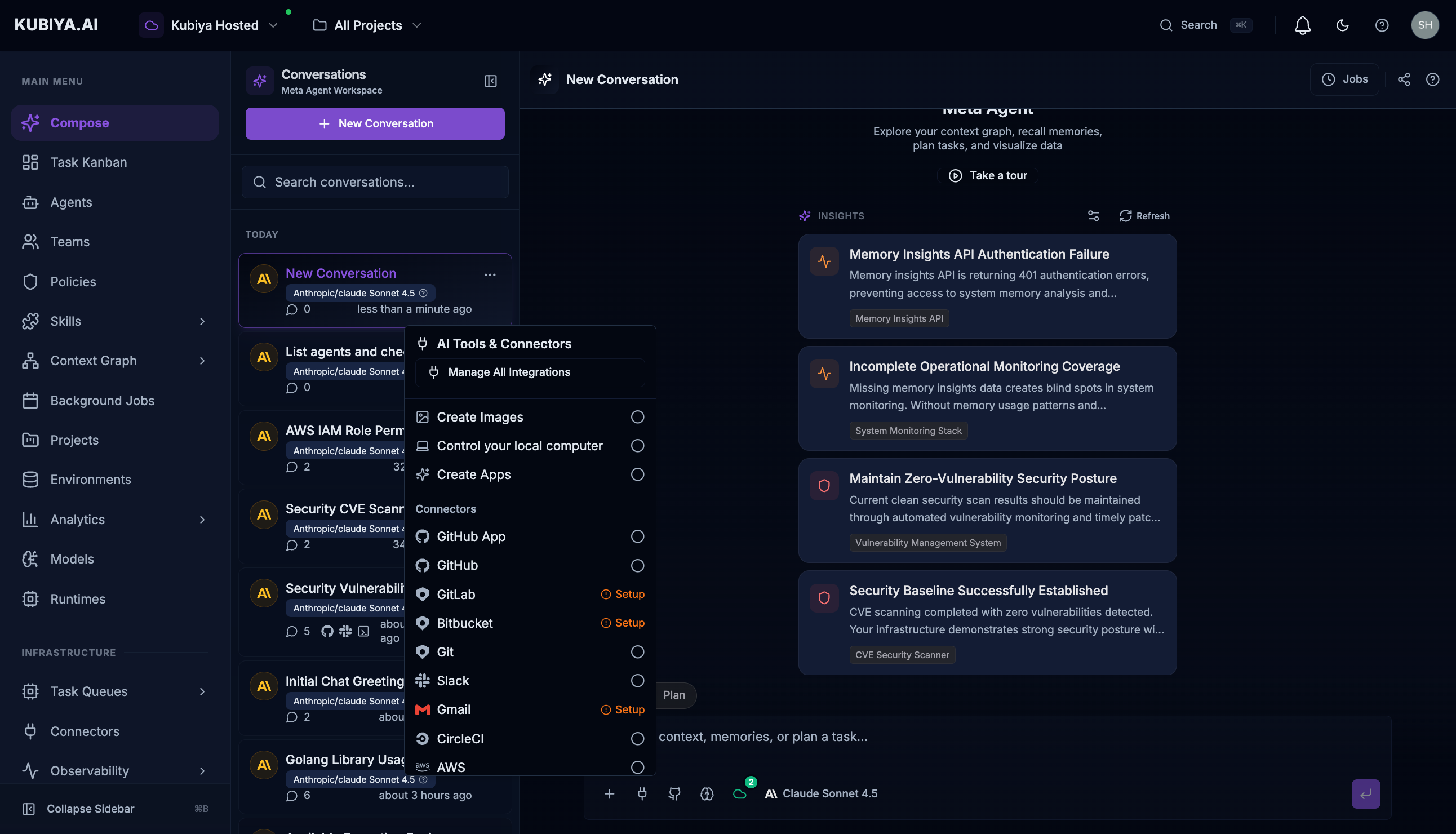 Available connectors include:
* **GitHub** - Repository access, PRs, issues
* **Sandbox** - Safe code execution environment
* **Slack** - Team messaging and notifications
* **AWS** - Cloud resource management
* **Jira** - Issue and project tracking
* **Create Apps** - Generate and deploy applications
Enable multiple connectors simultaneously. The Meta Agent will automatically use the appropriate connector based on your request.
***
## Model Selection
Click the model selector to choose your preferred AI model:
Available connectors include:
* **GitHub** - Repository access, PRs, issues
* **Sandbox** - Safe code execution environment
* **Slack** - Team messaging and notifications
* **AWS** - Cloud resource management
* **Jira** - Issue and project tracking
* **Create Apps** - Generate and deploy applications
Enable multiple connectors simultaneously. The Meta Agent will automatically use the appropriate connector based on your request.
***
## Model Selection
Click the model selector to choose your preferred AI model:
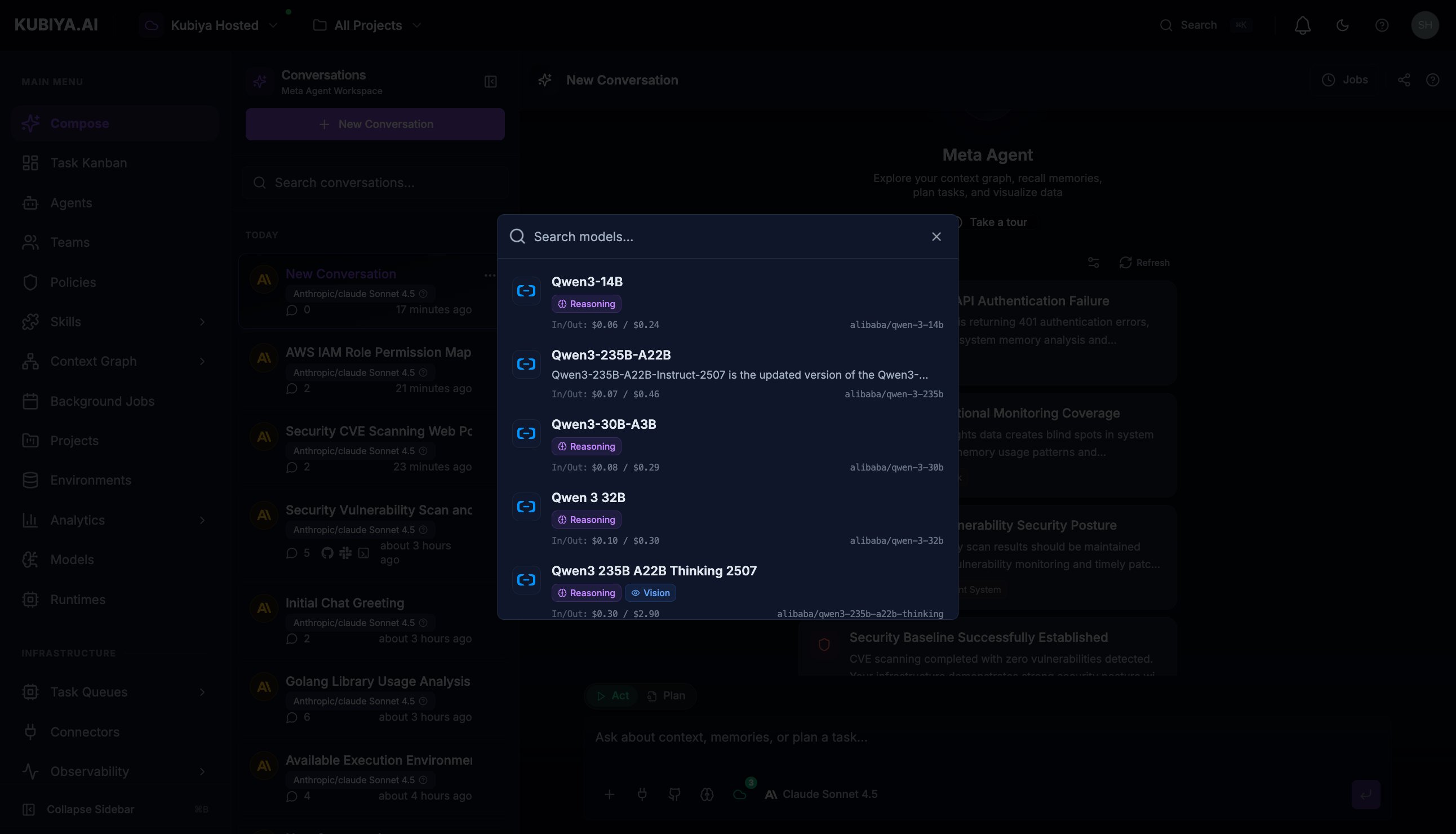 Available models include:
* **Claude Sonnet 4.5** - Balanced performance and capability (default)
* **Claude Opus 4.5** - Maximum capability for complex reasoning
* **Claude Sonnet 4** - Fast, efficient for straightforward tasks
* Additional models from OpenAI, Amazon Nova, Qwen, and more
Each model shows input/output pricing for cost awareness.
***
## Act vs Plan Mode
Toggle between execution modes using the radio buttons above the input:
| Mode | Behavior |
| -------- | ------------------------------------------------- |
| **Act** | Execute tasks immediately with real actions |
| **Plan** | Generate plans without execution for review first |
Use **Plan Mode** when you want to:
* Review what actions will be taken before execution
* Understand the steps involved in complex operations
* Get clarification on approach before committing
***
## Remote Task Queues
Click the queue selector to delegate tasks to remote workers:
* View all available task queues (e.g., Dev, Production, GPU workers)
* See worker capacity and availability for each queue
* Select a queue to route execution to specific infrastructure
* Ideal for tasks requiring access to private resources or specialized hardware
***
## Conversation Management
### Sidebar Features
The conversation sidebar provides:
* **Search**: Find past conversations by keyword
* **History**: Browse conversations grouped by date (Today, Yesterday, This Week)
* **Message count**: See how many exchanges in each conversation
* **Model info**: Know which model was used for each conversation
### Session Controls
* **New Conversation**: Start fresh with `New Conversation` button
* **Stop Button**: Halt streaming responses or cancel long-running operations
* **Clear Chat**: Reset the conversation context
***
## Insights Panel
The Meta Agent proactively analyzes your infrastructure and surfaces intelligent suggestions:
* **Security Alerts** - Detected vulnerabilities requiring attention
* **Health Issues** - Unhealthy resources or degraded services
* **Optimization Opportunities** - Cost savings or performance improvements
* **Pattern Insights** - Trends from cognitive memory analysis
Click **Customize suggestions** to personalize what insights you see.
***
## Keyboard Shortcuts
| Shortcut | Action |
| --------------- | --------------------------- |
| `Cmd/Ctrl + J` | Open/close Meta Agent panel |
| `Enter` | Send message |
| `Shift + Enter` | New line in message |
| `Escape` | Close Meta Agent panel |
| `Cmd/Ctrl + B` | Toggle sidebar |
***
## What's Next
* **[Capabilities](/core-concepts/meta-agent/capabilities)** - Learn what Meta Agent can do
* **[Examples](/core-concepts/meta-agent/examples)** - Real-world use cases
* **[Built-in Tools](/core-concepts/meta-agent/tools/overview)** - All available tools
Available models include:
* **Claude Sonnet 4.5** - Balanced performance and capability (default)
* **Claude Opus 4.5** - Maximum capability for complex reasoning
* **Claude Sonnet 4** - Fast, efficient for straightforward tasks
* Additional models from OpenAI, Amazon Nova, Qwen, and more
Each model shows input/output pricing for cost awareness.
***
## Act vs Plan Mode
Toggle between execution modes using the radio buttons above the input:
| Mode | Behavior |
| -------- | ------------------------------------------------- |
| **Act** | Execute tasks immediately with real actions |
| **Plan** | Generate plans without execution for review first |
Use **Plan Mode** when you want to:
* Review what actions will be taken before execution
* Understand the steps involved in complex operations
* Get clarification on approach before committing
***
## Remote Task Queues
Click the queue selector to delegate tasks to remote workers:
* View all available task queues (e.g., Dev, Production, GPU workers)
* See worker capacity and availability for each queue
* Select a queue to route execution to specific infrastructure
* Ideal for tasks requiring access to private resources or specialized hardware
***
## Conversation Management
### Sidebar Features
The conversation sidebar provides:
* **Search**: Find past conversations by keyword
* **History**: Browse conversations grouped by date (Today, Yesterday, This Week)
* **Message count**: See how many exchanges in each conversation
* **Model info**: Know which model was used for each conversation
### Session Controls
* **New Conversation**: Start fresh with `New Conversation` button
* **Stop Button**: Halt streaming responses or cancel long-running operations
* **Clear Chat**: Reset the conversation context
***
## Insights Panel
The Meta Agent proactively analyzes your infrastructure and surfaces intelligent suggestions:
* **Security Alerts** - Detected vulnerabilities requiring attention
* **Health Issues** - Unhealthy resources or degraded services
* **Optimization Opportunities** - Cost savings or performance improvements
* **Pattern Insights** - Trends from cognitive memory analysis
Click **Customize suggestions** to personalize what insights you see.
***
## Keyboard Shortcuts
| Shortcut | Action |
| --------------- | --------------------------- |
| `Cmd/Ctrl + J` | Open/close Meta Agent panel |
| `Enter` | Send message |
| `Shift + Enter` | New line in message |
| `Escape` | Close Meta Agent panel |
| `Cmd/Ctrl + B` | Toggle sidebar |
***
## What's Next
* **[Capabilities](/core-concepts/meta-agent/capabilities)** - Learn what Meta Agent can do
* **[Examples](/core-concepts/meta-agent/examples)** - Real-world use cases
* **[Built-in Tools](/core-concepts/meta-agent/tools/overview)** - All available tools