> ## Documentation Index
> Fetch the complete documentation index at: https://docs.kubiya.ai/llms.txt
> Use this file to discover all available pages before exploring further.
# Background Jobs
> Automate recurring or event‑driven tasks with schedules, triggers, or manual starts. Run through agents or teams with inherited settings, full audit trail, and policy‑compliant execution.
Background Jobs let you **automate recurring or event-driven tasks** in Kubiya. They give you a reliable way to schedule, trigger, and manage tasks that should run automatically, whether it’s checking system health, generating reports, or executing maintenance scripts.
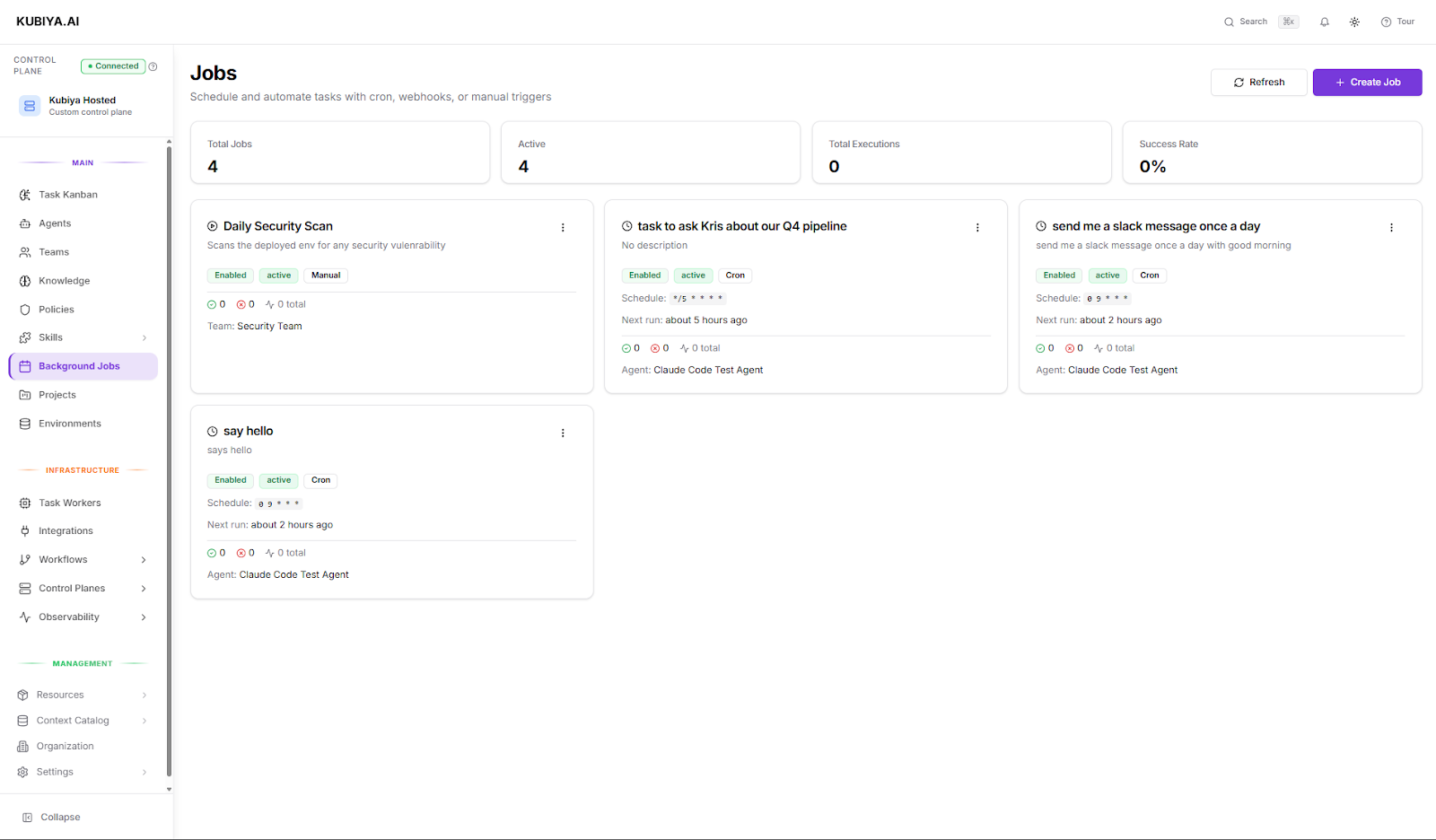 Each Background Job runs through your configured **agents or teams**, inherits environment settings and policies, and executes with the same deterministic and auditable flow as any other Kubiya task.
Use Background Jobs for:
* Daily or weekly system checks and backups
* Routine cost or performance audits
* Automated data synchronization or clean-up tasks
* Scheduled reporting or alerting workflows
## **When to use Background Jobs**
Use Background Jobs when you want operations to run automatically, without requiring a person to manually trigger them each time.
They’re especially useful when:
* You want **repeatable, time-based tasks** (e.g., every day at 9 AM).
* You need **event-based automation** (e.g., triggered by a webhook from GitHub or Jenkins).
* You want to **predefine a standard operation** that can also be started manually by anyone with access.
This helps maintain consistency, reduces manual steps, and ensures that important tasks always run on schedule.
## **How it works**
A Background Job defines three key elements:
* **What to do:** The goal or instruction (in natural language) that describes what Kubiya should execute.
* **When to do it:** A trigger, schedule, webhook, or manual that determines *when* the job starts.
* **Who should do it:** The agent or team responsible for executing the job, using their tools, environment, and permissions.
When a Background Job runs, Kubiya:
1. Interprets your prompt in the context of its assigned project, environment, and policies.
2. Selects the right tools and execution context based on the chosen agent or team.
3. Executes the job deterministically through the configured workers.
4. Streams progress, logs, and results in real time.
This makes recurring operations fully automated, traceable, and policy-compliant.
## **Creating a Background Job**
Each Background Job runs through your configured **agents or teams**, inherits environment settings and policies, and executes with the same deterministic and auditable flow as any other Kubiya task.
Use Background Jobs for:
* Daily or weekly system checks and backups
* Routine cost or performance audits
* Automated data synchronization or clean-up tasks
* Scheduled reporting or alerting workflows
## **When to use Background Jobs**
Use Background Jobs when you want operations to run automatically, without requiring a person to manually trigger them each time.
They’re especially useful when:
* You want **repeatable, time-based tasks** (e.g., every day at 9 AM).
* You need **event-based automation** (e.g., triggered by a webhook from GitHub or Jenkins).
* You want to **predefine a standard operation** that can also be started manually by anyone with access.
This helps maintain consistency, reduces manual steps, and ensures that important tasks always run on schedule.
## **How it works**
A Background Job defines three key elements:
* **What to do:** The goal or instruction (in natural language) that describes what Kubiya should execute.
* **When to do it:** A trigger, schedule, webhook, or manual that determines *when* the job starts.
* **Who should do it:** The agent or team responsible for executing the job, using their tools, environment, and permissions.
When a Background Job runs, Kubiya:
1. Interprets your prompt in the context of its assigned project, environment, and policies.
2. Selects the right tools and execution context based on the chosen agent or team.
3. Executes the job deterministically through the configured workers.
4. Streams progress, logs, and results in real time.
This makes recurring operations fully automated, traceable, and policy-compliant.
## **Creating a Background Job**
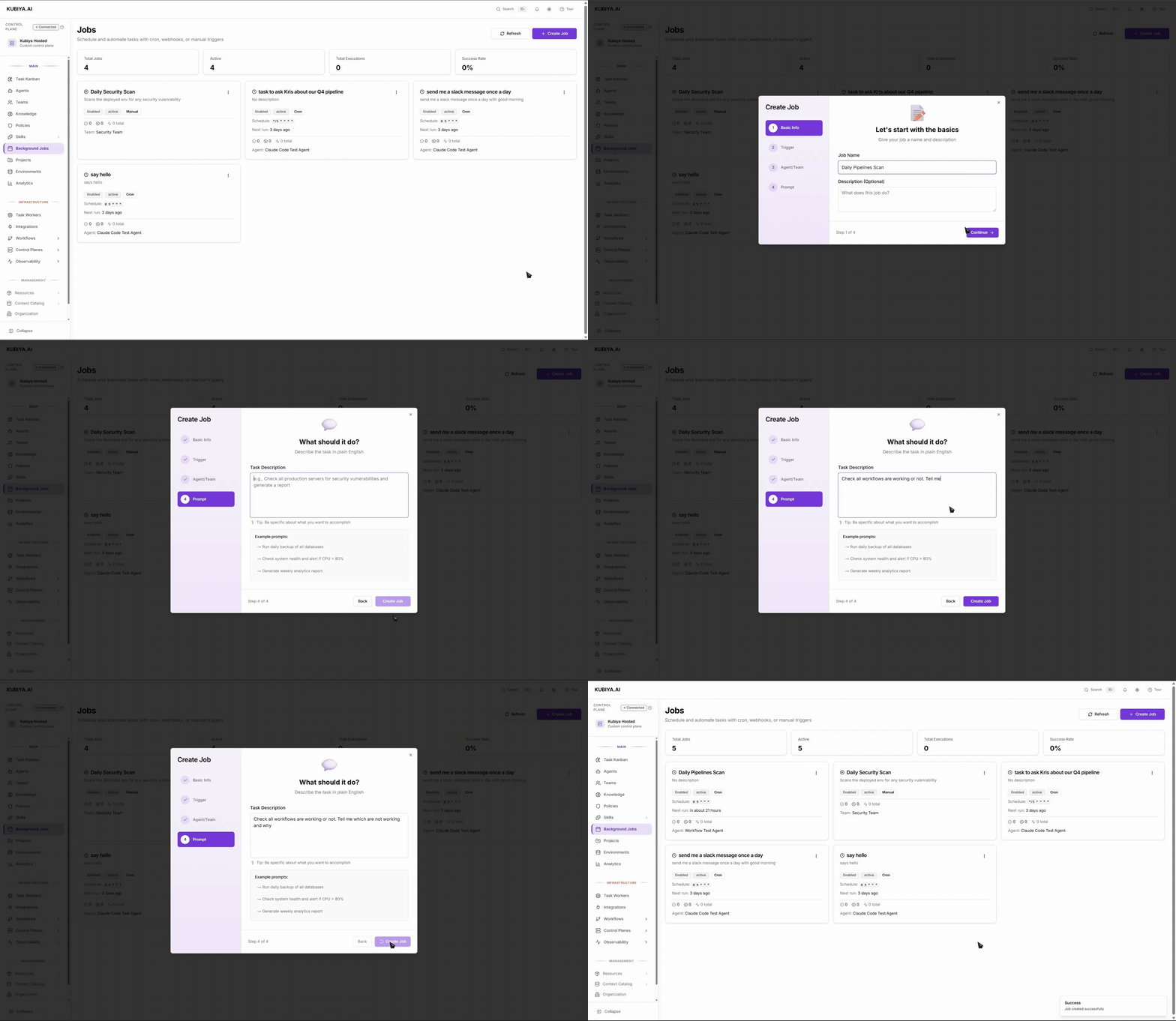 ### **1. Open Background Jobs**
Go to **Background Jobs > Create Job** from the left navigation bar.
### **2. Basic Info**
Provide the general information for your job:
### **1. Open Background Jobs**
Go to **Background Jobs > Create Job** from the left navigation bar.
### **2. Basic Info**
Provide the general information for your job:
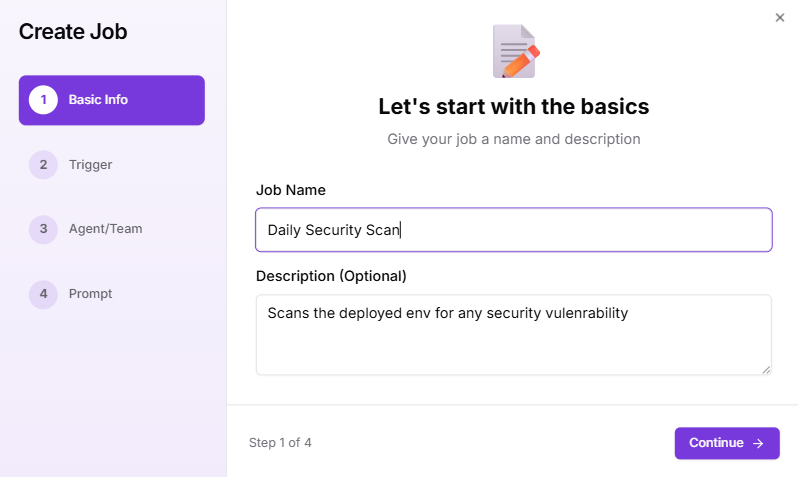 * **Job Name:** A clear and specific name (e.g., *Daily Security Scan*).
* **Description:** (Optional) Add a short explanation of what the job does, such as *Scans the deployed environment for security vulnerabilities*.
This helps you and your team quickly identify jobs in the list and understand their purpose.
### **3. Trigger**
Choose how and when the job should start:
* **Job Name:** A clear and specific name (e.g., *Daily Security Scan*).
* **Description:** (Optional) Add a short explanation of what the job does, such as *Scans the deployed environment for security vulnerabilities*.
This helps you and your team quickly identify jobs in the list and understand their purpose.
### **3. Trigger**
Choose how and when the job should start:
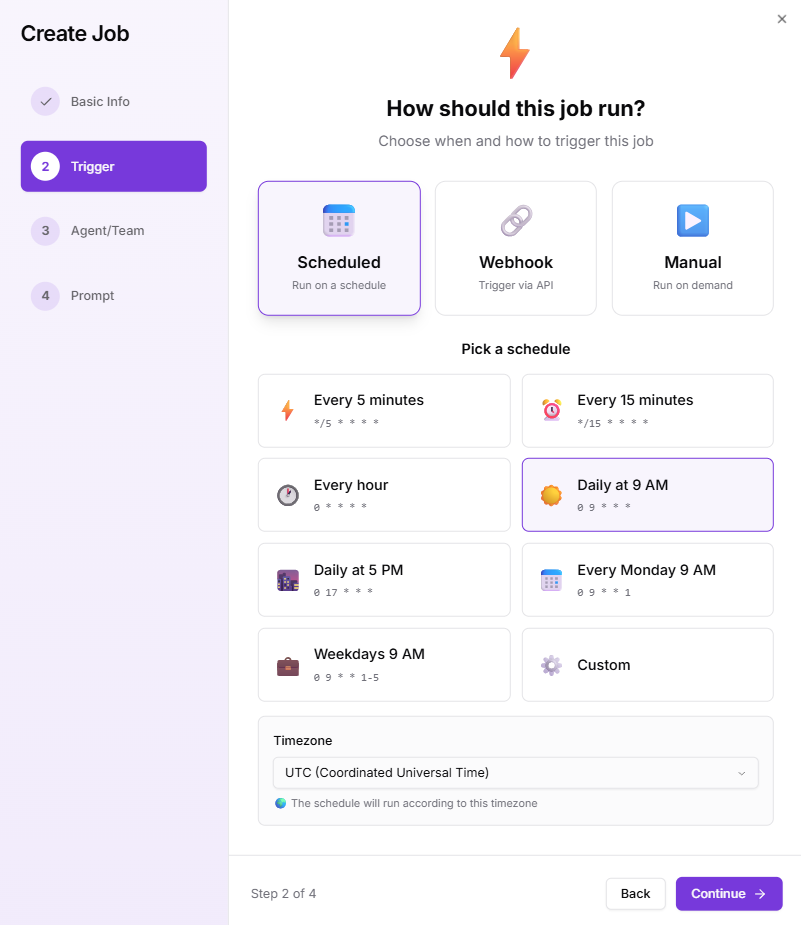 * **Scheduled:** Runs automatically on a set schedule. You can choose presets (e.g., every hour, daily at 9 AM, weekdays at 5 PM) or define a custom CRON expression. This is ideal for maintenance, checks, and recurring updates.
* **Webhook:** Allows an external system (like Jenkins, GitHub, or an internal app) to trigger the job via API. This is useful for event-driven automations, like running tests after a new deployment.
* **Manual:** Lets you or another user start the job on demand, keeping the configuration saved for future use.
You can also set the **timezone** so that all scheduled jobs run at the correct local or global time.
### **4. Agent / Team**
Choose who should handle the execution:
* **Scheduled:** Runs automatically on a set schedule. You can choose presets (e.g., every hour, daily at 9 AM, weekdays at 5 PM) or define a custom CRON expression. This is ideal for maintenance, checks, and recurring updates.
* **Webhook:** Allows an external system (like Jenkins, GitHub, or an internal app) to trigger the job via API. This is useful for event-driven automations, like running tests after a new deployment.
* **Manual:** Lets you or another user start the job on demand, keeping the configuration saved for future use.
You can also set the **timezone** so that all scheduled jobs run at the correct local or global time.
### **4. Agent / Team**
Choose who should handle the execution:
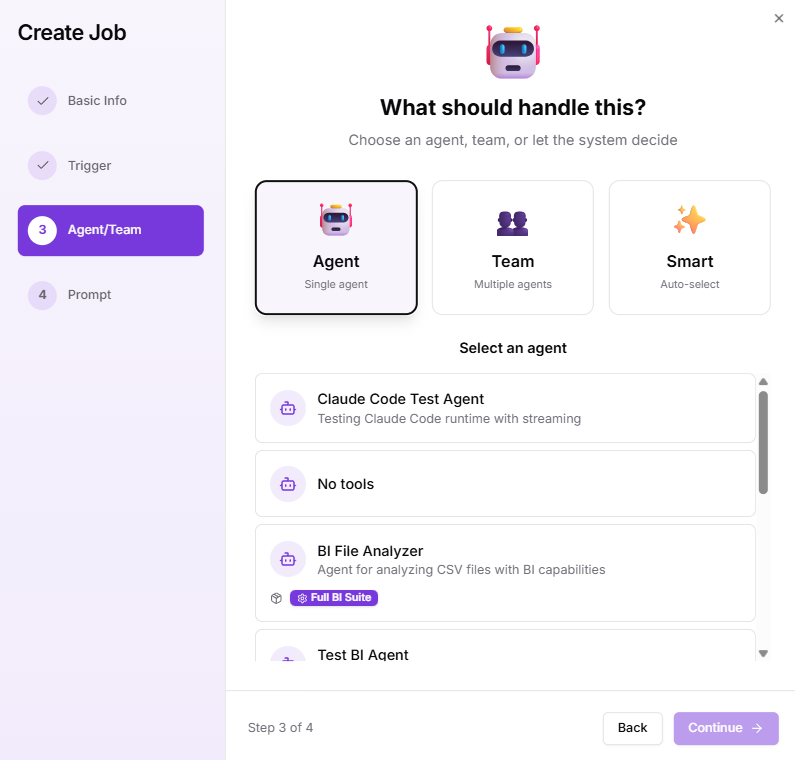 * **Agent:** Assign a specific agent responsible for running the job. This option is ideal for specialized or domain-specific operations (e.g., “Cost Auditor Agent” for cost scans, “DevOps Assistant” for infra tasks). The job will always use this agent’s tools, context, and credentials.
* **Team:** Select a team of agents when the job requires multiple skills or capabilities (for example, scanning for vulnerabilities and then sending the results to Slack). Teams can collaborate within the same job, each performing different subtasks according to their defined roles.
* **Smart:** Let Kubiya automatically choose the best agent at runtime based on the task description, available capabilities, and current workload. This ensures optimal resource usage when you don’t need to assign a fixed executor.
This flexibility allows you to balance precision (fixed assignments) with scalability (dynamic selection).
### **5. Prompt**
Describe exactly what you want the job to do, using plain English.
* **Agent:** Assign a specific agent responsible for running the job. This option is ideal for specialized or domain-specific operations (e.g., “Cost Auditor Agent” for cost scans, “DevOps Assistant” for infra tasks). The job will always use this agent’s tools, context, and credentials.
* **Team:** Select a team of agents when the job requires multiple skills or capabilities (for example, scanning for vulnerabilities and then sending the results to Slack). Teams can collaborate within the same job, each performing different subtasks according to their defined roles.
* **Smart:** Let Kubiya automatically choose the best agent at runtime based on the task description, available capabilities, and current workload. This ensures optimal resource usage when you don’t need to assign a fixed executor.
This flexibility allows you to balance precision (fixed assignments) with scalability (dynamic selection).
### **5. Prompt**
Describe exactly what you want the job to do, using plain English.
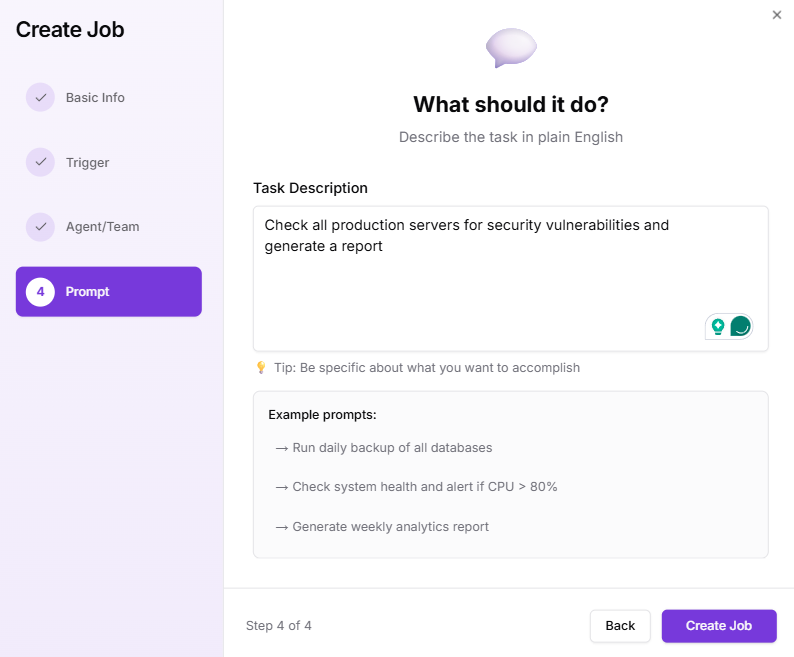 Example:
“Check all production servers for security vulnerabilities and generate a report.”
Be as specific as possible about the desired action, scope, and output. The more context you give, the more accurate and efficient the execution will be.
You can also refer to built-in **example prompts**, such as:
* “Run daily backup of all databases.”
* “Check system health and alert if CPU > 80%.”
* “Generate weekly analytics report.”
Once your prompt is ready, click **Create Job**.
## **Monitoring and management**
After creation, the job appears in your **Background Jobs** dashboard, where you can:
* See all active, paused, or completed jobs at a glance.
* Track **next scheduled runs** and **last execution time**.
* View **execution history**, including logs, status, and results for every run.
* Pause or delete jobs without losing their configuration.
Each job run is fully auditable, Kubiya captures the inputs, outputs, environment context, and runtime logs for review.
## **CLI Usage**
Use the Kubiya CLI to create, schedule, trigger, update, and manage Background Jobs programmatically. Background Jobs allow you to automate recurring or event-driven tasks with CRON schedules or webhooks.
### **1. List Jobs**
Display all Background Jobs configured in the workspace.
**Commands**
```bash theme={null}
kubiya job list
```
```bash theme={null}
kubiya job list -o json
```
### **2. Get Job Details**
Retrieve configuration, triggers, executor details, and status for a specific job.
**Commands**
```bash theme={null}
kubiya job get
```
```bash theme={null}
kubiya job get -o json
```
### **3. Create Jobs**
Define a recurring or event-driven job with a schedule, webhook trigger, or manual trigger.
**Commands**
### **Scheduled job**
```bash theme={null}
kubiya job create \
--name "daily-report" \
--agent \
--schedule "0 9 * * *" \
--prompt "Generate daily report"
```
### **Webhook-triggered job**
```bash theme={null}
kubiya job create \
--name "on-demand" \
--team \
--webhook "/deploy-trigger" \
--prompt "Process incoming deployment event"
```
### **Disabled job (create but do not activate)**
```bash theme={null}
kubiya job create \
--name "future-job" \
--agent \
--schedule "0 0 * * 0" \
--prompt "Weekly maintenance" \
--enabled=false
```
**Flags**
| Flag | Description |
| --------------- | ---------------------------------------------- |
| `--name` | Job name (required) |
| `--prompt` | Task prompt in natural language (required) |
| `--description` | Optional description |
| `--enabled` | Enable job immediately (default true) |
| `--agent` | Agent ID (mutually exclusive with `--team`) |
| `--team` | Team ID (mutually exclusive with `--agent`) |
| `--schedule` | CRON schedule (e.g., `"0 9 * * *"`) |
| `--timezone` | Schedule timezone (e.g., `"America/New_York"`) |
| `--webhook` | Webhook path for external triggers |
### **4. Update Jobs**
Modify the schedule, executor, prompt, or description of an existing job.
**Commands**
```bash theme={null}
# Update schedule
kubiya job update \
--schedule "0 12 * * *"
```
```bash theme={null}
# Update prompt
kubiya job update \
--prompt "Regenerate analytics dashboard"
```
```bash theme={null}
# Rename job
kubiya job update \
--name "Midday Analytics Job"
```
### **5. Trigger Jobs Manually**
Run a Background Job immediately, regardless of schedule or webhook.
**Commands**
```bash theme={null}
kubiya job trigger
```
### **6. Enable or Disable Jobs**
Pause or resume a job without deleting it.
### **Disable**
```bash theme={null}
kubiya job disable
```
### **Enable**
```bash theme={null}
kubiya job enable
```
### **7. View Job Executions**
Display the execution history for a job.
**Commands**
```bash theme={null}
kubiya job executions
```
```bash theme={null}
kubiya job executions -o json
```
### **8. Delete Jobs**
Remove a Background Job permanently.
**Commands**
```bash theme={null}
kubiya job delete
```
## **Best practices**
* **Start small:** Test new jobs with manual or low-frequency triggers before scheduling frequent runs.
* **Be descriptive:** Clear names and prompts help others understand and reuse your jobs.
* **Use teams for complex workflows:** When a job spans multiple domains (e.g., DevOps + Security), assign a team instead of a single agent.
* **Monitor periodically:** Review logs and results to confirm jobs are completing as expected.
* **Combine with policies:** Add OPA policies to control what scheduled jobs are allowed to access or modify.
## **Troubleshooting**
If a Background Job doesn’t run or complete successfully:
* Check that the **assigned agent or team** is active and properly configured.
* Confirm that the **trigger schedule or webhook** is correctly set and firing.
* Verify that the **Environment** the agent runs in is in *Ready* state with access to all required tools and credentials.
* Review execution logs in the job details for any step-level errors or missing permissions.
Example:
“Check all production servers for security vulnerabilities and generate a report.”
Be as specific as possible about the desired action, scope, and output. The more context you give, the more accurate and efficient the execution will be.
You can also refer to built-in **example prompts**, such as:
* “Run daily backup of all databases.”
* “Check system health and alert if CPU > 80%.”
* “Generate weekly analytics report.”
Once your prompt is ready, click **Create Job**.
## **Monitoring and management**
After creation, the job appears in your **Background Jobs** dashboard, where you can:
* See all active, paused, or completed jobs at a glance.
* Track **next scheduled runs** and **last execution time**.
* View **execution history**, including logs, status, and results for every run.
* Pause or delete jobs without losing their configuration.
Each job run is fully auditable, Kubiya captures the inputs, outputs, environment context, and runtime logs for review.
## **CLI Usage**
Use the Kubiya CLI to create, schedule, trigger, update, and manage Background Jobs programmatically. Background Jobs allow you to automate recurring or event-driven tasks with CRON schedules or webhooks.
### **1. List Jobs**
Display all Background Jobs configured in the workspace.
**Commands**
```bash theme={null}
kubiya job list
```
```bash theme={null}
kubiya job list -o json
```
### **2. Get Job Details**
Retrieve configuration, triggers, executor details, and status for a specific job.
**Commands**
```bash theme={null}
kubiya job get
```
```bash theme={null}
kubiya job get -o json
```
### **3. Create Jobs**
Define a recurring or event-driven job with a schedule, webhook trigger, or manual trigger.
**Commands**
### **Scheduled job**
```bash theme={null}
kubiya job create \
--name "daily-report" \
--agent \
--schedule "0 9 * * *" \
--prompt "Generate daily report"
```
### **Webhook-triggered job**
```bash theme={null}
kubiya job create \
--name "on-demand" \
--team \
--webhook "/deploy-trigger" \
--prompt "Process incoming deployment event"
```
### **Disabled job (create but do not activate)**
```bash theme={null}
kubiya job create \
--name "future-job" \
--agent \
--schedule "0 0 * * 0" \
--prompt "Weekly maintenance" \
--enabled=false
```
**Flags**
| Flag | Description |
| --------------- | ---------------------------------------------- |
| `--name` | Job name (required) |
| `--prompt` | Task prompt in natural language (required) |
| `--description` | Optional description |
| `--enabled` | Enable job immediately (default true) |
| `--agent` | Agent ID (mutually exclusive with `--team`) |
| `--team` | Team ID (mutually exclusive with `--agent`) |
| `--schedule` | CRON schedule (e.g., `"0 9 * * *"`) |
| `--timezone` | Schedule timezone (e.g., `"America/New_York"`) |
| `--webhook` | Webhook path for external triggers |
### **4. Update Jobs**
Modify the schedule, executor, prompt, or description of an existing job.
**Commands**
```bash theme={null}
# Update schedule
kubiya job update \
--schedule "0 12 * * *"
```
```bash theme={null}
# Update prompt
kubiya job update \
--prompt "Regenerate analytics dashboard"
```
```bash theme={null}
# Rename job
kubiya job update \
--name "Midday Analytics Job"
```
### **5. Trigger Jobs Manually**
Run a Background Job immediately, regardless of schedule or webhook.
**Commands**
```bash theme={null}
kubiya job trigger
```
### **6. Enable or Disable Jobs**
Pause or resume a job without deleting it.
### **Disable**
```bash theme={null}
kubiya job disable
```
### **Enable**
```bash theme={null}
kubiya job enable
```
### **7. View Job Executions**
Display the execution history for a job.
**Commands**
```bash theme={null}
kubiya job executions
```
```bash theme={null}
kubiya job executions -o json
```
### **8. Delete Jobs**
Remove a Background Job permanently.
**Commands**
```bash theme={null}
kubiya job delete
```
## **Best practices**
* **Start small:** Test new jobs with manual or low-frequency triggers before scheduling frequent runs.
* **Be descriptive:** Clear names and prompts help others understand and reuse your jobs.
* **Use teams for complex workflows:** When a job spans multiple domains (e.g., DevOps + Security), assign a team instead of a single agent.
* **Monitor periodically:** Review logs and results to confirm jobs are completing as expected.
* **Combine with policies:** Add OPA policies to control what scheduled jobs are allowed to access or modify.
## **Troubleshooting**
If a Background Job doesn’t run or complete successfully:
* Check that the **assigned agent or team** is active and properly configured.
* Confirm that the **trigger schedule or webhook** is correctly set and firing.
* Verify that the **Environment** the agent runs in is in *Ready* state with access to all required tools and credentials.
* Review execution logs in the job details for any step-level errors or missing permissions.